Try a force restart first. It fixes the majority of black-screen iPhones and never touches your data. If the screen stays dark after that, charge the device with a known-good cable for 15 to 30 minutes and try again. Only if both steps fail should you move to Recovery Mode, DFU, or a hardware diagnostic.
TL;DR:
- Most black screens on iPhones result from software glitches or display backlight issues that can often be fixed with a force restart and proper charging.
- Excluding hardware problems, about 80 to 90 percent of cases where the device still responds indicate software-related causes that clear up with basic troubleshooting steps.
- Attempting DFU mode is a last resort, as it wipes the device and carries a higher risk of data loss, so it should only be done after exhausting simpler fixes.
- Physical clues such as the absence of light even in darkness, water damage indicators, or recent drops suggest hardware failure, like a broken display connector or dead battery.
- Routine maintenance, like regular backups and using certified chargers, prevents many future black screen issues.
Table of Contents
- What a Black Screen iPhone Actually Means
- How to Fix an iPhone Black Screen Step by Step
- When Should You Try DFU Mode?
- Signs the Problem Is Hardware, Not Software
- Preventing Future Black Screen Problems
- Why Most Guides Get the Order Wrong
- Get Your iPhone Screen Fixed Today
- Sources
- FAQ
What a Black Screen iPhone Actually Means
A black display doesn’t always mean a dead phone. Your iPhone might be fully powered on with a display that has stopped rendering, which is a very different problem than a phone that’s actually off.
Here’s how to tell the difference in under a minute:
- Listen and feel. Call the phone from another line. A ring, vibration, or Siri response means the phone is on and the issue is the screen, not the power system.
- Check for light. In a dark room, shine a flashlight at an angle across the glass. A faint image underneath suggests the backlight failed but the panel is still working.
- Ask Siri to help. Say “Hey Siri, increase brightness.” If Siri responds and the screen brightens even slightly, accidental dimming or an auto-brightness glitch may be the entire problem.
- Strip the accessories. Remove the case, disconnect any dongles or docks, and swap to a different Apple-certified cable and wall adapter. Skip laptop USB ports for this test. Some deliver too little current to revive a deeply drained battery.
Pro Tip: If your iPhone rings when called but the screen stays black, don’t force restart yet. Try the brightness and flashlight checks first. A working phone with a display glitch sometimes needs nothing more than a settings reset once you’re back in.
How to Fix an iPhone Black Screen Step by Step
Most cases of an iPhone screen going black can be resolved by a sequence of three steps. Skipping ahead to Recovery Mode before trying a force restart wastes time and risks unnecessary data loss.
1. Force restart based on your model. For iPhone 8 and later, including every current Face ID model, press and quickly release volume up, press and quickly release volume down, then press and hold the side button until the Apple logo appears. That can take longer than 10 seconds, so don’t let go early just because nothing seems to be happening. On an iPhone 7 or 7 Plus, hold the side button and volume down together. On an iPhone 6s or earlier with a Home button, hold the Home button and the top or side button together. Every one of these sequences clears a frozen display driver or a hung app without erasing a single photo or message.
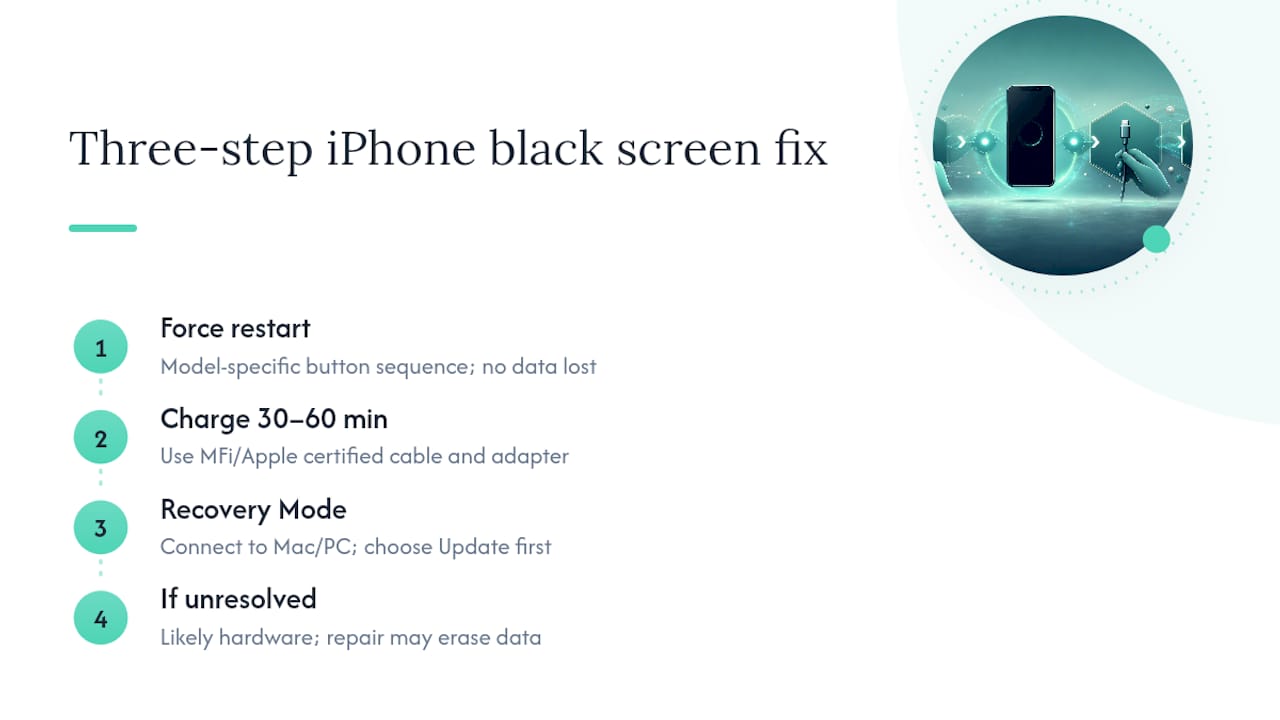
2. Charge with a cable and adapter you know work. If the force restart produces nothing, plug the iPhone into a wall outlet using an MFi-certified Lightning or USB-C cable and an Apple-branded (or genuinely certified) power adapter. Apple recommends charging for 30 to 60 minutes before assuming the worst, and a known-good wall adapter with higher wattage matters more than people expect. Cheap third-party cables and low-output ports are a common, boring reason an iPhone appears completely dead when the battery is simply too depleted to wake the system. Watch for the charging symbol or a faint Apple logo as your sign that power is flowing again.
3. Try Recovery Mode through Finder or iTunes. If the screen is still black after a real charge attempt, connect the iPhone to a Mac (via Finder) or a PC (via iTunes) using a cable, then trigger Recovery Mode with the same button sequence as a force restart, holding it through the point where the phone would normally restart. Once your computer detects a device in recovery, you’ll see an option to Update or Restore. Choose Update first. It reinstalls iOS while attempting to preserve your data, which makes it the safer of the two. Only choose Restore, which erases the device completely, if Update fails or isn’t offered.
Anecdotal reports across repair forums and troubleshooting guides suggest that when an iPhone still vibrates, rings, or responds to Siri while the screen stays black, roughly 80 to 90 percent of those cases turn out to be software related and clear up with the steps above. That’s not a clinical statistic, just a pattern seen often enough to matter, but it’s a good reason to exhaust these three steps before assuming your hardware is failing.
Expect a full cycle through all three steps to take somewhere between 20 minutes and just over an hour, mostly spent waiting on the charge. If you reach the end of Recovery Mode with no change, you’re dealing with either a deeper software fault or a hardware issue, and it’s time to move on to the next tier.
When Should You Try DFU Mode?
DFU (Device Firmware Update) mode goes a level deeper than Recovery Mode. Where Recovery reinstalls iOS on top of the existing system, DFU wipes and reloads the phone’s low-level firmware, which carries a higher risk of data loss and should be treated as a near-last resort for software fixes.
A few things worth knowing before you attempt it:
- Entering DFU involves a precise, timed sequence of button presses that’s easy to get wrong on the first try. If your screen stays black through the process and Finder or iTunes still can’t detect the device after a couple of careful attempts, stop.
- DFU restores typically erase the device, so back up first if there’s any way to do so, even a partial iCloud sync from before the screen went dark.
- Third-party system-repair tools exist that promise to fix a black screen without Apple’s software. Some are legitimate, but plenty ask for deep system access or bundle unwanted software. Stick to Apple’s own tools whenever possible.
- If Finder or iTunes can’t recognize your iPhone at all, no matter how many times you retry the cable, port, or sequence, that’s a strong signal the fault sits in the hardware, not the firmware.
Pro Tip: Before attempting DFU mode, write down the exact model and iOS version if you know them. A repair technician or Apple Support advisor will ask, and having it ready saves a round of guesswork.
Signs the Problem Is Hardware, Not Software
A logic board or display connector failure looks identical to a software freeze from the outside. Both leave you staring at a black screen. The difference shows up in a handful of physical clues.
- Bright-light test again. No faint image at any angle, even in total darkness, points toward a dead backlight or a failed OLED panel rather than a software crash.
- Charging chime. If plugging in produces no sound, no vibration, and no warmth from the battery area after 30 minutes, the charging circuit or battery itself may have failed.
- SIM tray liquid indicator. Pop out the SIM tray and check the small white or silver dot near the tray slot. If it’s turned red or pink, water damage is likely involved.
- Physical inspection. Cracked glass, a bent frame, or a phone that was recently dropped points toward a broken display connector, which mimics a total black screen even when the rest of the phone runs fine.
Common causes at this stage include a failed display cable, a swollen or dead battery, backlight failure, or, less often, logic board damage. A professional diagnostic can isolate which one you’re dealing with in minutes rather than leaving you guessing with mismatched YouTube advice.
| Signal | Likely cause | Typical fix |
|---|---|---|
| No light, no chime, no vibration | Dead battery or charging circuit | Battery replacement |
| Faint image under flashlight | Backlight or display cable failure | Screen replacement |
| Detected by Finder, screen stays black | Display connector or panel | Screen replacement |
| Red SIM indicator | Water damage | Full diagnostic and corrosion cleaning |
| Not detected at all after DFU attempts | Logic board damage | In-depth logic board diagnostic |
Repairs can often be completed same-day, frequently within 30 to 45 minutes, using quality-tested parts installed by technicians, backed by a 30-day warranty.
Preventing Future Black Screen Problems
A little routine maintenance keeps most of these failures from happening twice. Small habits around charging and updates matter more than most owners assume.
- Back up to iCloud or a computer on a regular schedule so a future black screen never threatens your photos or messages again.
- Only install iOS updates when you have sufficient free storage. A failed update mid-install is a common trigger for a stuck black screen.
- Use a case with proper port covers in wet or humid environments, and dry the phone fully before charging if it gets splashed.
- Remove thick cases during charging or heavy use. Trapped heat stresses the battery and display over time.
- Stick to certified cables and adapters. Cheap third-party chargers are a recurring cause of both slow charging and sudden power failures.
After any recovery, whether it’s a simple force restart or a full Recovery Mode reinstall, confirm your backups actually completed, check Battery Health under Settings, and update your apps before you consider the incident closed.
Why Most Guides Get the Order Wrong
Plenty of troubleshooting advice throws every fix at the reader at once: force restart, DFU, third-party tools, and a hardware diagnostic, all in the same breath. That’s the wrong instinct. The order matters as much as the steps themselves, because each tier carries more risk to your data than the one before it.

The conventional wisdom treats Recovery Mode and DFU as roughly interchangeable, when they’re not. Recovery’s Update option tries to save your data. DFU and Restore don’t make that promise. Jumping straight to DFU because a forum post recommended it skips a safer option that would have worked just as well for most software failures.
What the evidence actually supports is patience with the free fixes and quick honesty about hardware. If a force restart, a real charge, and Recovery Mode all fail, you’re very likely looking at a battery, display connector, or logic board issue, not a setting you haven’t found yet. At that point, a diagnostic from someone who can open the phone and look tells you more in ten minutes than another hour of retrying the same button sequence.
— SS
Get Your iPhone Screen Fixed Today
If the steps above didn’t bring your screen back, the problem is very likely hardware, and that’s exactly where Mobilecareusa earns its keep. Rather than mailing your phone off and waiting days, Mobilecareusa diagnoses and repairs most black-screen iPhones, including display, battery, and charging port issues, the same day, usually within 30 to 45 minutes.

Every repair uses quality-tested parts installed by certified technicians, with transparent pricing and a 30-day warranty backing the work. That combination has earned a 4.8 out of 5 rating from more than 2,000 customers who needed their phone working again, not sitting in a shipping box. Browse the full list of mobile, tablet, and laptop repair services, then stop by the Cumberland Mall location for a same-day diagnostic and get your screen working again before the day is out.
Sources
FAQ
Why is my iPhone screen black but the phone is still on?
The phone is powered and running but the display itself has stopped rendering, usually from a software crash, a frozen app, or a hardware fault in the backlight or display connector. Call the phone or ask Siri to raise the brightness to confirm it’s on before troubleshooting further.
How do I get my iPhone out of black screen mode?
Start with a force restart using the sequence for your model. For iPhone 8 and later, press volume up, press volume down, then hold the side button until the Apple logo appears. If that fails, charge for 30 to 60 minutes with a certified cable, then try Recovery Mode.
Why did my iPhone screen turn black all of a sudden?
Sudden black screens usually trace back to a software crash, a battery that dropped to critical levels without warning, or a physical impact that damaged the display connector. A force restart resolves the software cases quickly, while hardware causes need a diagnostic to confirm.
How do I fix the black screen of death on my iPhone?
Work through force restart, then a full charge with a known-good cable and adapter, then Recovery Mode using Update before Restore. If none of those bring the display back, the issue is almost certainly a hardware failure that needs professional diagnostics, which Mobilecareusa can complete same-day.
Is a black screen always a sign of hardware failure?
No. Software glitches, failed updates, and drained batteries cause most black screens, and force restart alone resolves a large share of them without any data loss. Hardware failure becomes the likely explanation only after force restart, charging, and Recovery Mode all fail to bring the display back.