Most camera black screens are resolved by safe, reversible checks, not a repair. Force-quit the camera app, restart the device, and remove any case or lens protector before doing anything else. If the screen stays black after those three steps, work through a full diagnostic checklist to figure out whether an app, the operating system, or the hardware itself is the problem.
TL;DR:
- Most camera black screens are caused by software issues such as stuck apps, permissions, or cache problems, and often resolve with simple, reversible checks.
- Hardware problems are indicated when the black screen occurs across multiple apps or devices, or after physical damage like drops or water exposure.
- A full reset or factory restore is rarely the right first step; testing the same lens across multiple apps or devices helps diagnose hardware faults early.
- Clearing storage, removing magnetic accessories, and updating the device’s software can fix black screens caused by storage or interference issues.
- Professional repair should be considered when a lens fails in all apps and devices, especially after physical trauma or persistent software troubleshooting.
Table of Contents
- Quick Checklist: 10 Safe Checks to Run Right Now
- Device-Specific Fixes: iPhone, Android, Windows, Mac, and Standalone Cameras
- How Do You Know If It’s the App, the OS, or the Hardware?
- Why Storage, Permissions, and Accessories Cause Black Screens
- Fixing a Camera Black Screen Over a USB Connection
- When Should You Stop Troubleshooting and Get It Repaired?
- A Technician’s Take on Black Screen Troubleshooting
- Mobile Care: Same-Day Camera Diagnostics When Software Fixes Run Out
- Sources
- FAQ
Quick Checklist: 10 Safe Checks to Run Right Now
Before you assume the worst, run through these steps in order. Each one is reversible, so you lose nothing by trying them all.
- Force-quit the camera app and reopen it. A stuck process is the single most common cause of a camera black screen.
- Force restart or reboot the device. This clears memory conflicts that a simple app close won’t touch.
- Remove the case, lens protector, or any magnetic accessory, then check whether the lens area is clean or obstructed.
- Switch between front and rear cameras and different modes (photo, video, portrait) and note whether the black screen follows one lens or all of them.
- Close background apps and test other camera-using apps, like a messaging app or video-call service.
- Check Camera permissions under your device’s privacy settings, and confirm Screen Time or parental restrictions aren’t blocking access.
- Test the flashlight or LED. If it works normally, that helps rule out a total camera-module failure.
- Free up several gigabytes of storage and retry. The camera needs buffer space to load a live preview and save temporary files.
- Disable Low Power Mode and let an overheated device cool down for 10 to 15 minutes before testing again.
- Try Safe Mode on Android or reinstall the app if the failure looks app-specific. For standalone cameras, reseat the battery and memory card, power-cycle the unit, and try a different USB cable.
Pro Tip: Keep a mental note of exactly when the black screen started, whether that’s right after a software update, a drop, or a case swap. That single detail usually points a technician straight to the fix.
Device-Specific Fixes: iPhone, Android, Windows, Mac, and Standalone Cameras
Once you’ve run the general checklist, the fastest path depends on what you’re holding.
iPhone:
- Force restart by holding the side button and either volume button until the Apple logo appears.
- Go to Settings, then Privacy & Security, then Camera, and confirm the app has access.
- Watch for an “Unknown Part” message, which signals a previous repair used a non-genuine camera component.
- Update iOS. Camera regressions after a new release often get patched within days, and community reports confirm that many iPhone black-screen issues clear up with a force restart or a subsequent update.
Android:
- Clear the camera app’s cache in Settings under Apps.
- Boot into Safe Mode to see if a third-party app is the culprit.
- Reset the camera app to its default settings and re-grant permissions.
- Install any pending system update.
Windows and Mac:
- Test the camera in a different app, such as Zoom, the built-in Camera app, or Google Meet.
- On Windows, check Device Manager and Camera privacy settings; community threads on Microsoft Learn point to driver reinstalls and permission fixes as the most common solutions.
- Update or reinstall the camera driver, or check macOS security settings to confirm the app has camera access.
Standalone cameras:
- Check for the lens cap, reseat the battery and memory card, and confirm the menu is set to USB, Transfer, or PTP mode rather than Mass Storage.
- Try a different cable or port before assuming hardware failure.
How Do You Know If It’s the App, the OS, or the Hardware?
Run the same lens through multiple apps before you touch anything else. Open the stock camera app, then a social app, then a video-call app, using the same lens each time.
- If one lens fails in every app you try, that points to a hardware problem, most likely the camera module or its connector.
- If the black screen only happens in one app, the cause is almost always a permissions issue or a corrupted app install, not hardware.
- Use Safe Mode on Android or a new user account on a desktop as a clean-slate test that removes third-party software from the equation.
- Check the flashlight and the camera-in-use indicator light. If both behave normally while the preview stays black, that narrows the cause toward a display or connector issue rather than total sensor failure.
Vendor guidance backs this cross-app method as the most reliable way to separate software conflicts from hardware faults. Once the pattern points to hardware, stop running destructive steps like factory resets. They won’t fix a broken connector, and they will cost you time and data for nothing.
Why Storage, Permissions, and Accessories Cause Black Screens
A camera app needs breathing room to work. Low storage is a quiet but common trigger for a black preview, because the camera buffers photos and video in temporary files before you hit save, and a nearly full device can’t allocate that space.
- Free up at least a few gigabytes and try again before assuming anything is broken.
- Check Camera permissions in your privacy settings, and look at Screen Time or parental-control restrictions that may be silently blocking access.
- Remove cases, lens protectors, and magnetic mounts. Apple specifically warns that strong magnets and certain accessories can interfere with camera components, including image stabilization hardware.
- Confirm any lens protector is aligned correctly. A slightly off-center protector can blur or darken the preview enough to look like a hardware fault.
- Check for a recent OS update. Manufacturers regularly ship patches that fix camera regressions introduced by a previous release.
Pro Tip: If the black screen started right after you added a new magnetic wallet or car mount, remove it before you do anything else. This fixes more cases than people expect.
Fixing a Camera Black Screen Over a USB Connection
A camera that shows a live preview on its own screen but goes black the moment it’s tethered to a computer usually points to a connection or driver issue, not the camera itself.
- Power-cycle both the camera and the computer, then reconnect using a different USB cable and a different port.
- Check the camera’s USB or transfer mode setting and switch it to Normal, Mass Storage, or PTP, depending on what your software expects.
- Reinstall the camera or USB drivers on Windows, or check macOS security and privacy settings to confirm the app has permission to access the camera.
- Test the camera on a second computer. If it works there, the problem is with the original machine, not the camera.
Sony’s own troubleshooting for tethered cameras follows this exact sequence, recommending a power cycle, a cable or port swap, and a transfer-mode check before anything more involved.
When Should You Stop Troubleshooting and Get It Repaired?
Some symptoms are worth recognizing early, because no software fix will resolve them.
- The same lens fails across every app and every device you test it on. That’s a hardware signature, not a software glitch.
- The black screen appeared right after a drop or water exposure.
- The problem survives a full OS restore or DFU restore. If the software has been wiped and reinstalled and the camera still shows black, the fault sits in the hardware.
- The screen goes dark when you tilt or flex the device, which Sony notes can indicate a severed internal connection between the camera and the display that needs professional service.
A typical repair workflow runs diagnostics first, quotes the fix (usually a camera module, flex cable, or connector replacement), swaps the part, and runs a quality check before handing the device back with a short warranty. Back up your data before you go in, bring the device powered on if you can, and expect many repair shops to turn around a common smartphone camera module swap the same day, often within 30 to 45 minutes.
A Technician’s Take on Black Screen Troubleshooting
The biggest mistake people make is jumping straight to a factory reset. It feels like the “nuclear option” that fixes everything, but it’s almost never the right first move. A reset wipes data, takes time to rebuild, and does nothing for a failed camera module. Reversible checks come first, always.
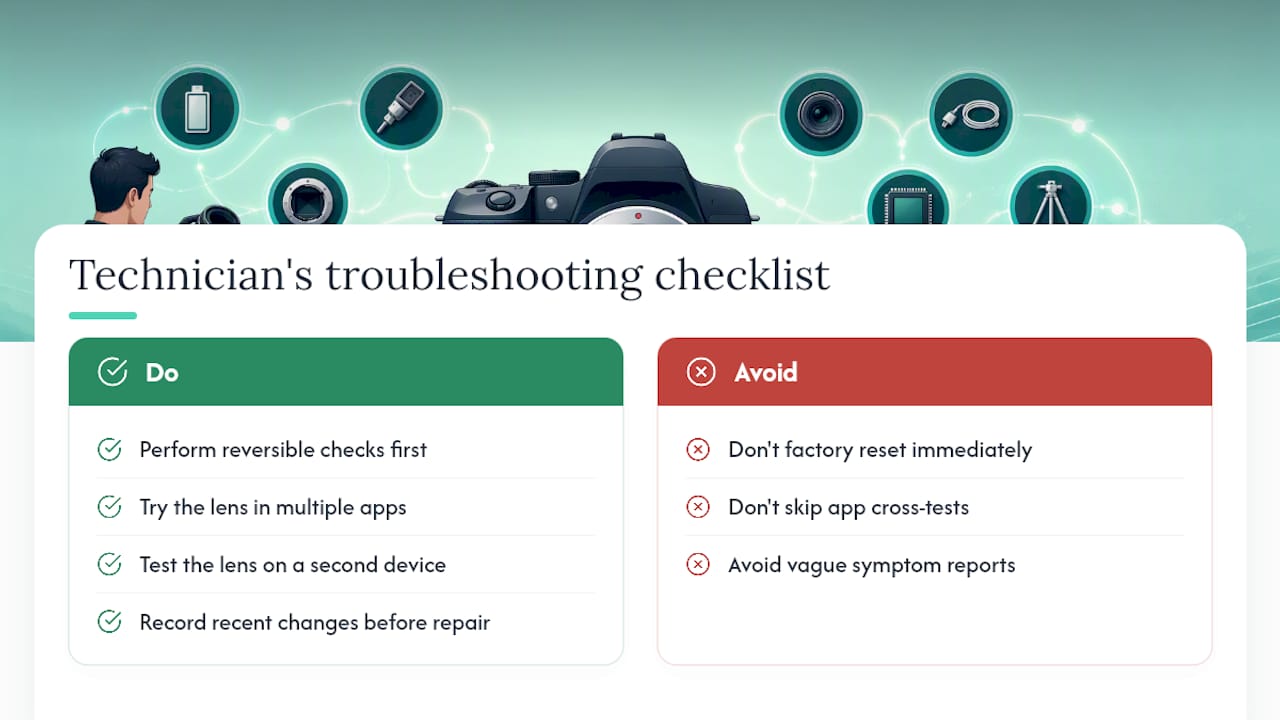
The most useful diagnostic habit isn’t fancy. Test the same lens across two or three different apps, and if you can, on a second device. A single lens that fails everywhere is hardware. A failure limited to one app is almost always software.
Before booking a repair, write down what changed right before the black screen appeared. A recent drop, a new case, or an update installed that morning tells a technician more in ten seconds than a vague “it just stopped working” ever will.
— SS
Mobile Care: Same-Day Camera Diagnostics When Software Fixes Run Out
If you’ve run through force restarts, permission checks, and cable swaps and the camera still shows black, Mobilecareusa gets you a real answer fast instead of another round of guesswork. Diagnostics and most camera repairs are completed the same day, typically in 30 to 45 minutes, using quality-tested parts installed by certified technicians and backed by a 30-day warranty.

Bring your device in if you’ve spotted any of the red flags covered above: a single lens failing across every app, damage after a drop or water exposure, or an “Unknown Part” message suggesting a previous non-genuine repair. Back up your data beforehand if you can, and bring the device powered on so the technician can reproduce the issue immediately. Walk into a location like Cumberland Mall or Perimeter Mall, and you’ll get a diagnosis on the spot along with a transparent quote before any work starts. Check Mobilecareusa’s full service list to see what’s covered, then stop by the location nearest you to get your camera working again today.
Sources
- The camera displays a blank or black screen when connected to a computer — Sony support
- If your iPhone camera isn’t working as expected — Apple Support (magnetic accessories note)
- Camera shows black screen windows 11 — Microsoft Learn Answers
- Camera app opens to a black screen after iOS update — Apple Discussions
FAQ
How Do I Fix a Camera That’s Completely Black?
Force-quit the camera app, restart the device, and remove any case or lens protector, then test the same lens in a different app to see if the black screen follows it everywhere.
Why Is My Camera Just a Black Screen on My iPhone?
The most common causes are a stuck app, a permissions issue, an outdated iOS version, or a magnetic accessory interfering with the camera; a force restart and iOS update resolve the majority of these cases, according to Apple Discussions.
Why Is My Camera Showing No Video at All?
If the camera shows no video in every app and on every device you try, it usually points to a hardware fault in the module, flex cable, or connector rather than a software setting.
Why Did My Phone Camera Go Black Suddenly?
A sudden black screen is often triggered by a recent software update, a new case or magnetic mount, low storage, or an overheated device, and running through the quick checklist above usually identifies which one applies.
When Should I Get My Camera Professionally Repaired?
Seek a repair once a single lens fails consistently across multiple apps and devices, the issue started after a drop or water exposure, or it persists after a full OS restore; shops like Mobilecareusa typically diagnose and repair common camera module issues the same day.