Shut the laptop down or close whatever is straining it, set it on a hard flat surface, and unplug anything you don’t need running. If it’s hot to the touch, stays hot after a few minutes idle, or has shut down on its own more than once, stop using it and get it looked at rather than pushing through; see Why Do MacBooks Overheat? Causes and Fixes for Apple-specific thermal management tips. Everything below walks through the fast fixes, the diagnostic checks, and exactly when DIY needs to hand off to a technician.
TL;DR:
- Keeping the laptop on a hard, flat surface and closing background processes can reduce overheating caused by poor airflow and high CPU usage.
- Regularly cleaning dust from vents and heat sinks can lower idle temperatures and prevent component failure, especially in older machines.
- Monitoring temperatures and fan behavior helps identify whether heat issues stem from dust buildup, failing fans, or thermal throttling due to firmware limits.
- Updating BIOS and drivers, reducing maximum processor usage, and avoiding software causing excessive CPU load can resolve software-related heat problems.
- Hardware repairs such as reapplying thermal paste or replacing fans are necessary if cleaning and software fixes do not achieve sustained temperature control.
Table of Contents
- Fast, No-Tools Fixes You Can Do in Minutes
- How to Diagnose the Cause: Symptoms and Quick Checks
- Software, Firmware, and Settings Changes That Reduce Heat
- Safe Hardware Maintenance: Cleaning Vents, Testing Fans, and Repasting
- When to Take the Laptop to a Repair Shop
- Performance vs. Noise vs. Longevity: What’s Actually Normal
- Mobile Care: Same-Day Laptop Repair When DIY Hits Its Limit
- Sources
- FAQ
Fast, No-Tools Fixes You Can Do in Minutes
Most laptop overheating cases trace back to two things: blocked airflow or a background process eating your CPU. Fixing either one usually brings temperatures down within minutes, and you don’t need any tools to try.
- Get it onto a hard, flat surface. Beds, couches, and laps block the intake and exhaust vents on the bottom and sides of the chassis. A desk, table, or tray works. Propping the back edge up slightly with a book adds extra clearance for airflow underneath.
- Open Task Manager (Ctrl+Shift+Esc on Windows) and sort by CPU. If one process is pinned near 100% and you don’t recognize it, close it. This single step resolves a large share of overheating complaints tied to runaway background tasks, according to TeamViewer’s troubleshooting guidance.
- Switch your power plan to Balanced or Power Saver. High-performance modes push the CPU and GPU harder than most everyday tasks need.
- Lower screen brightness and disconnect anything drawing extra power, like external hard drives, USB hubs, or a second monitor. Unplug the charger if you’re not actively charging. Charging adds heat on top of whatever the CPU is already generating, which is why plenty of people notice their laptop overheating when charging during heavy use.
- Add airflow with a fan or cooling pad if you have one nearby. Even a desk fan aimed at the vents helps while you work through the rest of the fixes.
Avoid soft surfaces entirely until the laptop cools down, since fabric and cushions can trap heat around the intake vents and make the fan work harder for less benefit.
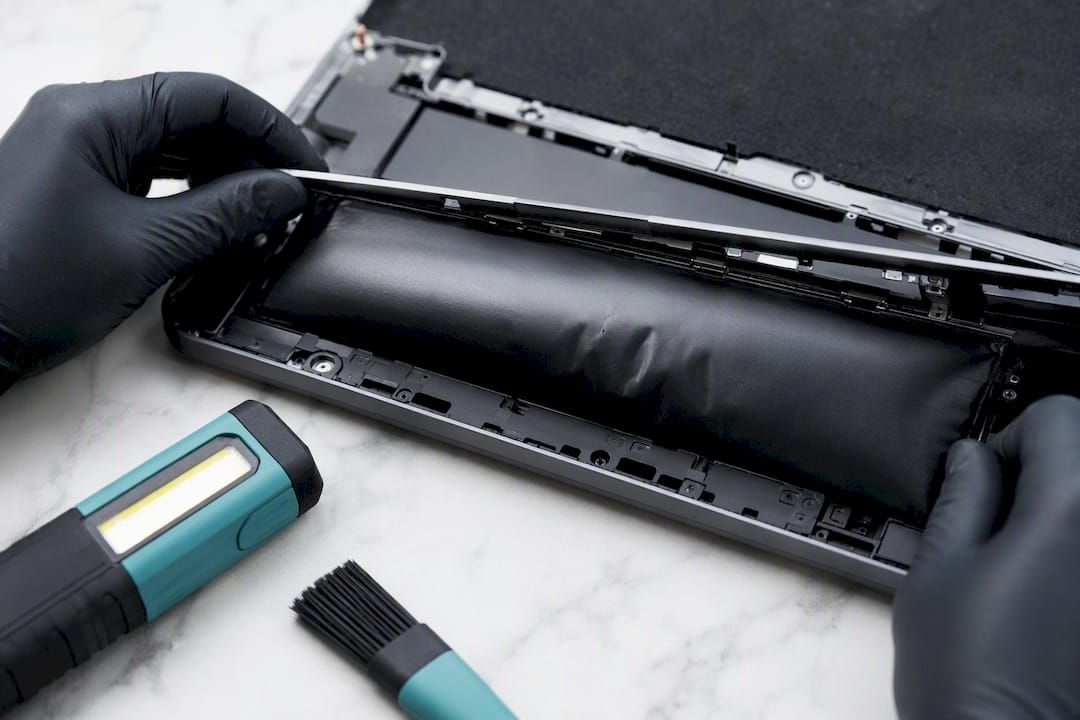
Pro Tip: If you smell anything burning, see the bottom bulging, or notice the battery looks swollen, power the laptop off immediately and don’t attempt any of the software fixes below. Those are hardware failure signs, not software ones.
How to Diagnose the Cause: Symptoms and Quick Checks
Different overheating patterns point to different root causes, and matching the symptom to the cause saves you from chasing the wrong fix.
- Hot bottom panel with normal fan noise: usually poor airflow, often from working on a soft surface or a room that’s too warm.
- Fan constantly running, even at idle: typically a background process, dust buildup, or in some cases a fan that’s failing and compensating poorly.
- Sudden performance drops during heavy tasks: classic thermal throttling, where the system slows itself down on purpose to avoid damage.
- Random reboots or shutdowns: a more serious sign the system is hitting a hard thermal limit and cutting power to protect the hardware, per Dell’s overheating troubleshooting notes.
Monitoring your actual temperatures turns guesswork into data. HWMonitor and Core Temp work well on Windows; Mac users can check similar readings through iStat Menus or Macs Fan Control. If you constantly hear the fan spinning at full speed with no obvious task running, that’s your MacBook fan always on symptom, and it deserves the same diagnostic steps as any Windows laptop fan always on complaint.
Modern CPUs and GPUs typically start thermal throttling starts at high temperatures above normal operating range, which is the point where the chip deliberately slows down to avoid permanent damage. That range is a warning line, not a target.
One wrinkle worth knowing: not every slowdown is heat related. Some laptops throttle because of a manufacturer-set power limit, not temperature, and no amount of cleaning or airflow will fix that kind of restriction since it’s enforced in firmware rather than by heat buildup.
Software, Firmware, and Settings Changes That Reduce Heat
If the quick fixes helped but didn’t fully solve it, the next layer is software and firmware. This is where a lot of chronic cases actually get resolved without opening the laptop at all.
- Drop your Maximum Processor State. In Windows, go to Power Options, edit your plan settings, and reduce Maximum Processor State to a lower value to cap peak CPU output. This caps peak CPU output and often cuts sustained temperatures noticeably.
- Update your BIOS/UEFI and GPU drivers. Manufacturers periodically revise thermal tables and fan curves through firmware updates, which can change how the system manages heat even on identical hardware. Dell’s own guidance points to this as a real lever, not just a routine update.
- Check startup programs and run a malware scan. A CPU pegged at high usage with no obvious app open is a common sign of a cryptominer or other hidden process. HP’s thermal guidance notes that OEM utilities like Dell Optimizer and HP CoolSense can help manage fan curves and power profiles once malware is ruled out.
- Use manufacturer thermal utilities before third-party fan control tools. Third-party tools like ThrottleStop only work on Intel chips, not AMD, so check compatibility before installing anything that adjusts voltage or power limits.
Pro Tip: If temperatures return to normal after a BIOS update and power plan change, you’ve likely fixed a software issue. If they don’t budge, the problem is almost certainly physical, dust, a failing fan, or aging thermal paste, and it’s time to move to hardware maintenance.
Safe Hardware Maintenance: Cleaning Vents, Testing Fans, and Repasting
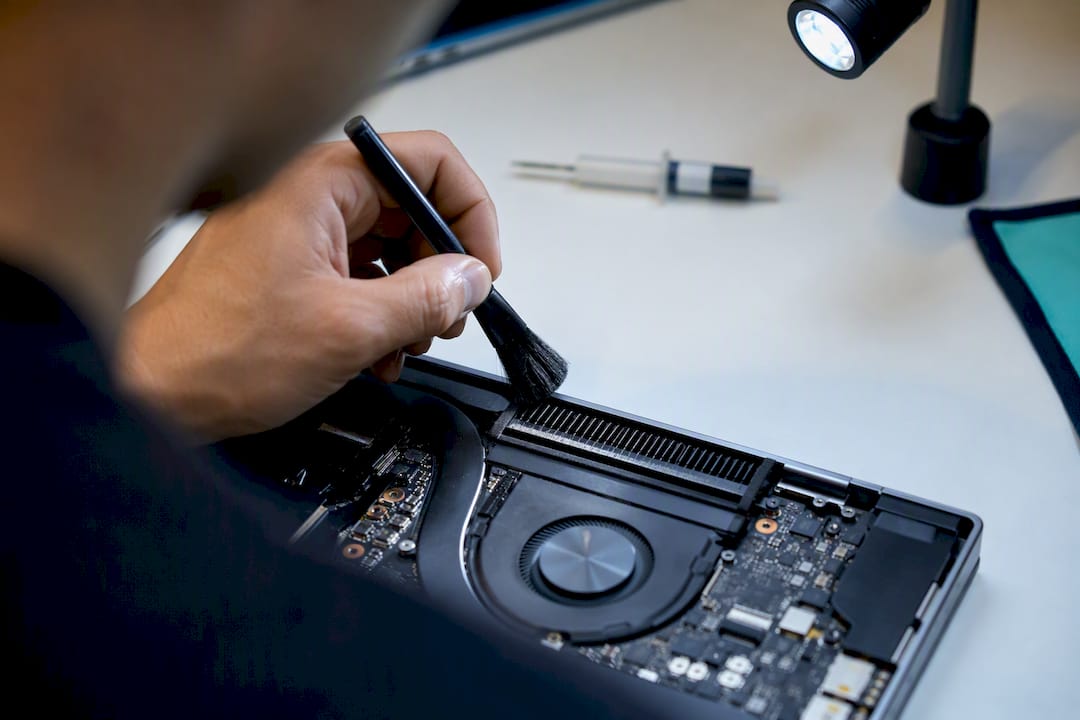
Dust buildup inside the vents and heat sink is one of the most common physical causes of a laptop running hot, and it’s also the easiest one to fix yourself.
- Power the laptop off and unplug it before doing anything.
- Use compressed air in short bursts, holding the can upright, since tilting or inverting it can spray liquid propellant into the vents.
- Hold the fan blades still with a toothpick or cotton swab while you spray, so the air doesn’t spin them past their rated speed.
- A lint-free brush works well for loosening dust caked around the intake grilles before you blow it out.
- Ground yourself or touch a metal surface first if you’re opening the bottom panel, to avoid a static discharge near internal components.
Signs your fan itself is failing rather than just dusty: grinding or clicking noises, little to no airflow at the exhaust vent even when the fan is spinning, or temperatures that spike erratically regardless of what you’re doing. Lenovo’s fan maintenance guidance recommends a cleaning every 3 to 6 months depending on your environment, more often if you use the laptop on carpet, near pets, or in dusty rooms.
Cleaning alone typically drops idle and load temperatures by a noticeable margin. If a laptop is several years old and still runs hot after a thorough cleaning, the thermal paste between the CPU and heat sink has likely dried out and lost its ability to transfer heat efficiently. Repasting usually requires disassembling the laptop past what most warranties allow for DIY work, which is why it’s typically handled as a professional service rather than a weekend project.
Pro Tip: Check your warranty status before opening the case yourself. Some manufacturers void coverage the moment the bottom panel comes off, even if you didn’t break anything.
When to Take the Laptop to a Repair Shop
Certain signs mean it’s time to stop troubleshooting and hand the laptop to a technician rather than risk damage or data loss.
- Temperatures that stay above roughly 95°C even at idle, after cleaning and software fixes.
- Repeated shutdowns that keep happening across different sessions and tasks.
- A visibly swollen battery, which is a safety issue, not just a performance one.
- Grinding, rattling, or silent fans that don’t spin at all under load.
- Sensor errors, inaccurate temperature readings, or a system that won’t report thermal data at all.
A proper technician diagnostic covers fan replacement, thermal paste application, and checking whether the issue is actually a sensor or motherboard fault masquerading as an overheating problem. At Mobile Care, most laptop repairs run same-day, typically 30 to 45 minutes, using quality-tested parts with a 30-day warranty backing the work. Back up your data before you drop it off, and look for certified technicians and transparent pricing wherever you go, whether that’s a Mobile Care location or elsewhere.
Performance vs. Noise vs. Longevity: What’s Actually Normal
A laptop fan spinning up under a heavy render, a big game, or a video call is normal. What’s not normal is a fan running loud at idle, or temperatures that never fully settle down between tasks. Build a light maintenance habit around it: clean the vents every 3 to 6 months, check for firmware updates every couple of months, and plan on a professional repaste every 2 to 4 years on an older machine. A repair shop worth trusting will tell you plainly when a fix is a five-minute cleaning and when it’s a part replacement, rather than upselling work you don’t need.
— SS
Mobile Care: Same-Day Laptop Repair When DIY Hits Its Limit
Some repair services offer faster alternatives to mailing laptops to manufacturers or waiting days for a local shop; many repairs can be finished same-day, in 30 to 45 minutes, while you wait.

If you’ve cleaned the vents, updated the firmware, and the laptop is still running hot, the issue is likely mechanical, a worn fan, dried thermal paste, or a sensor fault, and that’s where certified hands make the difference. Technicians can run full diagnostics, replace fans, repaste CPUs and GPUs, and check battery health, typically using quality-tested parts and offering transparent pricing and a warranty on the work. Back up anything important before you come in, and bring the charger if the laptop struggles to hold a charge alongside the heat issue. You can check hours and book a visit at the Perimeter Mall location or browse the full service lineup to see what’s covered before you go.
Sources
- Troubleshoot Dell Laptop Overheating Issues | Dell US
- What to do when my laptop overheats? | TeamViewer Insights
- Throttlestop guide — finding out if your gaming laptop is power-limited or thermal-limited
FAQ
How do I fix my laptop from overheating?
Start by closing high-CPU processes in Task Manager, moving the laptop to a hard flat surface, and switching to a Balanced power plan. If temperatures stay high after that, clean the vents with compressed air regularly and check for BIOS and driver updates before assuming it’s a hardware failure.
Should I be worried if my laptop is hot?
A warm bottom panel under heavy use is normal, but a laptop that stays hot at idle, shuts down repeatedly, or has a swollen battery needs attention right away. Those signs point to a cooling system that’s no longer protecting the hardware properly.
How can I cool my laptop down?
Use a hard flat surface instead of a bed or couch, add a cooling pad or desk fan for extra airflow, and keep the vents free of dust with regular compressed-air cleanings. Lowering your Maximum Processor State and reducing background tasks also helps sustained temperatures.
Why does my laptop get overheated?
The two most common causes are dust blocking the intake or exhaust vents and background processes overworking the CPU, and both are usually fixable without a repair visit. When cleaning and software fixes don’t help, aging thermal paste or a failing fan is the more likely culprit, and that typically calls for a professional repair like the ones Mobile Care performs.