Start with a restart, then close every unused app and browser tab, clear space on your drive, and open Task Manager to see what’s actually eating your resources. Most slowdowns clear up with these four steps alone. Restart weekly to keep problems from building back up, and if the slowness traces to hardware or heat rather than software, a technician can usually diagnose and fix it the same day.
TL;DR:
- Restart your laptop weekly to clear background processes and temporary memory, preventing slowdowns from building up over time.
- Check Task Manager for high CPU or disk usage, or signs of overheating, to identify whether hardware limitations or thermal issues are causing slowness.
- Disable unnecessary startup apps, run malware scans, and update drivers and the operating system to address common software factors that slow down the system.
- Upgrading RAM or switching from a hard drive to an SSD can significantly improve performance on aging laptops, especially if resources are consistently maxed out.
- Cleaning vents and using a cooling pad can resolve overheating-related slowdowns caused by thermal throttling.
Table of Contents
- Quick Fixes for a Laptop Running Slow Right Now
- Why Is My Laptop So Slow? How to Find the Real Cause
- Software Fixes That Solve Most Slowdowns
- When Hardware Upgrades Actually Fix a Slow Laptop
- Overheating and Thermal Throttling: The Hidden Speed Killer
- Getting the Order Right When You’re Fixing a Slow Laptop
- Mobile Care: Same-Day Diagnostics When Software Fixes Aren’t Enough
- Where This Troubleshooting Advice Comes From
- Sources
- FAQ
Quick Fixes for a Laptop Running Slow Right Now
Before you touch a single setting, run through this list. It takes 5 to 15 minutes and solves a surprising number of slowdowns on its own.
- Restart the machine. A weekly restart clears stuck background processes and temporary memory buildup, according to Northwestern University’s IT department. If you haven’t rebooted in days, this alone often fixes the lag.
- Close heavy apps and extra browser tabs. Video editors, virtual meeting software, and a browser with 40 open tabs all compete for the same limited memory.
- Force-quit anything frozen in the background. Check for programs that aren’t responding and shut them down manually.
- Pause cloud sync and downloads. Services like OneDrive constantly read and write files in the background, which can quietly drag down disk and CPU performance until you pause them.
- Switch your power mode to Best Performance. This raises your CPU’s speed limit temporarily, though it uses more battery and generates more heat, so treat it as a short-term fix rather than a permanent setting.
- Run Storage Sense or Disk Cleanup. Both tools remove temporary files and free up drive space in a couple of clicks, no technical knowledge required.
If your laptop still feels sluggish after all six steps, the problem is probably deeper than clutter. That’s your cue to move to diagnostics.
Why Is My Laptop So Slow? How to Find the Real Cause
Task Manager on Windows (or Activity Monitor on a Mac) tells you exactly what’s stealing your speed. Open it and watch four numbers: CPU, Memory, Disk, and temperature if your model reports it.
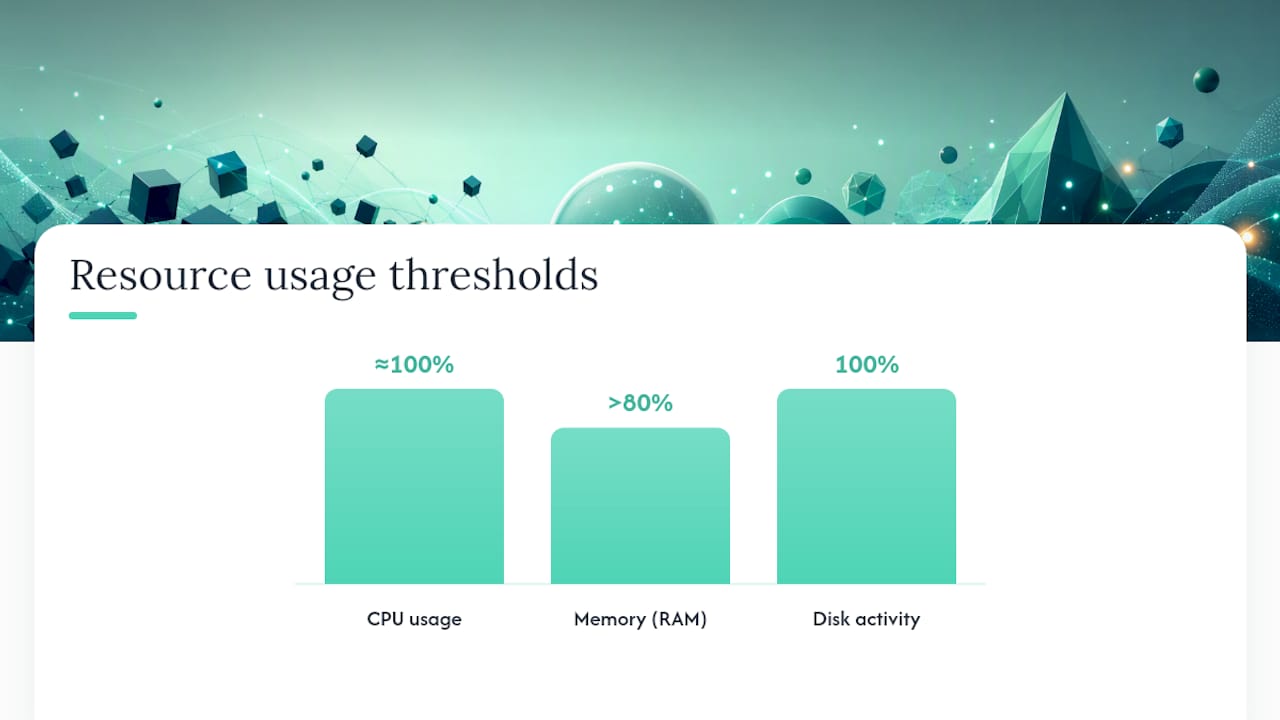
- CPU usage pinned near 100% during normal tasks points to a runaway process or an outdated, overworked processor.
- Memory usage sitting above 80% consistently means you don’t have enough RAM for what you’re running, not just for one big task but for everything at once.
- Disk usage maxed out with a spinning cursor often means your drive, especially an older hard disk drive, can’t keep up with read and write requests.
- A nearly full drive slows everything down, even a fast solid-state drive, once it drops below a healthy amount of free space.
- Loud fans with sudden slowdowns during light tasks points to overheating, not a resource shortage.
Intel’s guidance on slow computers puts it plainly: when RAM, CPU, or disk usage sits consistently around 80% or higher, the system is overloaded, and that’s the threshold worth remembering when you’re staring at Task Manager wondering if the numbers you’re seeing are normal.
One more diagnostic habit worth building: check whether the slowdown started right after a Windows update or a new program install. That timing is often the fastest way to spot the actual cause.
Software Fixes That Solve Most Slowdowns
Once you know what’s straining your system, work through these steps in order. Each one addresses a specific, common software cause, and together they cover most of what Microsoft’s own performance guidance recommends for a laptop running slow.
- Disable unnecessary startup apps. Open Task Manager, click the Startup tab, and disable anything you don’t need running the moment you log in. Chat apps, cloud storage clients, and update checkers are common offenders.
- Run a full malware scan. Use Windows Defender or another reputable antivirus program. Malware is one of the sneakiest causes of a laptop running slow, since it often hides its resource use.
- Update your operating system and drivers, then restart. Outdated drivers, especially graphics and chipset drivers, can cause real performance drag. Check your manufacturer’s site, whether that’s HP, Lenovo, or another OEM, for the latest versions.
- Uninstall unused apps and clear large files. Old installers, downloaded videos, and duplicate photo backups quietly eat drive space that your system needs for smooth operation.
- Clear browser cache and disable heavy extensions. Ad blockers, shopping assistants, and password managers all add overhead. Keep the ones you actually use and remove the rest.
- Defragment hard disk drives only. If your laptop still runs an HDD, defragmenting reorganizes scattered files for faster access. Never defragment an SSD. Instead, let Windows run its scheduled TRIM optimization, which keeps solid-state drives fast without the wear a defrag would cause.
Pro Tip: Back up your files to an external drive or cloud storage before you run a system reset. A reset wipes personal data on most default settings, and there’s no undo button once it starts.
If you’ve worked through every step above and the laptop still crawls, a full system reset (Windows) or a fresh macOS reinstall is a reasonable last resort. It clears out accumulated software conflicts that individual fixes can’t always catch.
When Hardware Upgrades Actually Fix a Slow Laptop
Software fixes only go so far when the hardware itself is the bottleneck. Two upgrades deliver most of the real-world speed gains for aging laptops.
- More RAM helps if Task Manager consistently shows memory usage above 80% no matter what you close. Check your laptop’s manual or manufacturer site first, since some ultrabooks have RAM soldered to the motherboard and can’t be upgraded at all.
- Switching from a hard disk drive to a solid-state drive produces the single biggest jump in boot time and file access speed for older machines, according to Asurion’s laptop speed guide. Aim to keep at least 25% to 30% of an SSD’s total capacity free to maintain its speed advantage over time.
- An aging CPU is a different story. If your processor is more than five or six years old, upgrading RAM or storage delivers diminishing returns, and replacing the laptop becomes more cost-effective than chasing incremental fixes.
- Back up everything before any hardware work begins. Cloud storage or an external drive protects your files if something goes wrong mid-upgrade.
A RAM or SSD upgrade at a repair shop typically takes under an hour and often makes a five-year-old laptop feel noticeably newer.
Overheating and Thermal Throttling: The Hidden Speed Killer
Thermal throttling forces your processor to slow itself down to avoid damage once internal temperatures climb too high, and it’s a common reason a laptop suddenly feels sluggish even during routine tasks, according to ASUS’s ROG guides. Loud fans paired with slowdowns during light work, like browsing or word processing, are the clearest sign.
Dust-clogged vents are usually the culprit. A can of compressed air aimed at the intake and exhaust vents clears most buildup safely. Skip disassembling the laptop yourself unless you’re genuinely comfortable working around internal components.
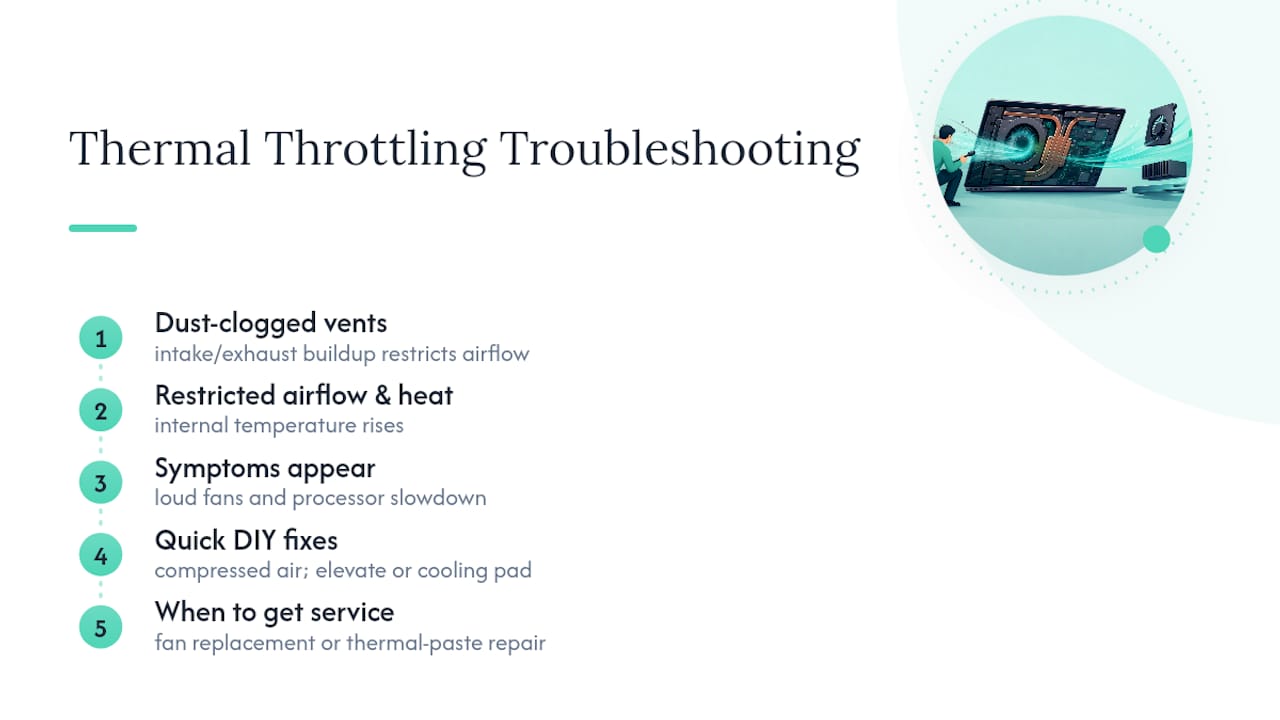
Pro Tip: A cooling pad and elevating the back of your laptop slightly can restore airflow immediately while you wait for a proper cleaning.
If cleaning the vents doesn’t quiet the fans or fix the slowdown, the fan itself or the internal thermal paste may need professional attention.
Getting the Order Right When You’re Fixing a Slow Laptop
Work through fixes in the order that costs you the least time for the biggest payoff: quick fixes first, then diagnostics, then software fixes, then hardware upgrades, and professional help last. If a full round of software fixes doesn’t move the needle, that’s a strong signal the problem is hardware or heat, not clutter.
Back up your files before any deep fix, a reset, or an upgrade. And if you land on hardware or thermal issues, technicians handle same-day diagnostics for exactly this kind of problem.
— SS
Mobile Care: Same-Day Diagnostics When Software Fixes Aren’t Enough
This service is a faster alternative to shipping your laptop off for repair and waiting a week to get it back. Many laptop repairs, including RAM and SSD installations, internal cleaning, and data recovery, can be completed in 30 to 45 minutes by trained technicians using quality parts.

If you’ve worked through the software fixes above and your laptop still runs slow, or the fans are loud and the case is hot to the touch, that’s a hardware or thermal problem worth a professional look rather than more guesswork. Repairs may come with a warranty period to help ensure quality and reliability. Back up your data, then check the services page for the full list of laptop repairs offered or find your nearest Mobile Care location to get a same-day diagnostic started.
Where This Troubleshooting Advice Comes From
- Microsoft Support: official PC performance and cleanup steps.
- HP Tech Takes: common causes and OEM-level fixes.
- ASUS ROG Guides: thermal throttling explained.
- Intel Tech Tips: resource bottleneck thresholds.
- Northwestern University IT: restart frequency guidance.
Sources
- The benefits of restarting your computer regularly
- What is thermal throttling? | ROG Guides
- Tips to improve PC performance in Windows | Microsoft Support
- Why Is My Computer Slow? Tips to Speed It Up - Intel
- Why Is My Laptop So Slow? Complete Troubleshooting Guide | HP
FAQ
How Do I Fix a Laptop That’s Suddenly Running Slow?
Start by restarting it, closing unused apps and tabs, and freeing up drive space, then check Task Manager to see whether CPU, memory, or disk usage is maxed out. If none of that helps, the cause is likely overheating or a hardware limit, and a diagnostic check at a repair shop like Mobile Care can confirm it quickly.
How Do I Clean My Laptop to Make It Run Faster?
Run Storage Sense or Disk Cleanup to remove temporary files, uninstall apps you no longer use, and clear your browser cache and unused extensions. Physically, a can of compressed air on the vents clears dust that traps heat and triggers thermal throttling.
How Do I Find Out What’s Slowing Down My Laptop?
Open Task Manager on Windows or Activity Monitor on a Mac and watch CPU, Memory, and Disk usage while you work normally. Usage consistently sitting near or above 80% on any of those points to that resource as your bottleneck.
Why Is My Laptop So Laggy All of a Sudden?
Sudden lag usually traces to a recent Windows update, a new program running in the background, malware, or overheating from clogged vents. Checking Task Manager and your fan noise right after the lag starts usually narrows it down fast.