Start with the basics: toggle Wi-Fi off and on, confirm Airplane Mode is disabled, restart the laptop, and check whether another device connects to the same network. If those steps don’t restore your connection, work through the ordered troubleshooting sequence below, starting with device settings and ending with router and hardware checks. When software fixes fail after the full sequence, the problem is likely hardware, and that’s when a professional repair makes sense.
TL;DR:
- Most connectivity issues are caused by simple toggles, Airplane Mode, or network DFU, which can often be fixed within minutes.
- Running the network troubleshooter, resetting network settings, and updating or rolling back drivers frequently resolve common software-based Wi-Fi problems.
- If wired Ethernet still fails or the Wi-Fi adapter is missing, hardware problems or interference from router range may be the root cause.
- Persistent issues after software fixes suggest hardware failure, such as a damaged Wi-Fi module or antenna cable, requiring professional repair.
- Skilled technicians can diagnose and repair hardware faults in the same day, especially if the Wi-Fi adapter is missing, shows warnings, or detects no networks.
Table of Contents
- Quick Checks Before You Troubleshoot Laptop Wi-Fi Issues
- Fixing Laptop Wi-Fi at the Device Level
- Router and Network Checks to Rule Out Your ISP
- Advanced Fixes: BIOS, Firmware, and Hardware Signs
- When to Get Professional Help for Laptop Wi-Fi Problems
- What I’d Try First, and When I’d Stop Trying
- Get Your Laptop’s Wi-Fi Diagnosed the Same Day
- Where to Go Deeper on Wi-Fi Troubleshooting
- Sources
Quick Checks Before You Troubleshoot Laptop Wi-Fi Issues
Most laptop Wi-Fi problems have boring causes. Before assuming a driver conflict or a dead network card, run through the checks that fix connectivity in under five minutes.
On Windows, click the network icon in the taskbar and confirm Wi-Fi is turned on, then check the Action Center for Airplane Mode. On a Mac, click the Wi-Fi icon in the menu bar; if it’s grayed out, Airplane Mode may be active in Control Center. It sounds obvious, but a stray keyboard shortcut or a sleep/wake glitch flips these settings more often than people expect.
Next, rule out your router or your internet service provider entirely. Grab your phone and see if it connects to the same network. If your phone also fails, the problem sits with your router or your ISP, not your laptop, and no amount of driver reinstalling will fix it.
Here’s a fast sequence to run before touching anything more advanced:
- Toggle Wi-Fi off, wait 10 seconds, and turn it back on.
- Check that Airplane Mode is off on both your laptop and any nearby devices.
- Test another device (phone, tablet, second laptop) on the same network.
- Restart your laptop completely, not just sleep or hibernate it.
- Unplug your router for 30 seconds, plug it back in, and wait two full minutes for it to reboot.
Pro Tip: If your laptop connects to your phone’s mobile hotspot but not your home network, that’s a strong sign the issue lives with your router or ISP, and you can skip straight to the router checks later in this guide.
Fixing Laptop Wi-Fi at the Device Level
If the quick checks didn’t solve it, the next place to look is Windows itself. This is where most Wi-Fi connection issues actually get resolved, according to Microsoft’s own troubleshooting guidance, which recommends working through toggles, the built-in troubleshooter, and driver reinstalls in that order.
Run the Network Troubleshooter. Open Settings, go to System, then Troubleshoot, then Other troubleshooters, and run “Network and Internet.” It checks adapter status, IP configuration, and DNS resolution automatically, and it often fixes minor glitches without you lifting a finger.
Forget the network and reconnect. Sometimes a saved wireless profile gets corrupted, especially after a router firmware update or password change. On Windows, go to Settings, Network & Internet, Wi-Fi, Manage known networks, select your network, and click Forget. Reconnect fresh and enter the password again. On a Mac, open System Settings, Wi-Fi, click the “i” next to your network, and select “Forget This Network,” then rejoin it.
Reset your network stack with Command Prompt. Open Command Prompt as an administrator and run these commands one at a time:
ipconfig /releaseipconfig /renewipconfig /flushdnsnetsh winsock reset
Restart your laptop after running these. The netsh winsock reset command rebuilds the Winsock catalog, which handles how your laptop’s network applications talk to the internet, and it clears out corruption that accumulates over months of use.
Check Device Manager for driver problems. Right-click the Start menu, select Device Manager, and expand Network Adapters. If your Wi-Fi adapter shows a yellow warning triangle or is missing, right-click it and select “Update driver.” If the problem started right after a Windows update, try “Roll Back Driver” instead. This matters more than people realize: Intel notes that Windows Update frequently installs a generic driver over the manufacturer-tuned version for its Wi-Fi 6 and Wi-Fi 6E modules, and that generic driver can cause the exact intermittent drops and authentication failures you’re troubleshooting. If rolling back doesn’t help, download the correct driver directly from your laptop manufacturer’s support page rather than relying on Windows Update.
Adjust your adapter’s power settings. In Device Manager, right-click your Wi-Fi adapter, select Properties, go to the Power Management tab, and uncheck “Allow the computer to turn off this device to save power.” Then go to Control Panel, Power Options, change plan settings, change advanced power settings, and find Wireless Adapter Settings. Set Power Saving Mode to Maximum Performance. Windows aggressively powers down the wireless radio to save battery, and on some laptops this setting is the entire reason Wi-Fi keeps dropping every few minutes even though the connection looks fine at first glance.
Router and Network Checks to Rule Out Your ISP
If your laptop still won’t connect after the device-side fixes, the fault may sit outside your machine entirely.
Power-cycle your equipment in the right order: unplug the modem first, wait 30 seconds, plug it back in and let it fully reconnect (usually one to two minutes), then unplug the router, wait 30 seconds, and plug it back in. Doing this out of order, or restarting both at once, sometimes causes the router to grab a stale connection from the modem before it’s ready.
Plug an Ethernet cable directly from your laptop to the router. If wired internet works fine, the fault is specifically in the wireless connection, either the router’s Wi-Fi radio or your laptop’s wireless adapter, not your broader internet service.
- Try switching between 2.4GHz and 5GHz bands. The 5GHz band is faster but has shorter range and struggles with walls; 2.4GHz travels farther but is more crowded with other devices, including cordless phones and microwaves.
- Open Command Prompt and ping your router’s IP address (usually 192.168.1.1 or 192.168.0.1). Steady replies mean your laptop reaches the router fine.
- Ping a public DNS server like 8.8.8.8. If the router ping works but this one fails, the issue is your router or your ISP, not your laptop.
- Check your IP address with
ipconfig. An address starting with 169.254 means your laptop never got a valid address from the router’s DHCP server, which points to a router-side or driver-side failure.
Pro Tip: If your laptop connects fine right next to the router but drops two rooms away, that’s usually a range or interference problem, not a software bug, and no amount of driver reinstalling will fix physics.
Advanced Fixes: BIOS, Firmware, and Hardware Signs
When software fixes come up empty, the next layer is firmware and, eventually, hardware.
Updating your BIOS can resolve wireless issues tied to power management or chipset compatibility, but treat it carefully. Only download BIOS updates from your laptop manufacturer’s official support page, never a third-party site, and don’t interrupt the update once it starts. Dell’s own support guidance recommends running the manufacturer’s diagnostic utility before attempting a BIOS or firmware update, since tools like SupportAssist or MyASUS can flag whether the adapter itself is failing before you touch the firmware at all.
If your laptop has a missing Wi-Fi toggle or the wireless switch seems unresponsive, a hard reset (sometimes called an EC reset) can help: shut down completely, unplug the charger, remove the battery if it’s removable, hold the power button for 30 seconds, then reconnect everything and boot up. This clears embedded controller glitches that software alone can’t touch.
Watch for these signs that point to hardware rather than software:
- The Wi-Fi adapter is completely missing from Device Manager, not just showing an error.
- A yellow warning triangle persists on the adapter even after driver reinstalls and rollbacks.
- No wireless networks appear at all, even standing next to a working router that other devices detect fine.
- The connection works only when you physically press on a specific spot of the laptop’s case, which often points to a loose antenna cable.
When the adapter disappears from Device Manager entirely and software steps have already failed, the usual next step is physical: reseating the M.2 Wi-Fi card, checking antenna cable continuity near the display hinge, or replacing the module outright. These are standard diagnostic steps for a repair technician, not something most users can safely attempt at home given how tightly modern laptops pack their internals.
When to Get Professional Help for Laptop Wi-Fi Problems
If you’ve run the full sequence, quick checks, driver work, router isolation, and the adapter still won’t show up or connect, it’s time to stop troubleshooting and get a diagnosis.
Bring your laptop in if you see a missing adapter in Device Manager, a persistent yellow warning after multiple driver attempts, zero networks detected anywhere, or a connection that only works when you press on the case. These point to a failing Wi-Fi module or a loose antenna connection, and no software fix reaches those.
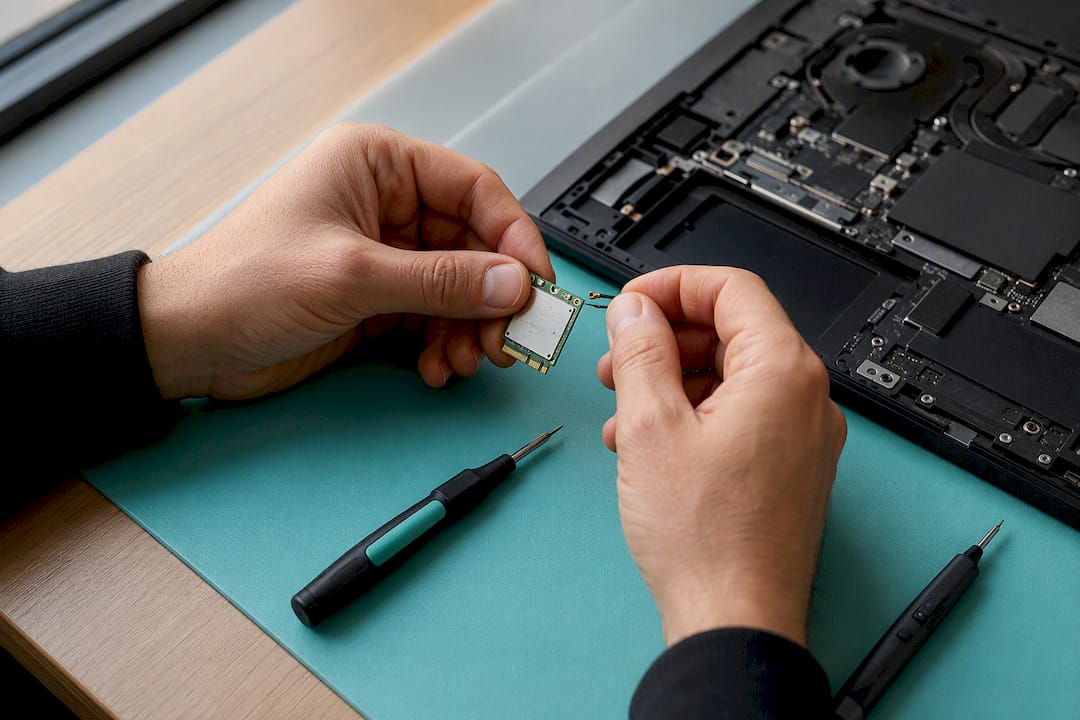
Mobilecareusa offers same-day laptop connectivity diagnosis and repairs, using replacement parts. Technicians run a hardware diagnostic to identify issues with the wireless module, antenna cable, or other components, and repairs include a warranty period. When you drop off your laptop, be ready to describe what you’ve already tried. That detail alone can save a technician real diagnostic time.
What I’d Try First, and When I’d Stop Trying
Most people troubleshoot Wi-Fi backward. They jump to reinstalling drivers or resetting the router before ruling out the five-second fixes that solve the problem more often than anyone expects.
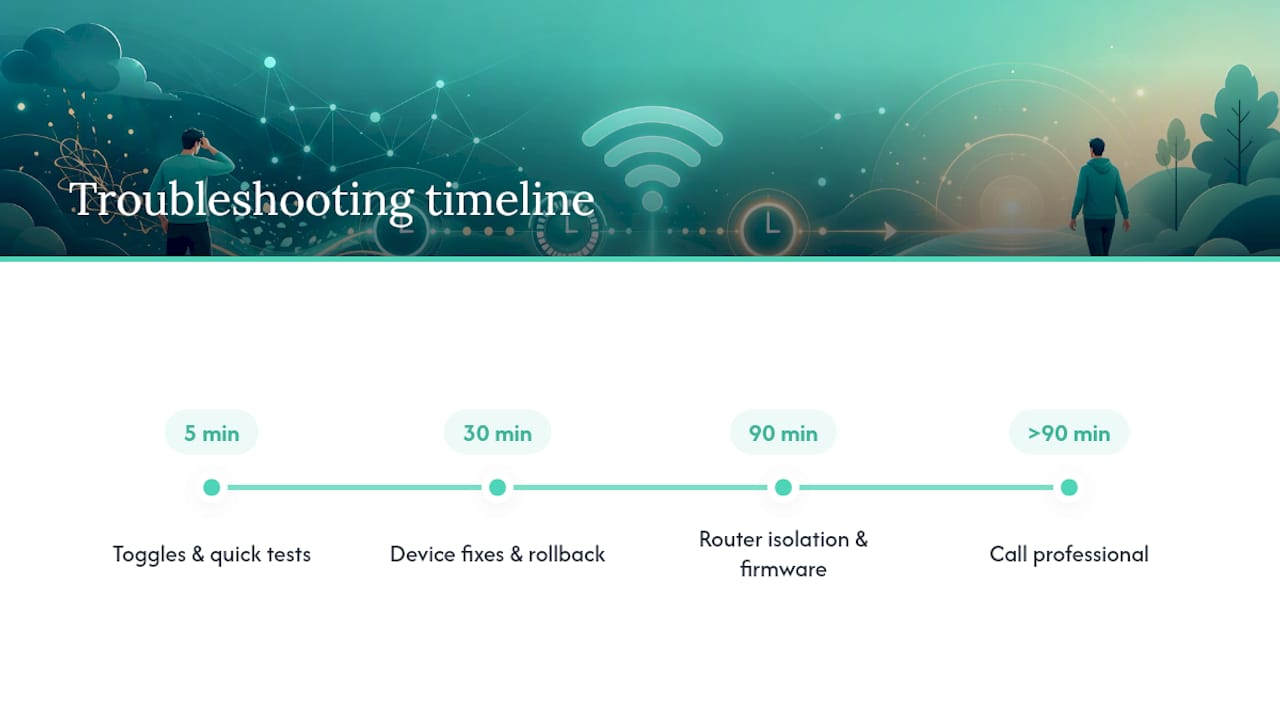
Here’s the triage I’d actually follow: spend 5 minutes on toggles, Airplane Mode, and testing a second device. Spend the next 30 minutes on device-side fixes, the troubleshooter, forgetting and reconnecting the network, driver rollback, and power settings, since this stage catches the majority of cases. Give yourself up to 90 minutes total for router isolation and advanced firmware steps before you call it. Past that point, you’re diagnosing hardware with software tools, which doesn’t work.
The driver rollback step deserves more attention than most guides give it. A recent Windows Update is one of the most common triggers for sudden Wi-Fi failure, because it frequently swaps a manufacturer’s tuned driver for a generic one that handles power states and reconnection differently. Rolling that driver back fixes the problem more often than a full reinstall does, and it takes two minutes.
One habit that separates people who fix this fast from people who burn a weekend on it: write down what changed right before the problem started, a Windows Update, a router firmware push, a dropped laptop. That detail usually points straight at the cause.
— SS
Get Your Laptop’s Wi-Fi Diagnosed the Same Day
If you’ve worked through toggles, drivers, and router checks and your laptop still won’t hold a connection, Mobilecareusa provides faster laptop Wi-Fi repair services compared to mailing a device to a manufacturer’s repair center. Laptop diagnostics and repairs are often completed the same day, with technicians running hardware tests not feasible to perform at home.

If your Wi-Fi adapter is missing from Device Manager, shows a persistent yellow warning after driver fixes, or won’t detect any networks at all, that’s your signal to stop troubleshooting and get a real diagnosis. Mobilecareusa’s full range of laptop repair services covers exactly this kind of connectivity failure, using quality-tested parts and backing every repair with a 30-day warranty. If you’re near Atlanta, stop by the Cumberland Mall location for a same-day diagnostic, no appointment required, and walk out reconnected instead of waiting on a callback.
Where to Go Deeper on Wi-Fi Troubleshooting
For readers who want the manufacturer’s own documentation before making changes to drivers or firmware, a few sources are worth bookmarking:
- Microsoft’s official Wi-Fi troubleshooting guide covers the Network Troubleshooter and every ipconfig and netsh command in detail.
- Dell’s wireless networking support page walks through SupportAssist diagnostics and BIOS update procedures for Dell laptops.
- ASUS’s Wi-Fi troubleshooting FAQ explains hardware-level signs, including antenna and adapter failures, specific to ASUS models.
- Intel’s wireless driver download page lists the correct manufacturer drivers for Intel Wi-Fi 6 and 6E adapters.
Sources
- Fix Wi‑Fi connection issues in Windows | Microsoft Support
- Wi‑Fi Not Working? Solve computer or laptop Wi‑Fi connection issues | Dell Support
- Intel wireless (Wi‑Fi) drivers for Windows 10 and Windows 11