Most laptops that won’t turn on are suffering from a power-delivery problem or a stuck hardware state, not a dead motherboard. Check the adapter and outlet first, then run a hard reset. If lights or fans spin up but the screen stays black, test an external monitor before assuming the worst. If those basic checks fail, or you spot physical damage or liquid exposure, stop troubleshooting and get professional repair. Professional repair services offer same-day diagnostics and common laptop repairs for this situation.
TL;DR:
- Most power issues stem from faulty adapters, cables, or outlets, not the motherboard, so testing these first is essential before more invasive steps.
- Indicators such as a power LED, charging light, or fan sounds help differentiate between no power and display problems, guiding proper troubleshooting.
- Performing a hard reset by disconnecting all power sources and holding the power button can resolve stuck hardware states in many cases.
- External peripherals and docking stations can interfere with startup, so removing them systematically can identify a hidden cause.
- When signs of physical damage, liquid exposure, or failed basic tests persist, professional diagnostics are recommended to prevent further damage.
Table of Contents
- Step 1: Check the Power Source, Adapter, and Outlet
- Step 2: Look for Signs of Life
- Step 3: Perform a Hard Reset
- Step 4: Disconnect Peripherals and Docking Stations
- Step 5: Test the Display Separately
- Battery vs. Charger: How Do You Tell Which One Failed?
- Step 7: Reseat RAM and Check the CMOS Battery
- When Should You Stop and Get Professional Repair?
- Why Ordered Troubleshooting Beats Guessing
- Get Your Laptop Diagnosed the Same Day
- Sources
- FAQ
Step 1: Check the Power Source, Adapter, and Outlet
Before you touch anything inside the laptop, rule out the boring stuff. A shocking number of “dead” laptops are just starving for power.
Start by plugging into a different outlet, and skip any surge protector or power strip in between, since a tripped one will silently cut power without any warning light. Look at the adapter brick itself. Most have a small LED that should glow when plugged in. No light usually means a dead adapter or a blown outlet.
- Inspect the cable for fraying, kinks, or a bent connector tip.
- Swap in a known-good adapter with the correct voltage and wattage if you have access to one.
- If the battery has been fully drained, let it charge undisturbed for 15 to 30 minutes before judging the laptop dead.
- If the adapter LED stays off and a different adapter powers the laptop fine, the original adapter is the likely culprit.
Dell’s own troubleshooting guidance for power issues starts at exactly this point, because outlet and adapter failures account for a large share of support calls.
Step 2: Look for Signs of Life
Once power is confirmed, the next question is whether the laptop is trying to start at all. This single distinction, power versus no power, decides which direction the rest of your troubleshooting goes.
Check these indicators with the lid open and the room dimmed:
- Power LED near the hinge or keyboard
- Charging light on the adapter port
- Keyboard backlight or caps lock light
- Fan noise or a faint hum from the vents
- Any clicking or spinning sound from the drive
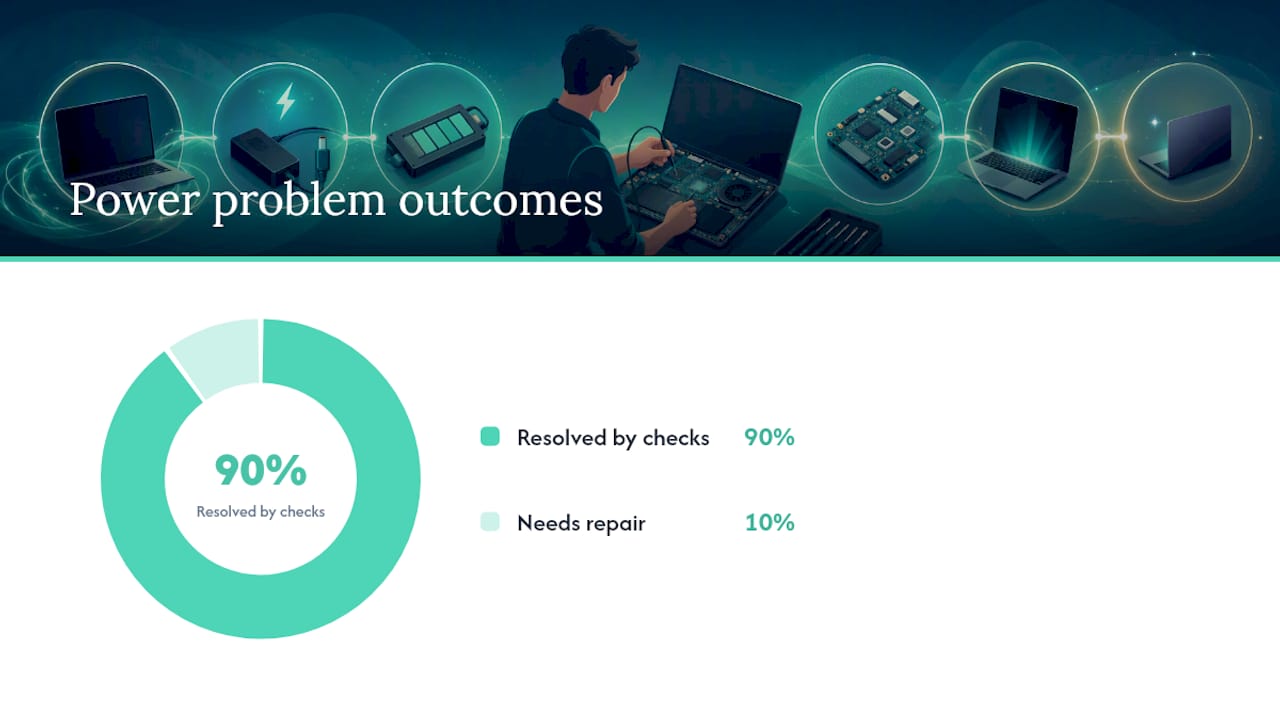
HP reports that basic checks like these resolve roughly 90% of power problems in under 30 minutes, which is why working through indicators in order matters more than jumping straight to a repair shop.
If nothing lights up at all, you’re dealing with a power-delivery fault. If lights and fans run but the screen stays black, the issue is more likely display, graphics, or firmware related. Beep patterns or blinking LED sequences point to specific hardware errors, so write down the pattern along with your exact model number before calling support.
Step 3: Perform a Hard Reset
A hard reset drains residual electricity sitting in capacitors and the power controller, which can unstick a laptop that looks completely dead but actually just needs a clean restart.
- Unplug the AC adapter and disconnect any USB devices.
- If the battery is removable, take it out.
- Hold the power button down for 15 to 35 seconds, even though nothing appears to happen.
- Reconnect the adapter (and battery, if removed) and press the power button normally.
Pro Tip: If the first attempt fails, repeat the hold once more before moving on. Some models need two discharge cycles to fully clear a stuck power state.
If this doesn’t bring the laptop back, move to isolating peripherals next rather than repeating the reset over and over.
Step 4: Disconnect Peripherals and Docking Stations
External devices can quietly block a boot sequence or draw enough power to prevent startup, especially on laptops running low-wattage adapters.
- Unplug USB drives, external monitors, SD cards, and any external GPU enclosure.
- Remove the laptop from its docking station and try powering it directly from its own AC adapter.
- Boot with only the adapter or battery connected, then reconnect peripherals one at a time to spot the offender.
This is one of the first things Dell’s no-power troubleshooting guide recommends, since a misbehaving dock is an easy fix that gets mistaken for a dead board.
Step 5: Test the Display Separately
If the laptop clearly has power, fans spinning, lights on, but the laptop screen black, the fault may sit in the display rather than anywhere near the motherboard.
- Connect an external monitor through HDMI or USB-C and power on the laptop. A working image on the external screen points to a failed internal panel, backlight, or hinge cable rather than a board-level failure.
- Try the flashlight trick: shine a phone light at an angle across the closed-lid screen while it’s powered on. A faint, ghostly image means the backlight has failed even though the panel itself works.
- If the external monitor also shows nothing, shift your attention back toward graphics or motherboard causes.
iFixit’s troubleshooting guide uses this exact external-display test as the fastest way to separate a display fault from a genuine no-power issue, and it takes under two minutes to run.
Battery vs. Charger: How Do You Tell Which One Failed?
The laptop that charges but won’t boot, or runs fine plugged in but dies the second you unplug it, is telling you something specific about which part failed.
- Adapter fault signs: no LED on the brick, or the charging behavior changes when you wiggle the plug in the port.
- Battery fault signs: the laptop runs normally on AC power but shuts off instantly when unplugged, or you see a charging error light blinking in a repeating pattern.
- Safe tests: try powering on with the battery removed (AC only), test with a known-good adapter, and never use a charger with mismatched voltage even if the connector happens to fit.
A charging light that flickers specifically when you wiggle the plug usually points to a worn or damaged DC jack, which is a repair-shop job rather than a DIY swap.
Step 7: Reseat RAM and Check the CMOS Battery
No-POST symptoms, repeated restart loops, or a system clock that resets to some date years in the past, often trace back to a loose memory stick or a dead CMOS coin cell rather than a failed motherboard.
- Power down completely, unplug the adapter, and remove the battery if possible.
- Ground yourself by touching a metal surface, then remove and firmly reseat each RAM stick.
- Locate the small CMOS battery (usually a CR2032 coin cell, available at any hardware or drugstore) and swap it if the clock keeps resetting.
- Reassemble and attempt to power on again.
Pro Tip: Take a photo of the RAM slot layout before removing anything, so you know exactly how the sticks were seated if you need to put them back.
Reseating RAM and replacing the CMOS cell restores POST in many cases without any board-level work. If reseating doesn’t help and the symptoms persist, that’s a strong signal the fault sits deeper on the motherboard.
When Should You Stop and Get Professional Repair?
Certain signs mean DIY troubleshooting is done, and continuing risks turning a fixable problem into an expensive one.
- No LEDs or fan activity even with a confirmed known-good adapter.
- Visible damage to the charging port, bent pins, or a port that wiggles loosely in its housing.
- Any history of liquid exposure, a burning smell, or a swollen battery.
- RAM reseating and a CMOS swap didn’t restore POST.
A repair shop will run full diagnostics, give you a written quote, and handle common jobs like charging port replacement, battery swaps, screen repair, and moderate board-level work. Mobile Care completes many laptop repairs same-day, often within 30 to 45 minutes, using certified technicians and quality-tested parts, backed by a 30-day warranty. Bring the laptop along with its charger, and mention any blink or beep patterns you recorded earlier.
Why Ordered Troubleshooting Beats Guessing
Most “dead” laptops turn out to be simple fixes once you check them in the right order. Jumping straight to a new battery or a new charger before confirming which part actually failed wastes both money and time. For anyone who needs a device back the same day, a quick shop diagnostic almost always beats another hour of trial and error at home.
— SS
Get Your Laptop Diagnosed the Same Day
Mobile Care is the faster alternative to mailing a laptop off for repair and waiting weeks to get it back. Most diagnostics and common fixes, including screen repair, battery replacement, charging port repair, and water damage recovery, are completed the same day, often in 30 to 45 minutes.

Bring the laptop in along with its charger. Certified technicians run diagnostics on the spot, explain the issues, and provide transparent pricing before any work begins. Repairs often include a warranty period for coverage after completion. If you’re near Carolina Place Mall, Cumberland Mall, Perimeter Mall, Augusta Mall, Lynnhaven Mall, or Southlake Mall, stop by and get a real answer instead of another guess.
Sources
For model-specific steps, check HP’s own laptop troubleshooting guidance and Dell’s power-issue support page, both of which cover beep codes and diagnostic tools specific to their hardware. iFixit’s repair database is a solid reference before any disassembly. Always check your laptop’s manual for model-specific warnings first.
- Laptop Won’t Turn On? 9 Fixes to Try Before Calling Service | HP®
- How to Power Reset your Laptop
- Computer Won’t Turn On: Troubleshoot Power Issues | Dell US
- Laptop won’t turn on troubleshooting | iFixit
FAQ
How Do You Fix a Laptop That Won’t Turn On?
Start with the adapter, cable, and outlet, then perform a hard reset by disconnecting power and holding the power button for 15 to 35 seconds. If that fails, disconnect peripherals, test an external monitor, and check for beep codes before assuming hardware failure.
How Do You Force a Dead Laptop to Start?
Disconnect the charger and any removable battery, then hold the power button for up to 35 seconds to drain leftover electricity from the internal capacitors. Reconnect power and press the power button normally. If nothing happens after two attempts, the fault likely sits with the adapter, battery, or a deeper hardware issue.
Is a Black Screen of Death Fixable?
Often, yes. A black screen with the laptop otherwise powered on, fans running, lights active, is frequently a display, backlight, or graphics driver issue rather than a dead motherboard. Test with an external monitor and the flashlight trick before assuming it’s unfixable.
Why Does Nothing Happen When You Press the Power Button?
This usually means no power is reaching the system at all. Check the outlet, adapter LED, and cable for damage first, since a failed adapter or dead battery causes this symptom far more often than a broken motherboard. If a known-good adapter still produces nothing, the laptop needs professional diagnostics.
How Much Does Laptop Repair Cost at Mobile Care?
Pricing depends on the specific repair needed, and current prices are listed on Mobile Care’s services page. Every repair includes transparent pricing given before work starts, plus a 30-day warranty.