Most MacBook speaker crackling comes from software, not a broken driver: restart your Mac, disconnect Bluetooth accessories, and update macOS before you assume the worst. If the crackle follows a specific app, a specific volume level, or only one speaker, that pattern points toward hardware. Test with headphones first. If the sound stays clean over headphones but the internal speakers still pop, Mobile Care’s same-day repair is the faster route than weeks of guessing.
TL;DR:
- Most crackling issues originate from software, and a simple restart, disconnecting Bluetooth devices, or updating macOS can resolve the problem.
- Testing sound with headphones helps determine if the issue is related to hardware or system software, guiding appropriate fixes.
- Inconsistent crackling that follows specific apps or volume levels suggests software causes, while persistent, channel-specific distortion indicates hardware failure.
- Mismatched sample rates between apps and the device often cause crackling, but can be fixed through Audio MIDI Setup settings.
- Hardware issues such as dust, debris, or physical damage require physical cleaning or replacement, with most repairs completed in under an hour at certified shops.
Table of Contents
- How Do I Fix MacBook Speakers Crackling? Start Here
- Is It the App or the System? How to Tell
- Which Software Fixes Actually Stop the Crackling?
- Are Your Sample Rate Settings Causing the Crackle?
- Could Dust or Damage Be the Real Culprit?
- When Should You Stop Troubleshooting and Get It Repaired?
- What MacBook Speaker Repairs Actually Look Like in the Shop
- What the Troubleshooting Guides Get Wrong
- How Mobile Care Handles MacBook Speaker Repairs
- Where to Learn More
- Sources
- FAQ
How Do I Fix MacBook Speakers Crackling? Start Here
Before you touch any settings, run through this five-minute checklist. It resolves the majority of macbook speaker crackling cases without opening a single menu you don’t already know.
- Restart your Mac and the app producing the sound. A stuck audio buffer or a hung process is the single most common cause of sudden crackling, and a restart clears it instantly.
- Disconnect every external audio device, including Bluetooth. AirPods, Bluetooth speakers, and USB interfaces can all introduce interference or force a sample-rate conflict on the internal output.
- Lower the volume and test at multiple levels. Crackling that only appears near maximum volume usually means the amplifier is being pushed past a safe threshold, which is different from a constant crackle at any level.
- Check for macOS and app updates. Apple regularly patches Core Audio bugs, and an outdated app can mishandle audio output in ways that sound identical to a hardware fault.
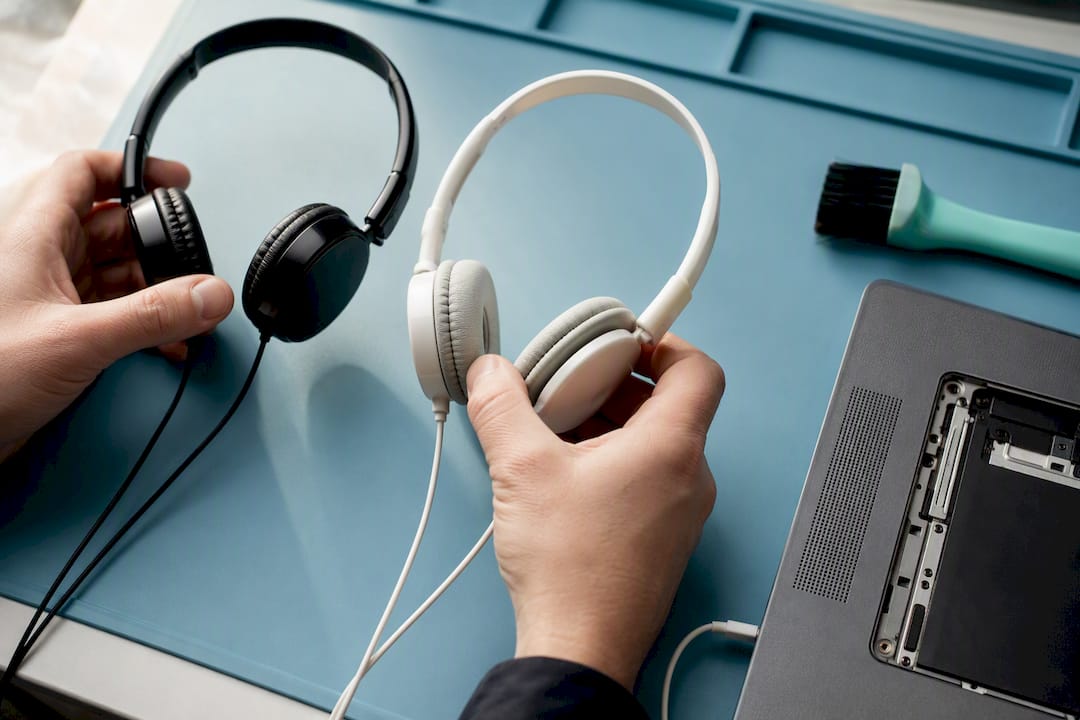
- Switch to wired headphones or an external speaker. If the crackle disappears, your internal speakers or their software path are the problem. If it follows you to headphones, the issue lives upstream in the app or the system.
Run through all five before you diagnose further. Skipping steps is how people end up paying for repairs they didn’t need.
Is It the App or the System? How to Tell
Isolating the cause takes a few minutes of deliberate testing, and the pattern you find tells you almost everything.
- Play the same audio clip in two different apps, like Music and a browser tab. If only one distorts, the problem is app-specific, not system-wide.
- Log into a Guest account and play sound there. A clean result means something in your user account settings, not macOS itself, is at fault.
- Connect wired headphones or an external speaker and repeat the test. Testing with an external output early separates software causes from hardware ones faster than any other single step.
- Open Activity Monitor and watch CPU and memory while the crackle happens. Heavy background load from browser tabs, virtual machines, or emulators can coincide with audio glitches that clear up once you close the offending process.
- Note whether the distortion is locked to one channel or one frequency range. Community diagnostics consistently link frequency-locked distortion to mechanical or component damage rather than a software glitch.
Pro Tip: Record a ten-second clip of the crackle using Voice Memos, then play it back through headphones. If the recorded crackle sounds identical, the problem was captured at the source, not created by your speakers, which almost always means it’s software or a system-level driver issue.
Which Software Fixes Actually Stop the Crackling?
Work through these in order, from safest to most involved. Most people fix macbook audio crackling on step two or three.
- Install pending updates. Go to System Settings, then General, then Software Update, and install anything waiting. A large share of crackling reports trace back to an Core Audio bug that Apple already patched in a later release.
- Restart Core Audio directly. Open Terminal and run
sudo killall coreaudiod. This restarts the audio daemon without a full reboot, interrupting sound for a second or two while it reloads. It changes no files and carries essentially no risk, which makes it one of the best low-effort fixes available. - Boot into Safe Mode. Holding Shift during startup disables non-essential extensions and background drivers, letting you confirm whether a third-party kernel extension is the culprit.
- Reset NVRAM and SMC on Intel Macs. These reset hardware-related settings that occasionally cause sound bugs. Apple silicon Macs handle this automatically and don’t need a manual reset, so skip this step on M-series machines.
- Remove or update third-party audio drivers and CPU utilities. Apps that manage fan speed, equalization, or virtual audio routing are frequent offenders behind macbook speaker buzzing that only started after an install.
Are Your Sample Rate Settings Causing the Crackle?
A mismatched sample rate is one of the most overlooked causes of macbook audio crackling, and it’s also one of the easiest to fix once you know where to look.
- Open Applications, then Utilities, then Audio MIDI Setup, and select your Mac’s built-in output in the left sidebar.
- Check the Format dropdown. Apple’s own guide to Audio MIDI Setup walks through exactly where this menu lives and how to change it.
- Standard audio files run at 44.1kHz, while video and conferencing apps typically default to 48kHz. When the app’s expected rate doesn’t match the device’s Format setting, macOS has to resample on the fly, and that resampling is what produces clicks and pops.
- If you use an aggregate device (combining your speakers with a USB mic, for example), confirm every device in that group shares the same native rate. Grouping devices with mismatched rates is a common, underreported cause of crackle that only appears after setup.
| Use case | Recommended Format |
|---|---|
| Music playback, most media apps | 44.1kHz |
| Video calls, screen recording, conferencing apps | 48kHz |
| Aggregate device groups | Match the lowest common native rate across all devices |
Could Dust or Damage Be the Real Culprit?
Software fixes won’t help if the problem is physical. A few signs point clearly toward hardware rather than a setting.
- Rattling or buzzing that changes when you tilt or press near the speaker grille usually means a loose component or debris.
- Distortion confined to one speaker while the other sounds clean is rarely a software issue.
- A burnt or musty smell near the vents, especially after any liquid exposure, is a warning sign that shouldn’t wait.
Dust, moisture, and physical wear are common physical causes of persistent crackling, and light cleaning sometimes resolves it. Use a soft, dry brush along the grille, and if you use compressed air, hold it at an angle rather than blasting straight into the mesh, since direct high-pressure air can push debris deeper or stress the diaphragm.
Pro Tip: Before you clean anything, confirm the fault is physical by testing with headphones one more time. If headphones sound perfect and only the internal speakers crackle, cleaning is worth trying. If the crackle happens on headphones too, put the brush down. It’s not dust.
When Should You Stop Troubleshooting and Get It Repaired?
If you’ve worked through the software checklist, tested sample rates, and ruled out debris, and the macbook speaker popping still shows up only on the internal speakers, it’s time to stop guessing.
- Run Apple Diagnostics (hold D at startup) and note any error codes. This test flags hardware faults technicians use to separate board-level issues from simple part swaps.
- Back up your data before any service visit, even a same-day one.
- Bring notes on when the crackle started, whether it followed a drop or spill, and which tests you’ve already run.
- Ask any shop about parts warranty, technician certification, and whether pricing is quoted before work begins.
What MacBook Speaker Repairs Actually Look Like in the Shop
Two patterns show up again and again on the bench: intermittent crackles tied to software state or Bluetooth packet timing, which clear up in minutes, and frequency-locked or single-channel distortion, which usually means the speaker module itself has failed. That second pattern is common after a drop, prolonged high-volume bass, or moisture exposure that a customer didn’t even notice at the time.
When the fault is a replaceable speaker module or a grille cleaning, same-day turnaround is realistic, often within the 30 to 45 minute window most repairs fall into. Board-level faults take longer, since they require deeper diagnostics and parts ordering. Whoever you go with, ask about part quality, technician certification, and whether the price is fixed before work starts.
What the Troubleshooting Guides Get Wrong
Most guides treat every crackle as a coin flip between “try this Terminal command” and “pay for a repair,” with no real logic connecting the two. That’s backwards. The pattern of the crackle should tell you which path you’re on almost immediately: intermittent and random points to software, and consistent, channel-specific, or frequency-locked distortion points to hardware. Skipping the headphone test is the single most common mistake, since it’s the fastest way to know which category you’re in before wasting time on the wrong fix.
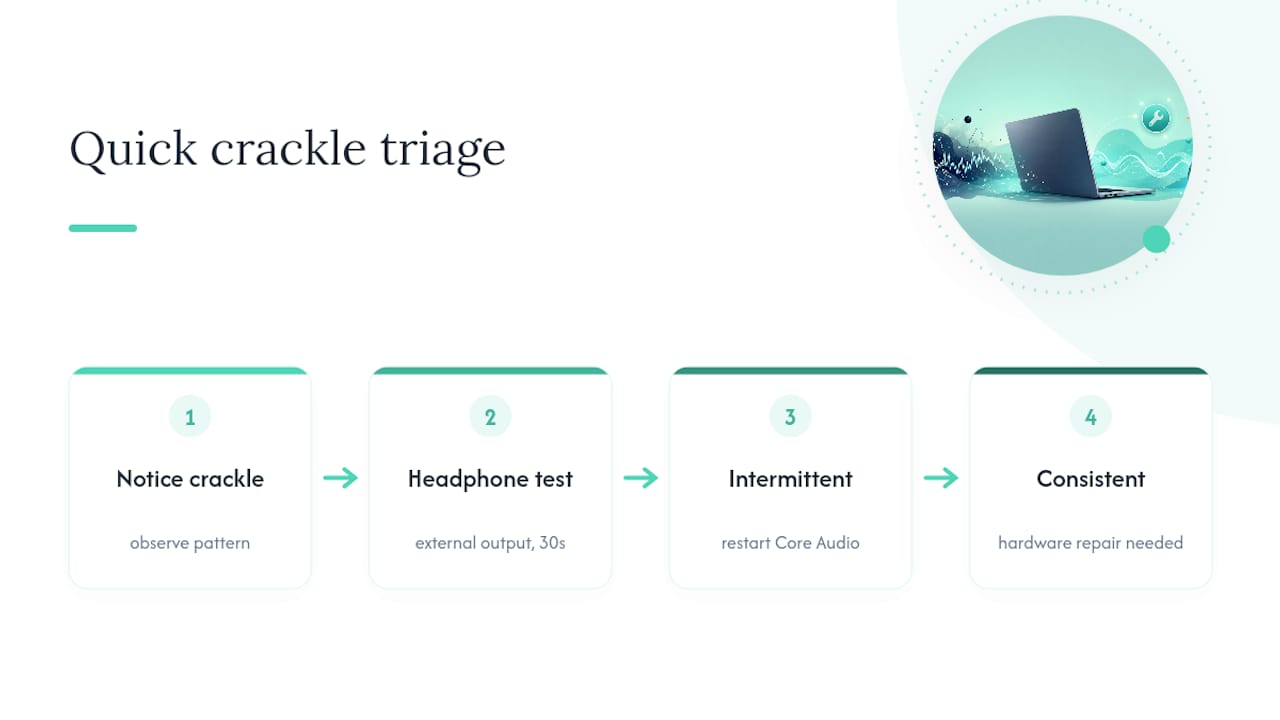
The other overrated step is resetting NVRAM and SMC. It gets recommended constantly, but it solves a narrow set of problems on Intel Macs and does nothing on Apple silicon. Restarting Core Audio with sudo killall coreaudiod deserves far more credit than it gets. It’s safer, faster, and fixes more real-world cases than most of the more dramatic steps people jump to first.
If there’s one habit worth building, it’s testing with an external output before touching a single setting. It takes thirty seconds and tells you whether you’re about to spend an hour in Terminal for nothing.
— SS
How Mobile Care Handles MacBook Speaker Repairs
If you’ve run the checklist, tested your sample rates, and the internal speakers still crackle only on your Mac, that’s a hardware signal, not a software one. Mobile Care is built for exactly that moment: certified technicians diagnose the issue on the spot, and most speaker and mic repairs are completed the same day, often in 30 to 45 minutes, using quality-tested parts backed by a 30-day warranty.

Bring your MacBook in as-is; a technician will assess the fault and provide pricing details before starting any work. If the fault turns out to be software after all, you’ll know for certain instead of guessing. Find your nearest location, including Cumberland Mall or Perimeter Mall, and book a diagnostic today.
Where to Learn More
- Apple’s Audio MIDI Setup guide for exact output configuration steps.
- Apple Diagnostics walkthrough for interpreting hardware error codes.
Sources
- How to fix MacBook speakers crackling — Setapp
- How to fix MacBook speakers crackling — MacPaw
- How to fix MacBook speakers crackling — MacObserver
FAQ
How Do I Fix My Crackling Speakers?
Start with a restart, disconnect Bluetooth accessories, and check for macOS updates, since these resolve most cases. If crackling persists, restart Core Audio with sudo killall coreaudiod and check your Audio MIDI Setup format for a sample-rate mismatch.
How Can I Tell if My MacBook Speakers Are Blown?
Test the same audio through wired headphones or an external speaker. If the sound is clean there but distorted, popping, or silent on one internal speaker, the speaker itself is likely damaged rather than a software setting.
Why Does My Audio Sound Staticy on My Mac?
Static and crackling usually trace back to a sample-rate mismatch between an app and your output device, a stuck Core Audio process, or heavy CPU load from background apps. Dust or moisture in the speaker grille can cause the same symptom.
Why Is My Laptop Audio Suddenly Crackling?
A sudden onset almost always points to something that changed recently: a new app, a macOS update, a newly paired Bluetooth device, or a spike in background CPU use. Restarting the Mac and running through the quick checklist above resolves most sudden cases within minutes.
What Does Mobile Care Charge for Speaker Repair?
Pricing depends on the model and the specific fault, so current speaker and mic repair pricing is available directly through Mobile Care’s services page. Diagnostics are quoted transparently before any repair work begins.