“No Service” means your phone can’t register on any cellular network, so calls, texts, and data all stop working. Try toggling Airplane Mode on and off first, or a full restart if that doesn’t help. Most cases trace back to a software glitch or a carrier hiccup, not a broken phone, and clear up within a few minutes.
TL;DR:
Restarting the phone or toggling Airplane Mode often resolves most temporary No Service issues within seconds.
Updating carrier settings and installing the latest OS can fix deeper connectivity problems caused by outdated software.
Checking the SIM card for damage and ensuring it is properly seated helps identify hardware-related causes of persistent signal loss.
Carrier outages or provisioning errors can be responsible if the problem isn’t solved by device resets or updates.
Hardware issues like water damage or antenna failure require professional repair, typically achievable within an hour with certified technicians.
Table of Contents
How Do You Fix “No Service” on a Phone Right Now?
Before touching any settings menu, run through these fast checks in order. Each one takes under a minute, and together they resolve the majority of no-signal complaints without any deeper troubleshooting.
-
Toggle Airplane Mode. Turn it on, wait about 15 seconds, then turn it off. This forces your phone to disconnect from the network and search for it again, which clears a surprising number of temporary registration errors.
-
Restart the phone completely. Power it all the way off, count to ten, then power back on. A restart clears out background processes that a simple Airplane Mode toggle sometimes misses.
-
Read the status bar carefully. “SOS,” “Searching,” and “No Service” mean different things. Apple notes that SOS mode can still let you place emergency calls through another carrier’s network even though your phone can’t reach your own carrier. “Searching” usually resolves on its own within a minute or two.
-
Turn on Wi-Fi Calling. If you have a working Wi-Fi connection, this lets you make calls and send texts over the internet instead of the cellular network, which is a genuinely useful bridge during a carrier outage or dead zone, according to Wilson Amplifiers’ setup guide.
-
Toggle Wi-Fi off and back on to rule out a Wi-Fi conflict, and confirm Cellular Data is switched on for your active line in Settings. It sounds obvious, but a stray toggle flipped during an update is more common than you’d think.
If your bars come back at any point in this list, stop there. There’s no need to run the deeper fixes below if a restart already solved it.
Why Do Deeper Fixes Sometimes Solve No Signal on Phone?
When the fast checks don’t work, the problem usually sits one layer deeper, in how your phone talks to the network rather than whether it’s simply confused for a moment.
-
Update carrier settings. On iPhone, go to Settings > General > About; if an update is available, you’ll see a prompt to install it. These are small files your provider issues that keep your device correctly registered on its network, and skipping them can leave a phone unable to find signal even where coverage is strong. Android’s path varies by manufacturer but usually lives under Settings > Network & Internet.
-
Install any pending OS update. Apple and Android both frequently bundle cellular connectivity fixes inside routine system updates, so an outdated OS can be the actual root cause.
-
Reseat and inspect a physical SIM. Remove the tray, check for corrosion or debris, clean the contacts gently, and reinsert. If you have access to another working SIM, testing it in your phone quickly tells you whether the issue is the SIM or the device.
-
Check an eSIM’s status in Settings to confirm the line shows as active. If it doesn’t, contact your carrier to reissue it rather than deleting and re-adding it yourself. A botched self-reissue can complicate things further.
-
Force network reselection. Set network selection to automatic, or manually pick a network and then switch back to automatic. This makes the phone re-search from scratch.
-
Reset network settings. This wipes saved Wi-Fi passwords, VPN configurations, and cellular preferences, so you’ll need to rejoin your Wi-Fi networks afterward. It’s a stronger reset than anything above and works when smaller fixes fail.
-
Switch voice/data mode, such as toggling between 5G and LTE, to force the phone to re-register on the network under different conditions.
A 15-step troubleshooting sequence from Technobezz backs up this order: fast taps first, then settings and resets, because that’s genuinely where most stubborn cases get resolved.
Pro Tip: If a network reset fixes things but the problem returns within a day or two, that’s a strong sign the issue is carrier-side provisioning, not your device. Move to checking your account with the carrier next.
Could the Problem Be on Your Carrier’s End?
Sometimes your phone is working exactly as it should, and the failure is happening upstream. A few checks rule this in or out quickly.
-
Check your carrier’s outage or status page, its app, or its social media accounts for reports of a regional or local outage.
-
Ask the carrier to confirm your line is active and hasn’t been mistakenly flagged or blocked at the account or IMEI level.
-
If a location consistently has no service, report it to your carrier with your address, the time it happens, and what device you’re using, similar to the reporting process T-Mobile outlines for signal issues.
-
Provisioning errors and outages are the carrier’s responsibility to fix. If the carrier confirms your account and network are fine, the issue points back to the device.
When Is No Signal on a Phone a Hardware Problem?
A few signs separate a stubborn software issue from an actual hardware fault, and knowing the difference saves you from wasting time on settings that were never going to fix it.
-
The problem survives every software fix above with no change at all.
-
It started right after a drop or any water exposure, even a small splash.
-
It’s intermittent and paired with a physical symptom, like the phone feeling warm near the antenna or the SIM tray looking damaged.
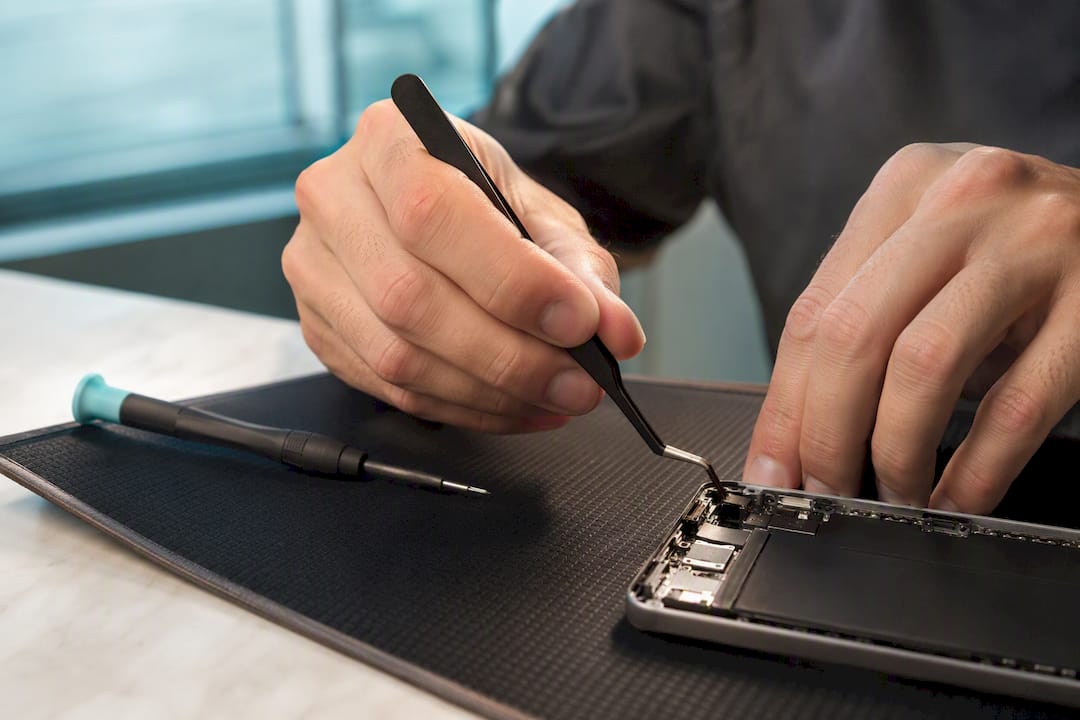
At that point, a repair shop runs diagnostics that go beyond what you can do at home: an IMEI check against the network, a test with a known-good SIM to isolate the phone from the account, and continuity testing on the antenna and modem components. Common fixes include cleaning SIM contacts, repairing or replacing the antenna or modem board, and reversing corrosion from water damage.
Most no service complaints that make it to a repair counter turn out to be quick fixes rather than major hardware failures, and a device with a genuinely damaged antenna is rarer than people expect. When it is hardware, repairs are often completed the same day, usually within under an hour, with a limited warranty on the work performed.
What Habits Help Prevent Future No Service Problems?
A little routine maintenance goes a long way toward keeping your phone connected.
-
Install carrier settings and OS updates as soon as they’re available rather than postponing them.
-
Turn on Wi-Fi Calling now, before you need it, so it’s ready the next time coverage drops.
-
Never erase an eSIM profile yourself. Call your carrier for a reissue instead.
-
Keep the SIM tray clean and keep your phone away from standing water or heavy moisture.
-
If you’re stuck in a persistent indoor dead zone, look into a consumer signal booster that follows FCC guidance on approved devices.
Where Does Signal Trouble Usually Come From?
Diagnosing signal faults comes down to working through causes in the right order, from software glitches to carrier account issues to actual hardware damage. That order matters more than any single fix, because jumping straight to a hardware assumption wastes time on a problem a restart could have solved in ten seconds.
Most no service cases resolve without ever touching the phone’s internal components. When a device does need physical repair, a same-day turnaround of 30 to 45 minutes keeps the disruption to a single visit rather than a week without a working phone. We’re direct with customers about which side of the fence their problem sits on: if it’s a carrier account or network issue, that’s their fix to make, and no repair will change that outcome.
— SS
What Should You Do if the Problem Turns Out to Be Hardware?
If you’ve worked through every software fix and your phone still won’t hold a signal, the issue is very likely sitting in the antenna, modem board, or SIM contacts rather than anything a settings menu can touch. Some repair providers specialize in exactly this: antenna and modem board repair, SIM contact cleaning, and water damage recovery for phones, tablets, and wearables, using quality-tested parts and certified technicians.

Many repairs are completed the same day, often within 30 to 45 minutes, and some jobs carry a warranty. Before you visit, jot down a quick history of when the “No Service” issue started and whether it followed a drop or water exposure, and have your device’s IMEI number handy if you know it. That short summary alone can cut real time off the diagnostic process. Browse Mobilecareusa’s repair services to see what’s covered, or head straight to the Cumberland Mall location to get a same-day diagnosis started.