Most charging failures typically get fixed quickly with basic troubleshooting steps. Clean the port, swap the cable and adapter, plug into a proper wall outlet, and force restart the phone. Do this before anything else, and keep metal tools away from the port. If none of it works, the fault is likely hardware, and that means a diagnostic from a repair shop like Mobile Care rather than more guessing at home.
TL;DR:
- Most charging issues are caused by faulty accessories, debris, or low-power outlets and can often be fixed with simple troubleshooting steps.
- Testing one component at a time, such as cables, adapters, and outlets, helps identify whether the fault is hardware or software related.
- Port damage shows symptoms like loose fit, visible lint, corrosion, or pins, which typically require professional repairs rather than home fixes.
- Activation of battery management features or moisture warnings can mimic hardware faults and require adjusting settings or proper drying before further troubleshooting.
- When basic troubleshooting fails, professional repair shops provide same-day port, battery, or water damage repairs, often with a warranty and faster turnaround.
Table of Contents
- Phone Not Charging? Try This Checklist First
- How Do You Isolate the Real Cause?
- Are iPhone and Android Charging Issues Different?
- When Should You Get Professional Repair?
- Why We Recommend This Troubleshooting Order
- Get Your Charging Port Fixed Same Day
- Sources
- FAQ
Phone Not Charging? Try This Checklist First
Work through these steps in order. Most people find the fix in the first three.
- Force restart the phone. On an iPhone, hold the side button and either volume button until the Apple logo appears. On most Android phones, hold the power button for about 10 seconds until it reboots.
- Swap the cable. Plug a different cable into your phone and test your original cable on another device. This isolates the fault fast.
- Swap the adapter. Try your cable with a different wall brick, and test your adapter on someone else’s phone.
- Use a real wall outlet. Skip the laptop USB port or a cheap power strip. Low-power ports can trickle-charge so slowly it looks like nothing is happening.
- Inspect and clean the port. Power off first. Use a wooden toothpick, a plastic pick, or a can of compressed air. Never poke at it with a paperclip, needle, or anything metal.
- Give a dead battery time. If the phone won’t even turn on, leave it plugged into a wall outlet for 10 to 30 minutes before trying again. Android’s own troubleshooting guidance recommends this exact wait for deeply discharged batteries before you force a restart.
Pro Tip: Charge the phone somewhere cool and out of direct sun. Heat buildup during charging can trigger the phone’s own safety throttling, which slows or pauses charging even though nothing is actually broken.
How Do You Isolate the Real Cause?
A phone that “just won’t charge” usually has one of five culprits: the cable, the adapter, the outlet, the port, or the battery itself. Testing them one at a time, rather than replacing everything at once, tells you exactly what’s wrong.
Start with a stepwise swap test. Change only one component per attempt: known-good cable and your adapter, then your cable with a known-good adapter, then that same pair on a different outlet. Low-quality or non-genuine accessories are one of the most common causes of intermittent or slow charging, and a mismatched cable often looks identical to a good one until you actually test it.
A damaged port shows specific symptoms:
- The cable feels loose or wiggles inside the port.
- The phone only charges when you hold the cable at a certain angle.
- You can see lint, corrosion, or bent pins with a flashlight.
If any of those apply, stop testing accessories. That’s a hardware problem.
Software can mimic a hardware fault. Try booting into safe mode (Android) to rule out a rogue app, check for a pending system update, and if the phone is otherwise stable but still won’t charge, back up your data before considering a factory reset.
Watch for the charging icon appearing while the battery percentage keeps dropping. That usually means the charger supplies less power than the screen and processor are burning through. Close demanding apps, drop your screen brightness, or switch to airplane mode during the test, or upgrade to a higher-wattage charger if the phone supports fast charging.
If you see a moisture warning, power the phone off immediately and let it air-dry. Charging should only resume once that warning has fully cleared, since charging through moisture risks a short circuit. A well-run troubleshooting sequence, cleaning the port, swapping cable and adapter, trying a wall outlet, restarting, and checking battery health resolves the majority of charging complaints, with the remainder pointing to a port, battery, or power-management fault that needs a technician.
Are iPhone and Android Charging Issues Different?
Both platforms have quirks that mimic real faults. Knowing where to look saves you from replacing a part that was never broken.
- Optimized Battery Charging (iPhone) and adaptive charging (Android) intentionally slow or pause charging near 80% to protect long-term battery health. If your phone always stalls around that number overnight, this is the setting, not a defect. It’s usually buried in Battery settings and can be turned off temporarily to confirm.
- “Accessory not supported” or “cannot verify accessory” messages point to a compatibility issue, not necessarily damage. Test with a certified, brand-name cable before assuming the port itself is bad.
- Wireless charging failures are often about alignment, not hardware. A case thicker than roughly 3mm, a metal ring or wallet attachment, or a phone sitting slightly off-center on the pad can all block a charge, according to SmartGearOutlet’s testing of common wireless charging fixes.
- Moisture-detected warnings behave the same way on both platforms: let it dry, don’t apply heat, and wait for the alert to clear before plugging back in.
For exact steps on your device, Apple’s official charging troubleshooting guide and the Android Help charging guide walk through manufacturer-specific settings we can’t cover here.
When Should You Get Professional Repair?
Some symptoms mean it’s time to stop testing cables and get the phone looked at. Watch for these red flags:
- The port wobbles, feels loose, or the cable only makes contact at one angle.
- The phone is unresponsive after a full round of restart, swap, and clean tests.
- The battery looks swollen, or the back case is bulging or lifting.
- You notice a burning smell, discoloration, or visible corrosion inside the port.
Stop using any device with a swollen battery immediately and get it serviced. That’s not a wait-and-see situation.
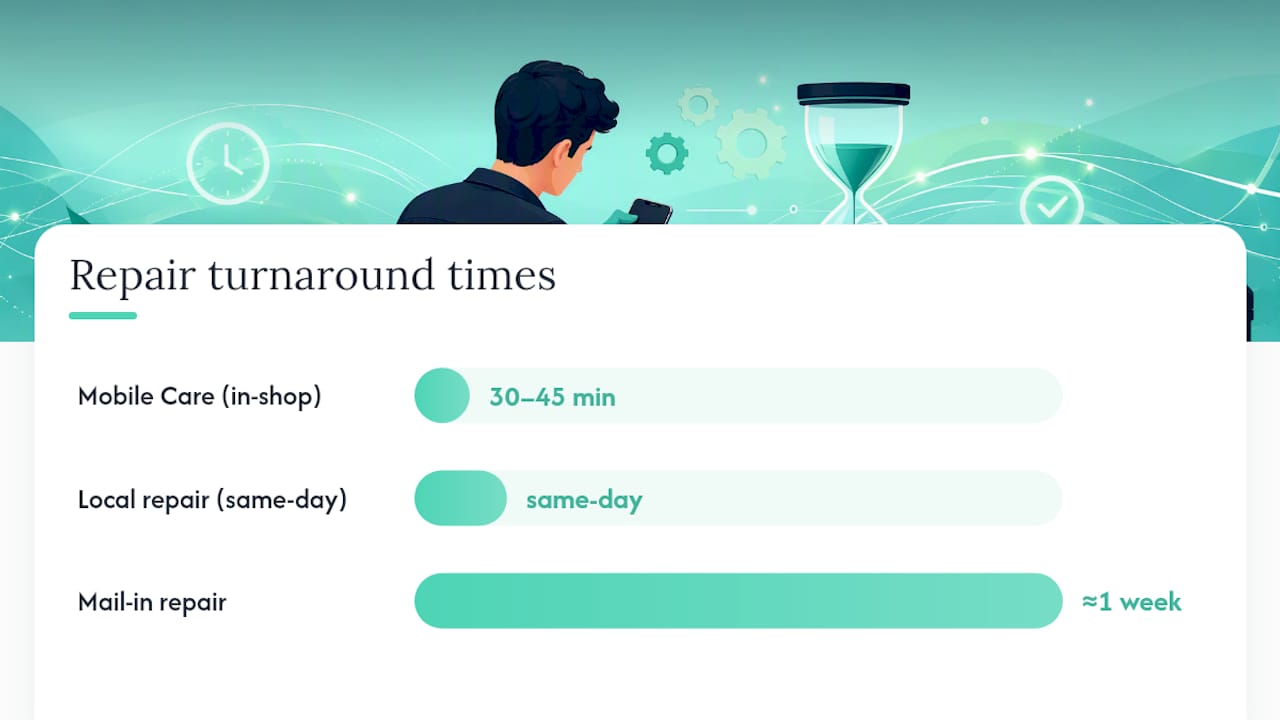
A repair shop runs diagnostics home tools can’t: port continuity checks, battery health readings, and testing of the power management chip that regulates charging current. At Mobile Care, most charging port repairs, battery replacements, and water damage fixes are completed same-day, often in 30 to 45 minutes, using quality-tested parts and backed by a 30-day warranty. That’s a faster turnaround than mailing a phone off and waiting a week for an answer, and it comes from certified technicians who see these exact failure patterns daily.
Why We Recommend This Troubleshooting Order
We put the cheap, reversible checks first for a reason: opening a phone to replace a battery or port when the real problem was a $5 cable wastes your money and your time. A logical chain, clean the port, swap the accessories, restart, check settings, catches the overwhelming majority of cases before any part gets touched.
That said, some faults genuinely need a bench and real diagnostic tools. Prying open a sealed phone at your kitchen table risks bending a connector or voiding whatever warranty is left. We’ve seen enough of these failures at Mobile Care to know the difference between a five-minute fix and a five-minute mistake, and that judgment matters more than any single trick.
— SS
Get Your Charging Port Fixed Same Day
If you’ve run through the checklist and the phone still won’t hold a charge, a repair shop offering same-day service can be a faster alternative to shipping your device off and waiting a week for a diagnosis. Many charging port repairs, battery replacements, water damage fixes, and software diagnostics are often completed the same day, typically in 30 to 45 minutes, by technicians using quality-tested parts.

Every repair comes with a 30-day warranty, so if something feels off after you leave, you’re covered. Browse the full list of charging and battery repair services, or head straight to a location near you like Carolina Place Mall or Cumberland Mall for a same-day estimate. Walk in, get a real diagnosis, and walk out with a phone that charges again.
Sources
- Why is my phone not charging? — T-Mobile Dialed In
- How to fix a phone that won’t charge - Android Authority
- If your iPhone or iPod touch won’t charge — Apple Support
- Fix an Android device that won’t charge or turn on - Android Help
- Technology
FAQ
What Do I Do When My Phone Is Plugged In but Not Charging?
Start by swapping the cable and adapter, since low-quality accessories are a leading cause of this exact symptom. If a different cable and outlet still don’t work, inspect the port for debris or damage, and force restart the phone before assuming it’s a battery problem.
How Can I Tell if a Charging Port Is Damaged?
A damaged port usually shows itself through a loose cable fit, charging that only works at a specific angle, or visible lint, bent pins, or corrosion inside the port. If cleaning and swapping accessories doesn’t change anything, the port itself likely needs replacement, which Mobile Care handles as a same-day repair.
How Do I Clean a Charging Port Safely?
Power the phone off first, then use a wooden toothpick, a plastic pick, or a short burst of compressed air to clear out lint or debris. Never insert anything metal or sharp, since that can bend the pins and turn a simple cleaning into a real repair.
How Do I Force My Phone to Charge?
On iPhone, hold the side button with either volume button until the Apple logo shows up. On Android, hold the power button for about 10 seconds to force a restart, and if the battery is fully drained, leave it on a wall charger for at least 30 minutes first before trying that restart.