Most screen flickering is a software problem, not a broken screen, and it usually clears up with a restart, an update, or a Safe Mode test. The exception is flicker that shows up at boot, on the lock screen, or right after a drop or water exposure. Start by disabling adaptive brightness and running your phone in Safe Mode. If the flicker persists in Safe Mode or appeared after physical damage, stop troubleshooting and get a professional diagnostic.
TL;DR:
- Flickering that occurs at boot or on the lock screen typically indicates a hardware problem rather than a software issue.
- Disabling adaptive brightness and testing in Safe Mode can reveal whether third-party apps or system settings cause the flicker.
- A flicker that persists after a factory reset or changes when applying pressure suggests a loose display connector or physical damage.
- Locking the refresh rate to 60Hz and turning off adaptive brightness can temporarily reduce flickering while waiting for repairs.
- Reputable repair shops conduct diagnostics and reseat connectors before replacing the display, which helps prevent repeat flickering issues.
Table of Contents
- Quick Diagnostic Checklist for Screen Flickering on Your Phone
- Software Fixes That Solve Most Phone Display Flickering
- When Screen Flickering Points to a Hardware Problem
- What to Expect From a Professional Screen Repair
- How to Prevent Screen Flickering Before It Starts
- How Screen Flickering Affects Battery Life and Performance
- Temporary Workarounds Until You Get It Fixed
- What Repair Shops Actually See When Phones Come In Flickering
- Get a Same-Day Diagnosis for Your Flickering Screen
- Sources
Quick Diagnostic Checklist for Screen Flickering on Your Phone
Before you touch a single setting, run through this five-minute checklist. It tells you whether you’re dealing with a phone display flickering issue caused by software or something a technician needs to look at.
- Watch the boot and lock screen. If flicker appears before you unlock the phone or during startup, that’s a strong hardware signal.
- Take a screenshot while it’s flickering. A screenshot captures the framebuffer, not the physical panel, so a normal-looking screenshot during visible flicker points to software or refresh timing rather than a damaged display.
- Turn off adaptive or auto-brightness and watch whether the flicker stops within a minute or two.
- Boot into Safe Mode, which disables all third-party apps and isolates whether an app is the culprit.
- Think back on recent events. A system update, a new app install, a drop, or any water exposure in the last few days all narrow down the likely cause fast.
Write down what you find at each step. That short log is exactly what a repair technician will ask for if you end up booking a diagnostic.
Software Fixes That Solve Most Phone Display Flickering
Software issues, including adaptive brightness behaving erratically, app rendering conflicts, and corrupted cache after an update, account for the large majority of flicker complaints. Work through these steps in order, testing after each one before moving to the next.
- Restart the phone. A simple restart clears temporary memory issues and resolves flicker that started after a random glitch. If the screen is unresponsive or frozen, force-restart it using your device’s button combination.
- Disable adaptive brightness and any extra-dim, night light, or blue-light filter you have running. These features constantly recalculate screen output, and layering more than one at once is a common trigger for visible pulsing.
- Test in Safe Mode. If the flicker disappears, a third-party app is the cause. Uninstall whatever you installed most recently, starting with the newest app first.
- Update your system software and every app. Manufacturers regularly patch display driver bugs, and Samsung’s own support guidance lists Safe Mode and adaptive-brightness checks as the first troubleshooting steps before recommending a repair.
- Clear the system cache partition on Android, or reset display settings on iPhone. A corrupted cache after an update is a known, non-destructive fix and won’t touch your photos or files.
- Set a fixed 60Hz refresh rate if your phone offers 90Hz or 120Hz modes. Variable refresh rate switching can cause visible pulsing while scrolling or at low brightness, and locking the rate is often enough to eliminate it entirely.
- Factory reset as an absolute last resort. Back up your data first. If flicker survives a factory reset, you’re looking at a hardware issue, not a software one.
Pro Tip: Test one change at a time and wait at least 10 minutes before judging results. Flicker caused by adaptive brightness “hunting” can take a few minutes to reappear, and changing three settings at once means you’ll never know which one actually fixed it.
Malware is rarely the real culprit here. Focus your energy on settings, recent app installs, and pending updates before you start worrying about anything more exotic.
When Screen Flickering Points to a Hardware Problem
Some signs mean you should stop testing settings and start looking at the physical display. The most reliable one: flicker that appears at power-on or on the lock screen, before any app or setting has a chance to load. That timing rules out software almost entirely.
Other hardware red flags include:
- Persistent colored bands, discolored lines, or dead zones on the screen
- Flicker that gets worse or better when you press gently on the frame or bend the phone slightly
- Loss of touch response in the same area where the flicker appears
- Any drop, bend, or water exposure in the days before the flicker started
- Flicker that survives a factory reset
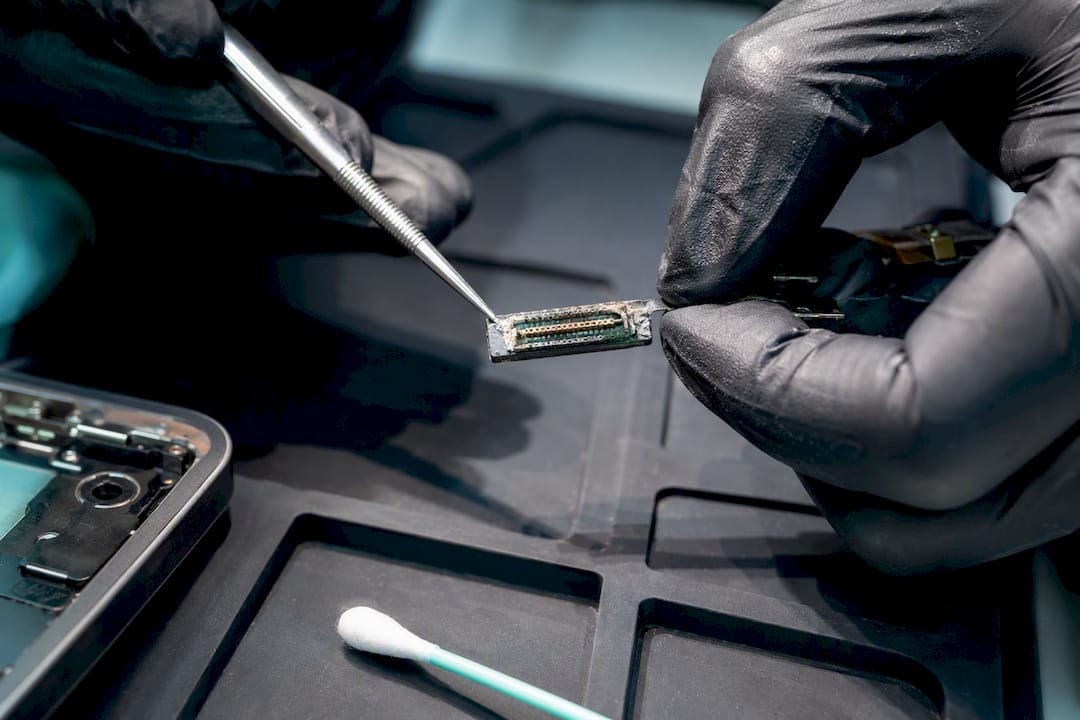
A flicker that changes when you apply light pressure to the case or flex the device usually points to a loose display connector rather than a failed panel, and that’s a repair, not a reset. One diagnostic worth knowing about: if you’re recording video and see banding or flicker only in the footage, that’s frequently a camera shutter speed mismatch with LED or fluorescent lighting, not a phone malfunction at all. Adjusting the recording environment or shutter settings usually clears it up with no repair needed.
Water exposure deserves its own mention. Even a phone that survived a splash and kept working can develop flicker weeks later as corrosion slowly degrades the display connector. If your phone took a dunk recently, treat any new flicker as a hardware issue first and rule out software second, not the other way around.
What to Expect From a Professional Screen Repair
Once you’ve ruled out software or spotted a hardware red flag, a repair shop follows a predictable workflow: diagnostic first, then reseating the display connector if it’s simply loose, and full screen assembly replacement if the panel itself is damaged. Reputable shops reseat flex cables before jumping straight to a full replacement, which keeps costs down when the fix turns out to be simpler than expected.
Turnaround time matters more than most people expect when a phone is your main communication line. Many shops offer same-day service with most repairs completed in a short time when the part is in stock. Cost depends heavily on your device model and whether a connector reseat solves it or a full assembly swap is required.
A few things to look for before you authorize any repair:
- Ask whether the technician is certified and what quality-testing the replacement part went through
- Get a diagnostic estimate before you agree to the repair itself
- Confirm the warranty length in writing, covering both parts and labor
- Treat vague answers about where parts come from as a warning sign
- Be skeptical of flat rates that sound too low for your specific device
Pro Tip: A quality-tested replacement screen and a technician who properly reseats every connector during installation is what actually prevents flicker from coming right back a few weeks later. A cheap panel or a rushed reassembly is the single biggest reason people end up paying for the same repair twice.
How to Prevent Screen Flickering Before It Starts
A handful of habits meaningfully lower your odds of dealing with flicker again, whether the last one was software or hardware.
- Don’t stack adaptive brightness, a blue-light filter, and an aggressive power-saver mode all at once. Each one adjusts the display independently, and running all three together is a common trigger for visible pulsing.
- Charge with genuine or certified cables and adapters. Cheap, uncertified chargers can deliver unstable power that stresses display components over time.
- Keep your operating system and apps updated, and only install apps from official stores where they go through basic security and stability review.
- Use a real protective case and a tempered glass screen protector. Most hardware-driven flicker traces back to a drop, and a case that absorbs impact protects the display connector along with the glass.
- If your phone is a few years old, a routine diagnostic check every year or so can catch a loosening connector before it turns into a full flicker episode.
How Screen Flickering Affects Battery Life and Performance
A flickering display isn’t just visually annoying. It’s actively working your phone harder than it should. When the screen struggles to maintain a steady refresh, the display driver and graphics processor cycle more frequently trying to stabilize the image, and that extra cycling draws more power than a stable display would.
Adaptive brightness stuck in a constant hunting loop, adjusting up and down repeatedly, is one of the more common ways this shows up. Your phone’s ambient light sensor and brightness controller are working overtime, and that translates directly into faster battery drain over the course of a day.
Performance takes a hit too, though less obviously. A phone juggling a rendering conflict or a corrupted cache partition is spending processing cycles on the problem instead of on whatever app you’re actually using. Users often report apps feeling sluggish or lag appearing during scrolling, right alongside the flicker itself. This is one more reason to treat flicker as a real problem rather than a cosmetic quirk you can just ignore. Left unaddressed, the same underlying software conflict that’s causing the flicker keeps drawing extra battery and CPU resources every single day, and that adds up to noticeably shorter battery life over weeks.
Temporary Workarounds Until You Get It Fixed
If you can’t get to a repair shop right away, a few adjustments can make the flicker less disruptive without fixing the underlying cause.
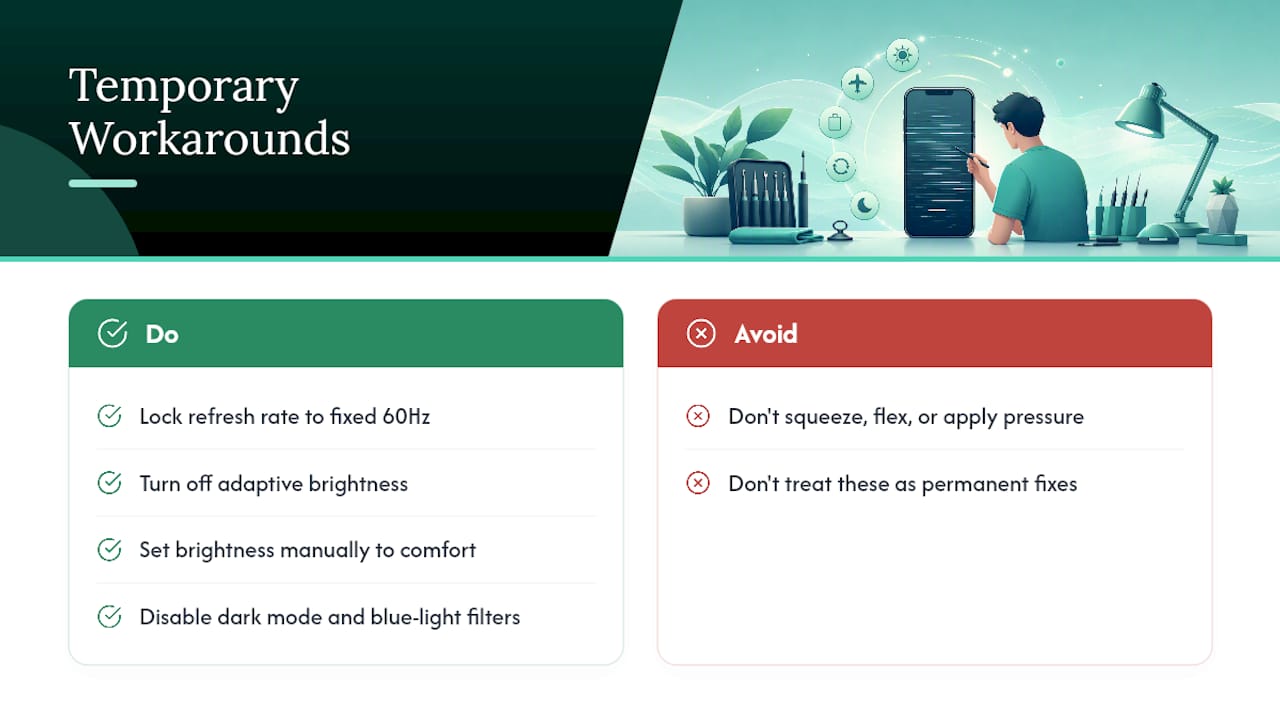
Locking your refresh rate to a fixed 60Hz, if your phone supports 90Hz or 120Hz modes, is the single most effective temporary workaround. Variable refresh rate switching is a frequent flicker trigger, and a fixed rate removes that variable entirely while you wait for a permanent fix or a vendor patch.
Turning off adaptive brightness and manually setting your brightness level to something comfortable, rather than letting the sensor constantly adjust, often reduces how often flicker appears throughout the day. Disabling dark mode or any blue-light filter temporarily can also help, since these features process the display output in ways that sometimes interact poorly with an existing rendering issue.
If the flicker is tied to a specific app, simply avoiding that app until you can troubleshoot further keeps your phone usable in the meantime. And if you suspect hardware, avoid squeezing, flexing, or applying pressure to the case, since that can make a loose connector issue worse rather than better. None of these are permanent solutions. They’re ways to keep using your phone comfortably while you work through the diagnostic checklist or wait for a repair appointment.
What Repair Shops Actually See When Phones Come In Flickering
Most flickering phones that come through a repair shop turn out to be software issues that got misdiagnosed as broken screens. Once a technician rules that out, the next most common finding is a loosened display connector, often from a drop the owner barely remembers, followed by actual panel damage. That order matters. Reputable repair shops run a diagnostic before recommending any parts replacement, and same-day repairs with certified technicians and quality-tested parts, backed by a warranty, solve the problem instead of just masking it temporarily. DIY screen replacement kits look appealing on price, but a mismatched connector or an uncertified panel is exactly what brings the same flicker back within weeks, and it usually voids whatever warranty you had left.
— SS
Get a Same-Day Diagnosis for Your Flickering Screen
If you’ve worked through the software checklist and the flicker won’t quit, or it showed up right after a drop, some local repair shops offer faster turnaround than mailing your phone off to a manufacturer service center and waiting a week or more for a callback. Many repairs can be completed in a short time, using quality-tested parts installed by certified technicians, and repairs may carry a warranty on parts and labor.

Before you come in, back up your data if you can, and jot down what you noticed: when the flicker started, whether it followed a drop or an update, and what you’ve already tried. That log speeds up the diagnostic and helps the technician pinpoint the cause faster. Mobile Care’s full range of repair services covers screens, batteries, charging ports, and more across smartphones, tablets, and laptops. Always ask for a diagnostic estimate and confirm the warranty terms before you authorize any work. You can check availability and book a screen diagnostic at the Cumberland Mall location or find the Perimeter Mall shop if that’s closer to you.
Sources
For device-specific steps beyond what’s covered here, these pages go further into manufacturer-recommended fixes and additional diagnostics. Samsung’s official troubleshooting guide walks through Safe Mode and adaptive brightness checks in more detail for Galaxy devices. How-To Geek’s Android flicker guide covers cache partition wipes step by step. The Android Portal’s troubleshooting breakdown explains refresh rate switching and adaptive brightness hunting in more technical depth.
- Android screen flickering issue: 9 Powerful Fixes Fast
- What causes phone screen flickering and how do I fix it? - SamMobile
- How to fix screen flickering on Android phones - How-To Geek