A Windows blue screen (BSOD) is Windows halting itself to prevent data loss or deeper system corruption. Most single crashes clear up after a restart and need no further action. If the crash repeats, the fix is to record the stop code shown on screen, reboot into Safe Mode, and work through driver and system checks from there.
TL;DR:
- Most recurring blue screens relate to driver conflicts, memory issues, or hardware faults, with specific stop codes guiding targeted troubleshooting.
- Capturing the stop code and associated driver filename before restarting is crucial for accurate diagnosis, especially if crashes repeat frequently.
- Running Safe Mode, disconnecting recent hardware, updating drivers, and using Windows repair tools typically resolve crashes within an hour for most users.
- Analyzing crash dumps, Event Viewer logs, and performing memory or disk tests help identify underlying hardware problems if software fixes fail.
- Hardware repair becomes necessary when persistent crashes occur despite software troubleshooting, especially with failing RAM, drives, or overheating components.
Table of Contents
- What Is a Windows Blue Screen and Why the Stop Code Matters
- Common Causes of Blue Screens (and the Stop Codes They Trigger)
- Quick Fixes to Try Right Now
- Advanced Diagnostics When Crashes Keep Coming Back
- When to Get Professional Repair Instead
- Keeping Blue Screens From Coming Back
- A Three-Step Checklist That Actually Works
- When Software Fixes Aren’t Enough, Mobile Care Steps In
- Official Resources Worth Bookmarking
- Sources
- FAQ
What Is a Windows Blue Screen and Why the Stop Code Matters
A blue screen, technically a “bug check,” is Windows’ emergency brake. When the operating system hits a condition it cannot recover from safely, it stops everything rather than risk corrupting your files or your file system, and it often restarts automatically once it finishes.
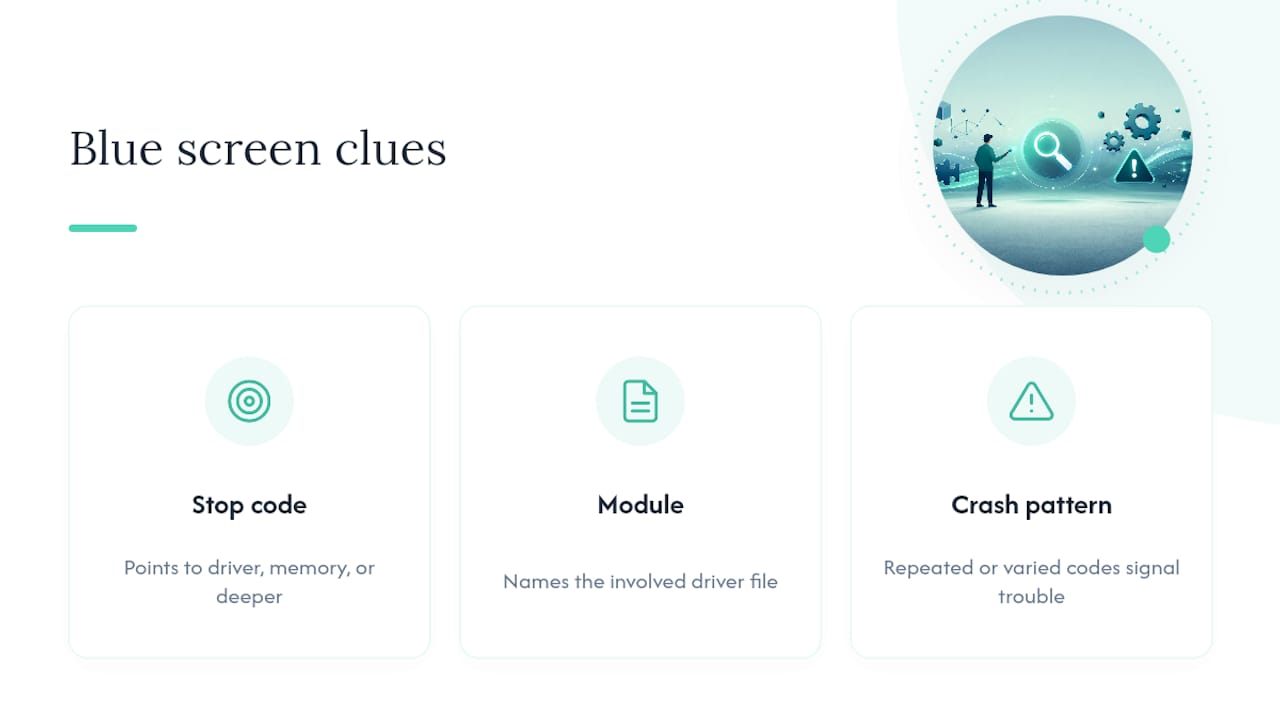
That screen isn’t just a wall of blue. It carries two pieces of evidence you need: the stop code (something like DRIVER_IRQL_NOT_LESS_OR_EQUAL) and often a module or driver filename. Together, they tell you whether the problem lives in a driver, in memory, or somewhere deeper in the system. Microsoft’s own troubleshooting guidance treats these two details as the starting point for any real diagnosis.
One crash is an event. A pattern is a problem. If your machine throws the same stop code twice in a week, or a different code every few days, that’s your cue to move past “just restart it” and start working the checklist below.
Common Causes of Blue Screens (and the Stop Codes They Trigger)
Most BSODs trace back to one of five sources, and the stop code on your screen usually points you straight there.
- Driver conflicts, especially after installing new hardware or a graphics driver update, commonly show as
DRIVER_POWER_STATE_FAILUREorDRIVER_IRQL_NOT_LESS_OR_EQUAL. - Faulty memory or disk errors tend to surface as
MEMORY_MANAGEMENTorPAGE_FAULT_IN_NONPAGED_AREA, both of which point at RAM, a failing drive, or a corrupted file system. - Windows updates or new software occasionally introduce incompatibilities that didn’t exist the day before, which is why a crash pattern that starts right after Patch Tuesday is worth noting.
- Hardware faults, from overheating components to a loose RAM stick, produce crashes that seem random but often cluster under load, like gaming or video export.
- Malware or corrupted system files can mimic driver problems, which is one reason a system file scan belongs early in your troubleshooting, not as a last resort.
The bug check code reference is the authoritative list mapping hex codes like 0x0000009F to their named errors, and it’s worth bookmarking if you deal with these more than once.
Quick Fixes to Try Right Now
Work through these in order. Most readers resolve a recurring blue screen within 15 to 60 minutes using nothing but built-in Windows tools.
- Boot into Safe Mode. Hold Shift while selecting Restart, then go to Troubleshoot > Advanced Options > Startup Settings. If your PC runs fine in Safe Mode, a third-party driver or startup app is the likely culprit.
- Disconnect anything you added recently. External drives, docks, webcams, even a new mouse. Test without them before you touch anything else.
- Update or roll back drivers in Device Manager. If the BSOD showed a filename like
AcmeVideo.sys, that module name often points directly to the offending driver. Uninstall it, or grab the current version from the manufacturer’s site rather than Windows Update. - Run SFC and DISM. Open Command Prompt as administrator and run
sfc /scannow, followed byDISM /Online /Cleanup-Image /RestoreHealthif SFC finds issues it can’t fix. - Check your Windows Update history. Settings > Windows Update > Update History lets you uninstall a specific update if crashes started right after it landed.
- Try System Restore. If you can pinpoint roughly when the problem began, restoring to a point before that change often resolves it without touching drivers individually.
Pro Tip: Photograph the blue screen with your phone the moment it appears. Windows often restarts within seconds, and that stop code disappears with it. A quick photo saves you from hunting through Event Viewer logs later.
Start with these software fixes before assuming you need new hardware. Most crashes resolve without any part replacement, and the process above works the same way whether you’re troubleshooting Windows 10 or Windows 11, since both versions share the same stop code system and recovery tools.
Advanced Diagnostics When Crashes Keep Coming Back
If the quick fixes don’t stick, it’s time to dig into what Windows already recorded about the crash.
- Open Event Viewer and check Windows Logs > System around the exact time of your last crash. Look for red error entries logged in the seconds before the restart.
- Enable crash dump collection and analyze the resulting file with WinDbg’s
!analyze -showcommand, which can surface the probable faulting driver or module along with the parameters that triggered it. - Run Windows Memory Diagnostic or MemTest86 to rule out failing RAM. Memory problems don’t always reproduce on the first pass, so intermittent test failures still warrant treating a module as suspect rather than dismissed as a fluke.
- Run
chkdsk /ffrom an elevated Command Prompt to catch disk errors that a standard scan misses.
Once you’ve isolated a driver filename through Event Viewer or a dump analysis, your options are the same as before: uninstall it, replace it with a vendor-supplied version, or check for a firmware update if it’s tied to a physical component like a GPU or storage controller.
When to Get Professional Repair Instead
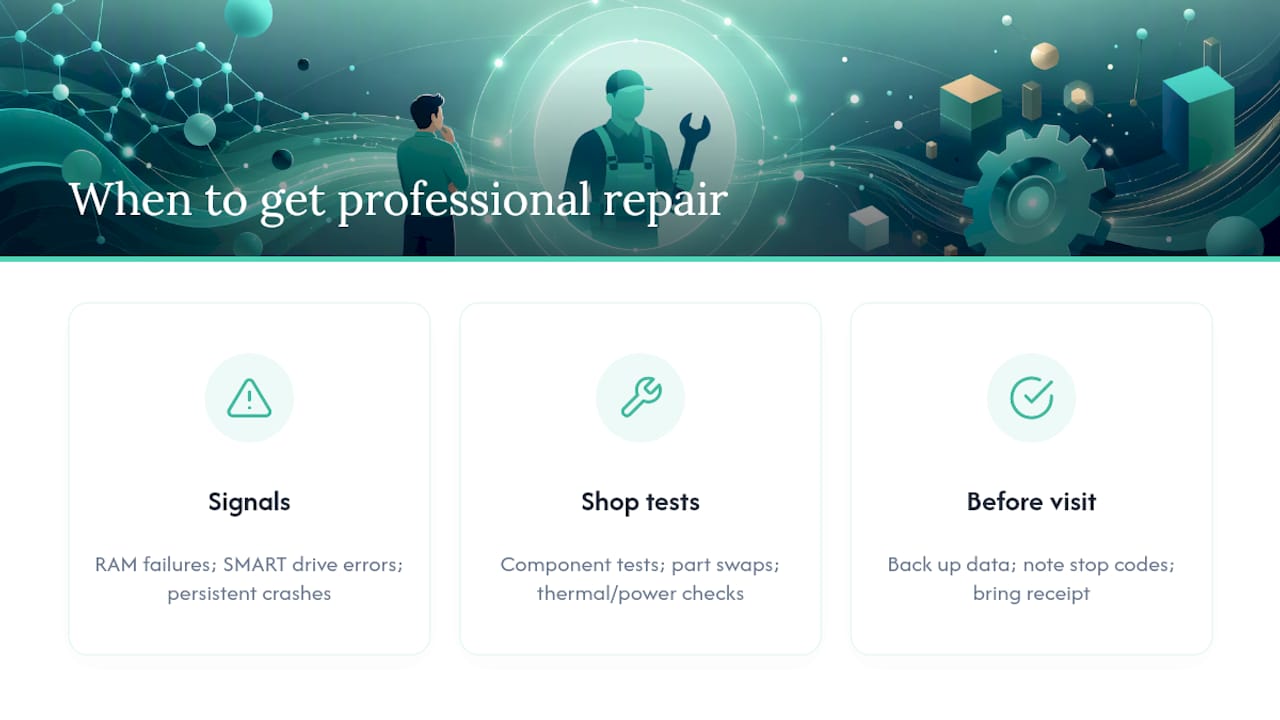
Some signals mean it’s time to stop troubleshooting and start diagnosing hardware directly. A memory test that fails consistently, a drive throwing SMART errors, or a machine that crashes even after a clean Windows install all point toward physical hardware rather than software.
A repair shop at that point does what you can’t easily do at home: component-level testing, part swaps, and thermal or power checks that isolate a failing stick of RAM, a dying drive, or a power delivery issue on the motherboard. Before you go in, back up your data, write down the exact stop codes you’ve seen, and note what changed right before the crashes started. If any hardware is still under warranty, bring the receipt.
Keeping Blue Screens From Coming Back
Prevention here is mostly maintenance, not magic.
- Keep Windows and drivers updated from official sources, and create a restore point before installing anything major.
- Clean dust out of vents and fans, and reseat RAM sticks or cables if you’re comfortable opening the case.
- Run regular backups, keep a reputable antivirus active, and avoid downloading drivers from unofficial mirror sites.
General performance tuning also reduces the load your system carries day to day, which indirectly lowers the odds of a driver or memory fault surfacing under stress.
A Three-Step Checklist That Actually Works
Most blue screens get solved by three moves, done in order: capture the exact stop code before the restart erases it, isolate the cause by testing in Safe Mode, and act on what you find rather than guessing. Skip the middle step and you’re just reinstalling drivers at random.
Document every stop code you see and back up your files before making further changes. It’s a small habit that saves real time if a problem escalates and you eventually need a second opinion.
— SS
When Software Fixes Aren’t Enough, Mobile Care Steps In
If you’ve worked through the driver rollbacks, the SFC scans, and the memory tests, and your laptop still crashes, that’s usually a hardware conversation, not a software one. A professional repair shop can handle that conversation in person, with technicians running component-level diagnostics you can’t do from a Command Prompt window.

Most repairs at Mobile Care are completed same-day, often in 30 to 45 minutes, using quality-tested parts installed by certified technicians. Every repair carries transparent pricing and a 30-day warranty, backed by a 4.8 out of 5 rating from more than 2,000 customers. If your blue screens trace back to failing RAM, a dying drive, or overheating hardware, that’s exactly the kind of fault worth bringing in rather than continuing to troubleshoot solo. Check the full range of device repair services and find the Mobile Care location nearest you to get a same-day diagnosis.
Official Resources Worth Bookmarking
For deeper reference, Microsoft maintains the stop code troubleshooting guide and the bug check code reference for interpreting specific hex codes and planning advanced dump analysis.
Sources
- Troubleshooting Windows unexpected restarts and stop code errors - Microsoft Support
- Stop code error troubleshooting - Microsoft Learn
- Bug check code reference - Microsoft Learn
FAQ
What Causes a PC to Blue Screen?
A blue screen usually comes from a driver conflict, faulty or failing memory, a corrupted system file, or a hardware fault like overheating. The exact stop code displayed on screen narrows down which of these is most likely.
Is the Blue Screen of Death Fixable?
Yes, in most cases. A large share of blue screens are resolved through software fixes like driver rollbacks, SFC scans, or uninstalling a recent update, with no hardware replacement needed. If those steps don’t stop the crashes, a professional diagnostic can confirm whether a component needs replacing.
What Should I Do if Windows Is Stuck on a Blue Screen?
Force a restart by holding the power button for 10 seconds, then boot into Safe Mode if the crash repeats. From Safe Mode you can uninstall a recent driver, run a system restore, or use System File Checker to repair damaged files.
Does a Blue Screen Mean My PC Is Dying?
Not usually. A single BSOD is often just Windows protecting itself from an unstable state, and it frequently clears up after a restart with no further action needed. Recurring crashes with the same stop code, or failed memory and disk tests, are stronger signs of an actual hardware problem worth having checked by a repair technician.
What Does DRIVER_IRQL_NOT_LESS_OR_EQUAL Mean?
This stop code means a driver tried to access memory at a priority level it wasn’t allowed to use, and it almost always points to a specific driver, often one you can identify by the module filename shown on the crash screen. Updating or rolling back that driver in Device Manager resolves it in most cases.