
An iPhone that keeps landing on the recovery screen usually has a software problem that a force restart or an Update can fix, and the order you try things in decides whether you keep your data. If the loop survives a clean restore, a different cable and a different computer, the cause is more likely hardware, and that is the point to bring the phone to us at Mobile Care in Atlanta, where most repairs are finished in 30 to 45 minutes.
TL;DR
- Try a force restart first. It erases nothing.
- If the recovery screen returns, use Update from a computer. Update reinstalls iOS and keeps your data. Restore erases everything.
- Wait before you panic: the Apple logo with a progress bar can last over an hour during a restore, and recovery mode itself times out after 15 minutes of no activity.
- Errors 9, 4005, 4013 or 4014 that repeat on a second cable and computer, or a button that no longer works, point to hardware.
- Hardware causes such as storage, logic board, battery, charging port or water damage need a technician.
Table of Contents
- What the recovery mode loop actually is
- Step 1: Charge, then force restart
- Step 2: Check whether it is really stuck
- Step 3: Update from a computer
- Step 4: Restore only as the last software step
- Step 5: Read the error codes
- When the loop is a hardware problem
- Why bring a looping iPhone to a repair shop
- Our perspective
- Get your iPhone checked the same day
- FAQ
- Sources
What the recovery mode loop actually is
Recovery mode is a rescue state. Your iPhone shows a cable and computer icon, or a “Connect to computer” message, because iOS cannot finish starting up. Entering it does not erase anything by itself. Data is removed only if you choose Restore afterward, as Redmondpie explains.
A loop means the phone leaves recovery and drops back in. Common triggers include an interrupted update or incomplete restore, a dropped connection, modified software such as a jailbreak, or a hardware fault in storage, the logic board, power components or buttons, according to Wondershare’s guide.
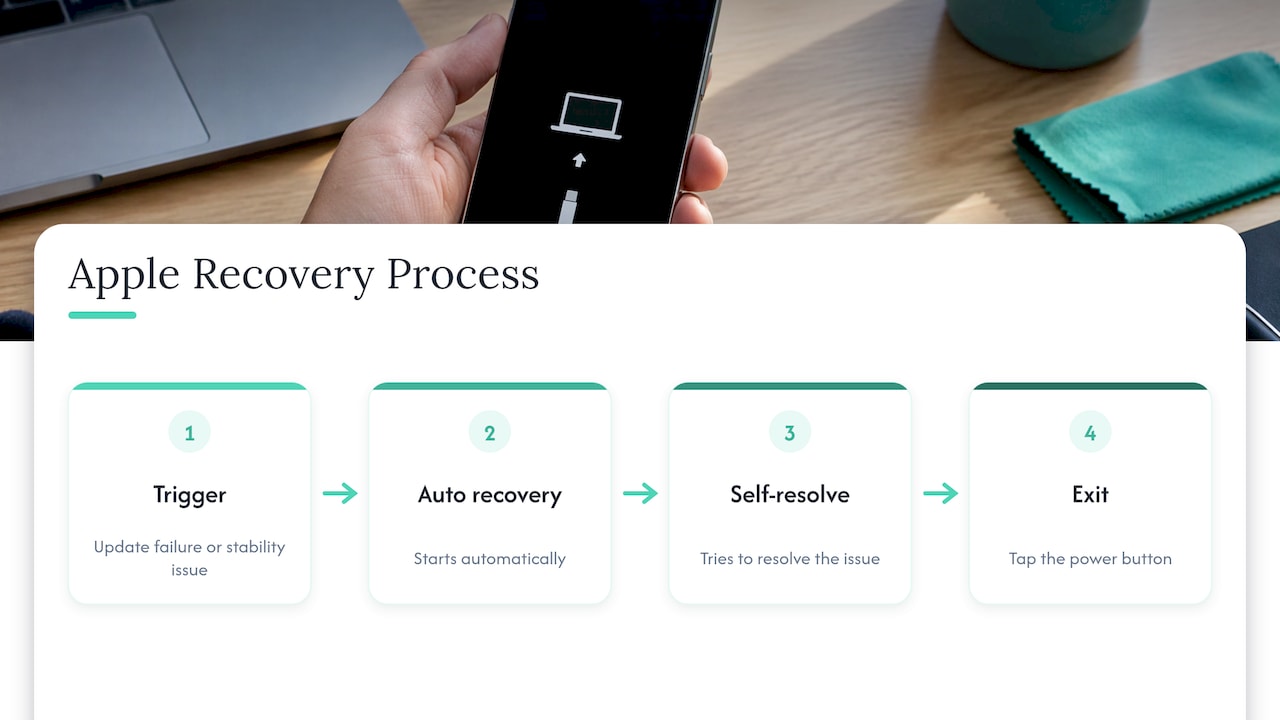
Apple says its own iOS Recovery starts automatically when an update or restore did not complete or a stability issue is detected. It first tries to resolve the issue itself, and you can leave it by tapping the power button.
Step 1: Charge, then force restart
A low battery can interfere with recovery, so plug the phone into a known-good charger first. If the screen stays dark, Apple suggests charging for an hour, or 30 minutes if a low-battery icon appears.
Then force restart. On iPhone 8 and later:
- Press and release Volume Up.
- Press and release Volume Down.
- Hold the Side button until the Apple logo appears. This can take longer than 10 seconds.
Older models use different button combinations. On an iPhone 7 it is Side plus Volume Down, and on an iPhone 6s or earlier it is Home plus the top or Side button, held for 15 to 20 seconds, per FoneLab.
If the phone boots normally, update iOS and back up right away. If it drops back into recovery, do not keep hammering the buttons. Unplug it, wait a minute, then retry.
Step 2: Check whether it is really stuck
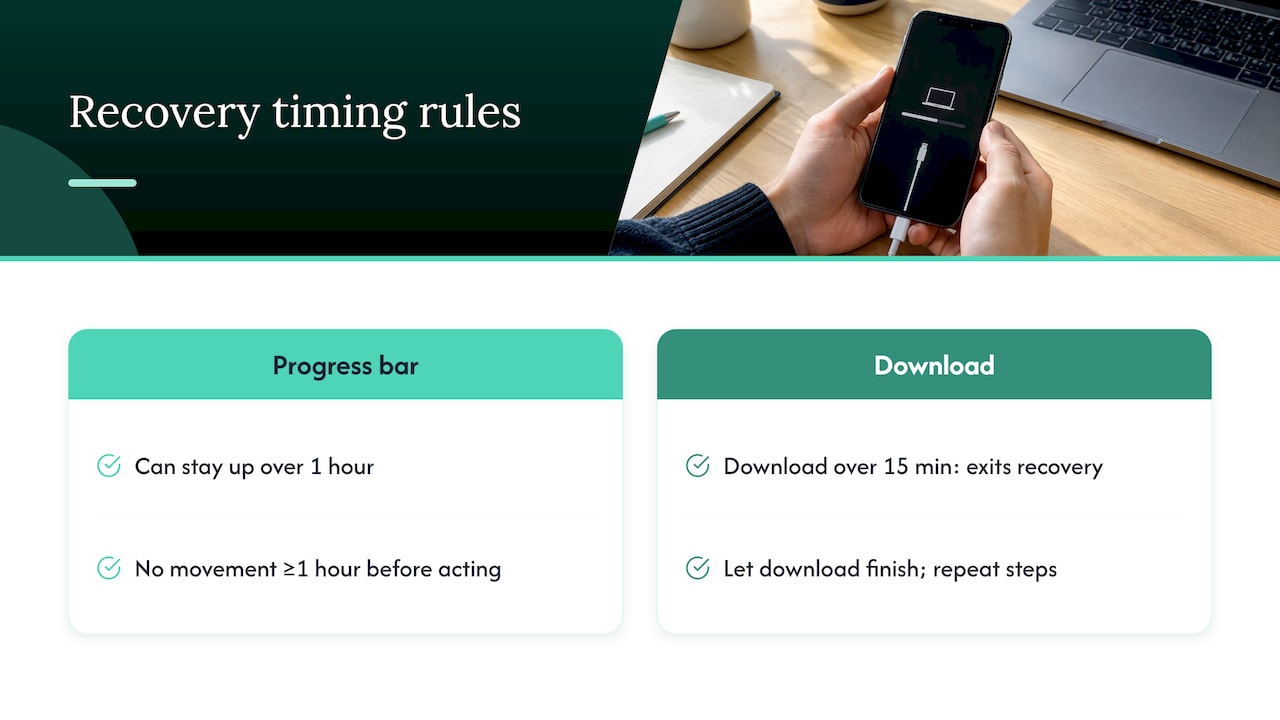
Many “loops” are patience problems. Apple notes the logo and progress bar can stay up for more than an hour during a restore or data migration on iOS 13 or later. Act only if the bar has not moved for at least an hour.
The other time limit works the opposite way. If your download takes more than 15 minutes, the iPhone leaves the recovery screen. Apple says to let the download finish and repeat the steps. Macworld likewise reports that the Mac keeps downloading after the phone exits, and you then put the iPhone back into recovery to apply the update (Macworld).
Step 3: Update from a computer
This is the step that fixes most software loops without costing you your photos and messages.
- Connect the iPhone to a Mac (Finder) or a PC (Apple Devices app or iTunes) with a good cable.
- Put the phone in recovery mode with the sequence for your model. On iPhone 8 and later, press Volume Up, press Volume Down, then hold the Side button until the recovery screen appears.
- When the computer offers Update or Restore, choose Update.
- Wait for the download and install. Keep the phone connected.
Apple’s guidance says to try Update first if you have not. Update reinstalls iOS and keeps personal data, while Restore installs iOS and erases all of it.
If you are on iOS 27
Apple’s iOS 27 recovery page lists five on-device options: Recovery Assistant, Software Update, Diagnostics Mode, Erase All Content and Settings, and Recovery Mode. MacRumors describes how to reach the screen: turn the phone off, wait about a minute, then hold the Side button past the Apple logo until “Loading recovery options…” appears. A sensible order is Recovery Assistant, then Software Update, then computer-based recovery, with Erase All Content and Settings last. Recovery Assistant needs your passcode and Wi-Fi.
Step 4: Restore only as the last software step
If Update fails, Restore is the remaining software fix. Know what you are agreeing to:
- Everything on the phone is erased and the latest compatible iOS is installed.
- You cannot back up a phone while it sits in recovery mode (MakeUseOf).
- Afterward you can bring back settings, data and apps from an iCloud or computer backup made before the trouble started.
- If Find My was on, Activation Lock will ask for the owner’s Apple Account credentials, so have them ready.
If you are dealing with the Apple logo rather than the recovery screen, our guide to an iPhone stuck on the Apple logo walks through the same escalation.
Step 5: Read the error codes
If the computer shows an error mid-process, it tells you where to look. Apple says errors 9, 4005, 4013 and 4014 can appear when the device disconnects during an update or the computer loses its connection during a restore. Its error page advises:
- Update the Mac or iTunes.
- Force restart the iPhone and choose Update.
- Try a different USB cable, then a different computer.
iFixit adds that errors 14, 78 or 1110 can point to full storage.
When the loop is a hardware problem
These signs mean software is not the whole story:
- The loop continues after a clean restore.
- Errors 9, 4005, 4013 or 4014 repeat across cables and computers.
- The phone disconnects over and over during recovery.
- A button is damaged or sticks.
Apple itself says you might need service if you cannot update or restore in recovery mode, or if a button does not work or sticks (Apple Support). Typical hardware suspects are a worn battery, a faulty charging port, a damaged storage chip or logic board, and water damage. iFixit notes that logic board damage can come from liquid contact, a significant drop, or flexing from carrying the phone in a pocket.
If your loop began after a drop, a screen replacement or liquid exposure, skip further restores and have the phone looked at. Repeated restores will not fix a failing component.
Why bring a looping iPhone to a repair shop
A loop is stressful because you cannot tell whether you are one Update away from a fix or facing a failed part. A technician can separate the two quickly, so you stop guessing.
At Mobile Care we repair smartphones, tablets, wearables and laptops in Atlanta. Our services include battery replacement, charging port replacement and water damage repair, plus software issue fixes and data recovery. Certified technicians use quality-tested parts, and every repair carries a 30-day warranty.
If your phone will not power on at all, see what to try first and when to get it repaired.
Our perspective
Most people we talk to about a recovery loop have already done the right thing: they force restarted and they are afraid of the word Restore. That fear is reasonable, because Restore erases the phone.
Our advice is the order Apple describes. Try Update first, give downloads the time they need, and keep your cables and computer straightforward. When that sequence still ends in the same screen, the useful question changes from “which button next?” to “which part is failing?”
That is where a diagnosis pays off. Our certified technicians check the phone, we price the repair transparently, and most fixes are done the same day, often in 30 to 45 minutes, with a 30-day warranty behind the work. Your phone is your communication hub and your digital wallet, and it should not sit in a drawer for a week.
SS
Get your iPhone checked the same day
When Update and Restore do not end the loop, bring the phone to Mobile Care. We handle the hardware causes behind recovery loops, from batteries and charging ports to water damage, and our customers rate us 4.8/5 across more than 2,000 reviews.

See the full list of repairs on our services page.
FAQ
How long will an iPhone stay in recovery mode?
Without an active restore, the screen can stay on as long as the battery lasts, and sitting there does not erase data (FoneLab). During a computer download, the phone exits after 15 minutes, and you repeat the recovery steps once the download finishes.
Will I lose my data getting out of a recovery loop?
Not necessarily. A force restart and Update keep your data. Only Restore erases it, and you can then load a backup made earlier. You cannot back up from recovery mode itself.
Is the iPhone recovery loop caused by hardware?
It can be, but software is the more common cause. Interrupted updates and failed restores come first. If the loop survives a clean restore, a new cable and another computer, hardware such as storage, the logic board or the battery becomes likely.
What if the buttons will not work to enter recovery mode?
Apple says a button that does not work or sticks is a reason you might need service. On iOS 27 models, the Recovery screen options may help, but a damaged button still needs repair.
Sources
- If you can’t update or restore your iPhone or iPod touch - Apple Support
- If your iPhone freezes on the Apple logo - Apple Support
- How to start up from iOS Recovery - Apple Support
- Restart an unresponsive iPhone - Apple Support
- If you see error 9, 4005, 4013, or 4014 - Apple Support
- iOS 27: Access the New iPhone Recovery Screen - MacRumors
- How to put an iPhone into Recovery Mode - Macworld
- How to Force Restart an iPhone and Enter Recovery Mode - MakeUseOf
- How To Enter And Exit Recovery Mode On iPhone - Redmondpie
- Recover Data from iPhone in Recovery Mode - FoneLab
- iPhone Keeps Restarting - iFixit
- iPhone Stuck on Apple Logo - iFixit
- 6 Fixes for iPhone Stuck in Recovery Mode - Wondershare