
A flickering laptop screen is either a software problem you can fix in a few minutes or a hardware fault that no setting will cure. The fastest way to know which is a two-minute check, and the rest of this guide walks you through it. If the flicker survives the software steps, the display, its cable or the backlight needs a technician. At Mobile Care in Atlanta, most repairs are completed the same day, often in 30 to 45 minutes, by certified technicians, so you are not without your laptop for long.
TL;DR
- Open Task Manager. If it flickers along with the screen, the display driver is the likely cause. If it stays steady, an app is the likely cause.
- Press Windows+Ctrl+Shift+B to reset the graphics driver, then update or roll back the driver and update or remove recent apps.
- Lines, dots, dark patches or flicker that shows up in a built-in screen test point to the screen hardware, not Windows.
- Flicker that continues after the software steps is a job for a technician. Mobile Care completes most repairs the same day with a 30-day warranty.
- Flickering that changes as you tilt the lid usually points to the display cable, not the software.
Table of Contents
- Why a laptop screen flickers
- Step 1: Work out whether it is software or hardware
- Step 2: Software fixes, in order
- Step 3: Signs the screen hardware is the problem
- MacBook screen flickering with lines
- What a flickering laptop screen costs to fix
- When a repair beats a replacement
- Promo: same-day laptop screen repair in Atlanta
- Habits that help prevent screen problems
- FAQ
- Sources
Why a laptop screen flickers
The causes fall into two groups. Microsoft’s Surface team lists outdated or incompatible display drivers, incompatible apps, interference from connected accessories, power supply problems such as a faulty battery or adapter, and hardware faults in the graphics card or the display itself.
A display driver is the small piece of software that tells Windows how to talk to your screen and graphics chip. When it is outdated, corrupted or mismatched after an update, the picture can shimmer, flash or tear. Apps cause trouble when they draw to the screen in ways the driver does not handle well. Those are the cheap, free fixes.
The hardware group is different. A worn display cable, a failing backlight, a damaged panel or a loose connection produces flicker that no software change can touch. The goal of the next section is to sort your laptop into one group or the other before you spend time or money.
Step 1: Work out whether it is software or hardware
Three quick checks do most of the sorting.
The Task Manager test
Press Ctrl+Shift+Esc to open Task Manager while the flicker is happening. Microsoft’s guidance is simple: if Task Manager flickers too, the display driver is probably at fault. If Task Manager stays stable while the rest of the screen flickers, an incompatible app is probably the cause.
That turns a guess into a two-way decision. Driver problem: go to the driver steps below. App problem: go to the app steps.
The built-in screen test
Many laptop makers include a self-test that draws solid colors on the panel without loading Windows. On Dell laptops, you hold the D key and press the power button, and the screen cycles through black, white, red, green and blue. If every color looks perfect, the screen itself is fine and the trouble is Windows, the graphics driver or a setting. If you see lines, dots, dark areas or flashing, the screen may need professional service. Other brands have similar tests, usually described in the support pages for your model.
The BIOS check
If the flicker is there when the laptop first starts, before the Windows logo, Windows cannot be the cause. Restart and watch the very first screen. Flicker at that stage points to the panel, its cable or the graphics hardware.
Step 2: Software fixes, in order
Work through these one at a time, and test after each so you know what helped.
- Reset the graphics driver. Press Windows+Ctrl+Shift+B. The screen blinks or goes black for a second and the driver restarts. Microsoft lists this first, and if it does not help, a normal restart is the next move.
- Update, roll back or reinstall the display driver. Open Device Manager, expand Display adapters, right-click your adapter and choose from the options. If the flicker began right after an update, roll back. If it has been there a while, update. If neither works, uninstall the driver and restart so Windows reinstalls it.
- Remove the app suspect. If Task Manager stayed steady, update the apps you installed most recently, one at a time. Uninstall any that still cause flicker, restarting after each removal.
- Check one app only. If flicker happens only in one program, MSI’s support page advises updating that app and, if it offers hardware acceleration, turning that setting off.
- Check accessories and power. Unplug docks, adapters and external monitors and see if the flicker stops. Try a different charger if you have one, since power problems are on the Surface team’s list of causes.
- Check the refresh rate. In Windows display settings, under advanced display, make sure the refresh rate matches what your screen supports. A wrong setting after an update is a common trigger.
If you recently upgraded the memory and the flicker, freezes or restarts began right after, power the laptop off and reseat the new module firmly. A poorly seated stick is an easy mistake and worth ruling out.
Step 3: Signs the screen hardware is the problem
Stop troubleshooting software when you see any of these:
- The flicker appears in the built-in screen test or before Windows loads.
- Horizontal or vertical lines, colored bands or dark patches stay on the screen.
- The flicker changes when you open, close or tilt the lid, or press on the frame near the hinge. That pattern suggests a worn or loose display cable.
- The screen has cracks, pressure marks or a spider-web pattern, or the laptop was dropped or hit.
- The picture flashes dim and bright while the image itself is clear, which can mean a backlight or power fault.
HP’s own troubleshooting guide says that if the screen keeps flickering after the software solutions, a professional technician should diagnose and fix the hardware issue. Opening a laptop yourself risks bending the thin display cable or damaging the panel, so this is the point to hand it over.
Physical damage matters for another reason. Dell notes that cracks and spider-web patterns are typically not covered under a standard warranty. If your laptop is out of warranty or the damage is physical, a local repair is usually the practical route.

MacBook screen flickering with lines
Mac owners searching for flickering with lines should start with the same split. Lines that appear in every situation, including at startup, suggest the panel or cable. Lines or flicker that shift as you slowly change the lid angle suggest the display cable. A simple test is to open the lid slowly and watch whether the picture changes at a particular angle. Software causes are possible too, so restart, update macOS and try safe mode before assuming the worst.
If lines stay put no matter what you try, the screen assembly or its connection needs inspecting. Our guide to phone screen lines covers the same family of symptoms on phones and what a repair involves.
What a flickering laptop screen costs to fix
Repair prices vary by model, panel type and whether the fault is the cable or the whole display. For context, Fixr’s 2026 US guide puts typical professional laptop repairs at $99 to $299, with screen replacement averaging $70 to $550. It lists basic LCD panels at about $139 to $199 and OLED displays at $300 to $500 or more, with touchscreens adding $50 to $100.
Those are national ranges, not Mobile Care prices. Our services page does not publish a fixed price for laptop screen work, because the right quote depends on your exact model and what the diagnosis finds. A cable fix and a full panel replacement are very different jobs, which is why the diagnosis comes first.
One point helps when comparing quotes. Apple states that its service fees for Mac laptops apply to out-of-warranty service and that authorized providers can set their own fees. The manufacturer route is rarely the only one, and if high manufacturer repair costs are the worry, a local quote is worth having.

When a repair beats a replacement
A laptop with a good processor, enough memory and a healthy battery is usually worth repairing when only the screen has failed. A new machine costs more than most screen repairs, and you keep your files, setup and software. Consider the age of the laptop, but also what you need from it. A student mid-semester or a professional with a deadline gets the most from a repair that is finished the same day.
Promo: same-day laptop screen repair in Atlanta
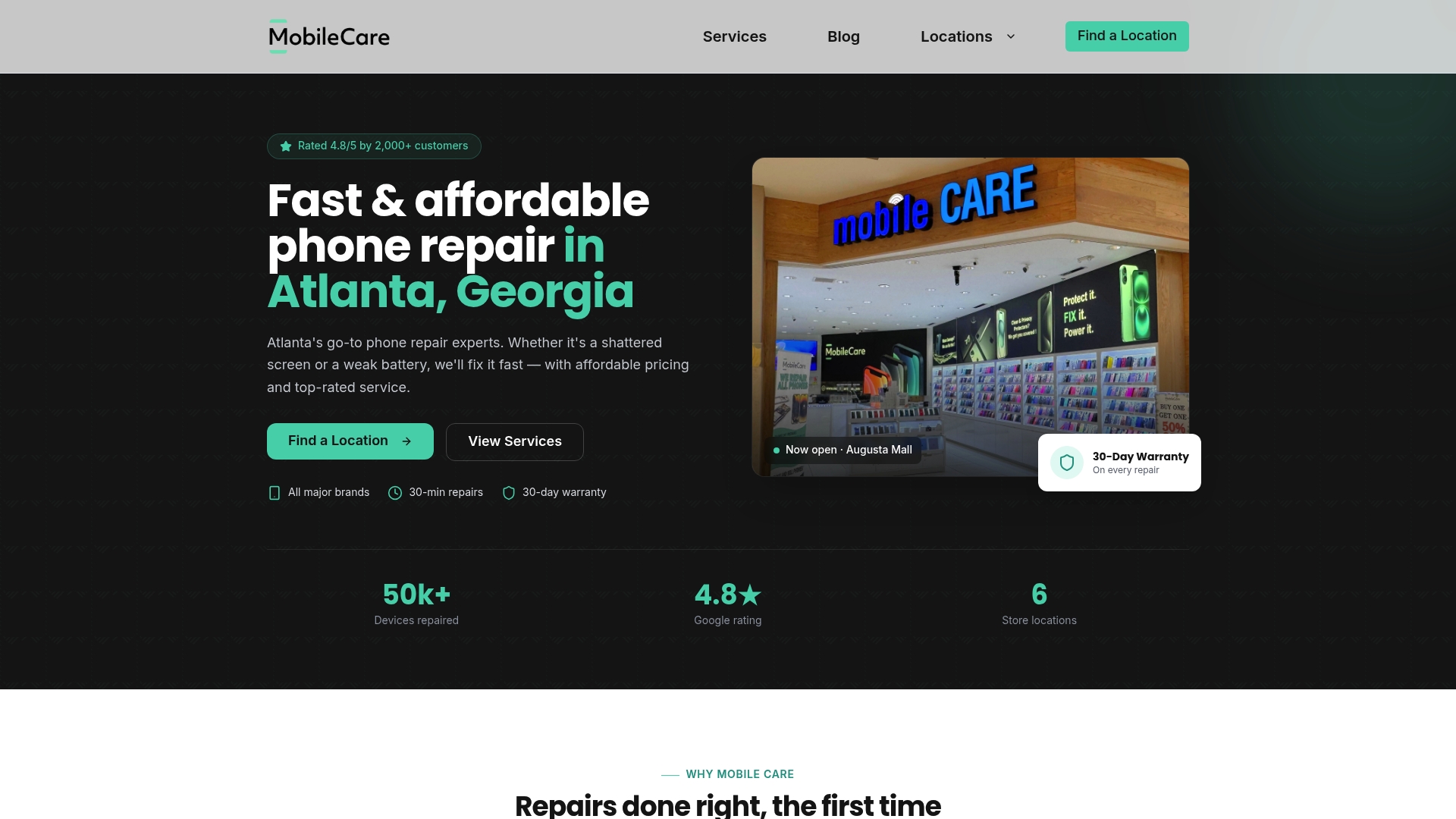
If the software steps did not stop the flicker, we can diagnose it. Mobile Care repairs smartphones, tablets, wearables and laptops across Atlanta, Georgia. Most repairs are completed the same day, often in 30 to 45 minutes, using quality-tested parts and certified technicians, and every repair carries a 30-day warranty. Our customers rate us 4.8/5 across more than 2,000 reviews.
See our screen replacement service in Atlanta or browse all of our repair services. If your laptop also has a dim backlit keyboard, our guide on a keyboard backlight that is not working explains what to check.
Our view: diagnose first, then fix once
Flicker is one of the symptoms where the cause decides everything. Some owners reinstall Windows or buy a new laptop when the real fault is a cable or a screen panel. Others keep replacing parts when a driver was the problem all along.
That is why we start with diagnostics: we look at whether the flicker follows the software, the screen or the connection, and then we quote the repair that fits. Our approach is to give you clear, transparent pricing before work begins, use quality-tested replacement components, and back every repair with a 30-day warranty.
We also know that a laptop is where people work, study and keep their files. Most of our repairs are completed the same day, often in 30 to 45 minutes, so you can get back to your day without a long wait.
SS
Habits that help prevent screen problems
- Open the lid from the center, not from one corner, and avoid carrying the laptop by the screen.
- Keep a cover or sleeve between the screen and the keyboard when closed, so a pen or earbud case cannot press into the panel.
- Install driver updates from your laptop maker or Windows Update rather than random download sites.
- Use the original charger or a quality match. Power faults are on the list of flicker causes.
- Restart the laptop regularly so pending updates finish properly.
FAQ
Why is my screen flickering on my laptop?
Usually a display driver problem or an incompatible app, and sometimes a hardware fault in the screen, cable or power supply. Open Task Manager: if it flickers too, suspect the driver, and if it stays steady, suspect an app. Flicker that survives those fixes points to the hardware.
Can bad RAM cause screen flickering?
It can in some cases, particularly if flicker, freezes or restarts started right after a memory upgrade. Power the laptop off, reseat the module and check for a BIOS update. If the problem continues, a technician can test the memory and the display separately.
How much does it cost to fix a flickering laptop screen?
A driver fix is free, while a hardware repair depends on the model and the fault. National ranges put professional laptop repairs at about $99 to $299, and screen replacement at $70 to $550 according to Fixr. For a quote for your laptop in Atlanta, visit Mobile Care.
What is the lifespan of a laptop screen?
A laptop screen can last as long as the laptop itself when it is treated gently, but drops, pressure on the lid and a worn hinge cable can shorten that. Flicker, lines or dimming are common signs the screen or its connection is wearing out. A diagnosis tells you whether a repair will restore it.
Sources
- Troubleshoot screen flickering in Windows, Microsoft Support
- How to Test Your Dell Laptop Screen, Dell US
- Why is My Laptop Screen Flickering?, Microsoft Surface
- How to Fix a Flickering Laptop Screen, HP
- Troubleshooting Display issues of your Laptop, MSI US
- Laptop Repair Cost Guide 2026, Fixr
- Apple Service and Repair for Mac Laptops, Apple Support