
When a MacBook stops recognizing a USB-C device, the cause is usually the cable, a hub, a power shortfall or a permission prompt, not the port itself. Work through those in order and you will solve most cases in minutes. If the same port fails with every cable and every device, or the connector wiggles, the port is the problem. That is a hardware repair, and we handle charging port repairs on laptops at our Atlanta locations, with most repairs finished in 30 to 45 minutes.
TL;DR
- Test one variable at a time: a different cable, a different port, a different device, and no hub or dongle in between.
- macOS can block a new accessory until you approve it, and unplugging then reconnecting can bring the prompt back.
- Charging problems often come from an adapter or cable that cannot deliver the wattage your MacBook needs, not from a dead port.
- A port that fails with every cable, feels loose, or only works when the cable is held at an angle needs a hardware repair.
- Our Atlanta technicians repair charging ports on laptops, most within 30 to 45 minutes, with a 30-day warranty on every repair.
Table of Contents
- Why a MacBook stops recognizing a USB-C device
- The five-minute test sequence
- If the device is invisible or throws an error
- MacBook not charging through USB-C
- A loose USB-C port or one that works only at an angle
- Signs the port is damaged
- What to do before you bring the MacBook in
- Promo: laptop charging port repair in Atlanta
- Our perspective
- FAQ
- Sources
Why a MacBook stops recognizing a USB-C device
USB-C is one connector shape that carries several jobs: power, data, video and charging. Because the shape is the same, a cable that looks right can still be wrong for the task. Some cables carry power only. Some cannot move data at high speed or send video. Engadget notes that not every USB-C cable supports high-speed data or video, so a “not recognized” message can be a mismatch rather than a fault.
Four causes account for most of what you will see:
- The cable or adapter. Frayed ends, bent connectors, or a cable built for charging only.
- A hub or dock. These often need their own power supply to run attached drives and screens.
- A permission or software block. macOS asks for approval before it talks to new accessories.
- The port. Debris, a worn connector, or damage inside the Mac.
The first three are free to rule out. The fourth is the one you cannot fix with a cable swap, which is why the order of your checks matters.
The five-minute test sequence
The goal is to change one thing at a time so the result tells you something. A widely used sequence, described by OS X Daily, starts with the physical connection, then a different port, a different cable or adapter, a direct connection with no hub, and finally the same port with a different device.
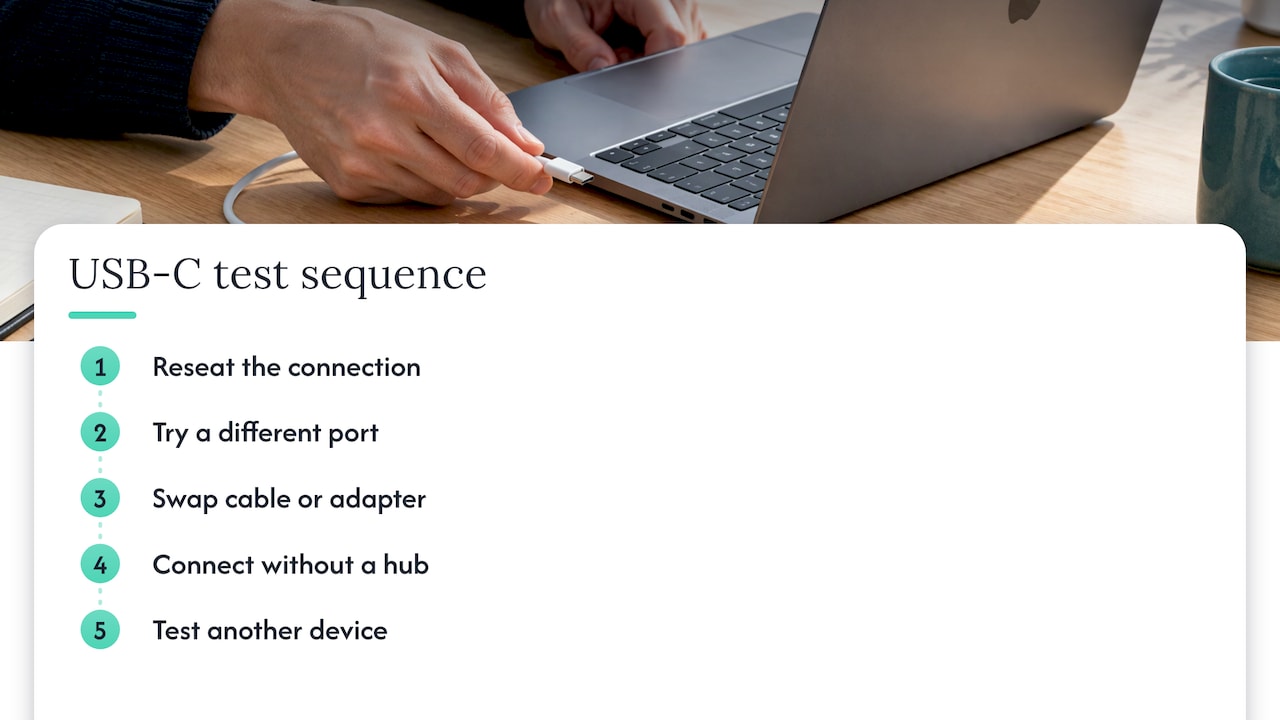
Step 1: Reseat the connection
Unplug the cable at both ends and plug it back in firmly. Look into the port with a flashlight. Visible lint or grime packed into the port can stop the plug from seating fully. Do not poke metal objects into it; the contacts inside are small and easy to bend. If you see anything stuck, that is a job for a technician with the right tools.
Step 2: Try a different port
Most MacBooks have more than one USB-C port. Move the device to another one. If it works there, the first port is suspect. If it fails in every port, the cable, device or a setting is a likelier cause than two broken ports at once.
Step 3: Swap the cable
Use a cable you know works, ideally one that carries data and not only power. Check the cable ends for fraying or browning. Engadget warns that browning or exposed wires on a cable are a fire hazard and the cable should be replaced, not reused.
Step 4: Remove the hub or dongle
Plug the device straight into the MacBook. If it works, the hub or adapter was the weak link. Hubs and docks frequently need their own power supply, so a hub that works on one day and not the next may simply be underpowered.
Step 5: Test with a different device
Plug a second, known-good device into the port that failed. If the second device works, the first device is the problem. If nothing works in that port, you have strong evidence the port itself is at fault.
| Result of the test | Most likely cause | Next move |
|---|---|---|
| Works with a different cable | Original cable | Replace the cable |
| Works in another port only | The first port | Look for debris, then consider repair |
| Works without the hub | Hub or adapter | Use a powered hub or connect directly |
| Second device works, first does not | The device | Check the device and its power |
| Nothing works in the port, with any cable | The port | Hardware repair |
If the device is invisible or throws an error
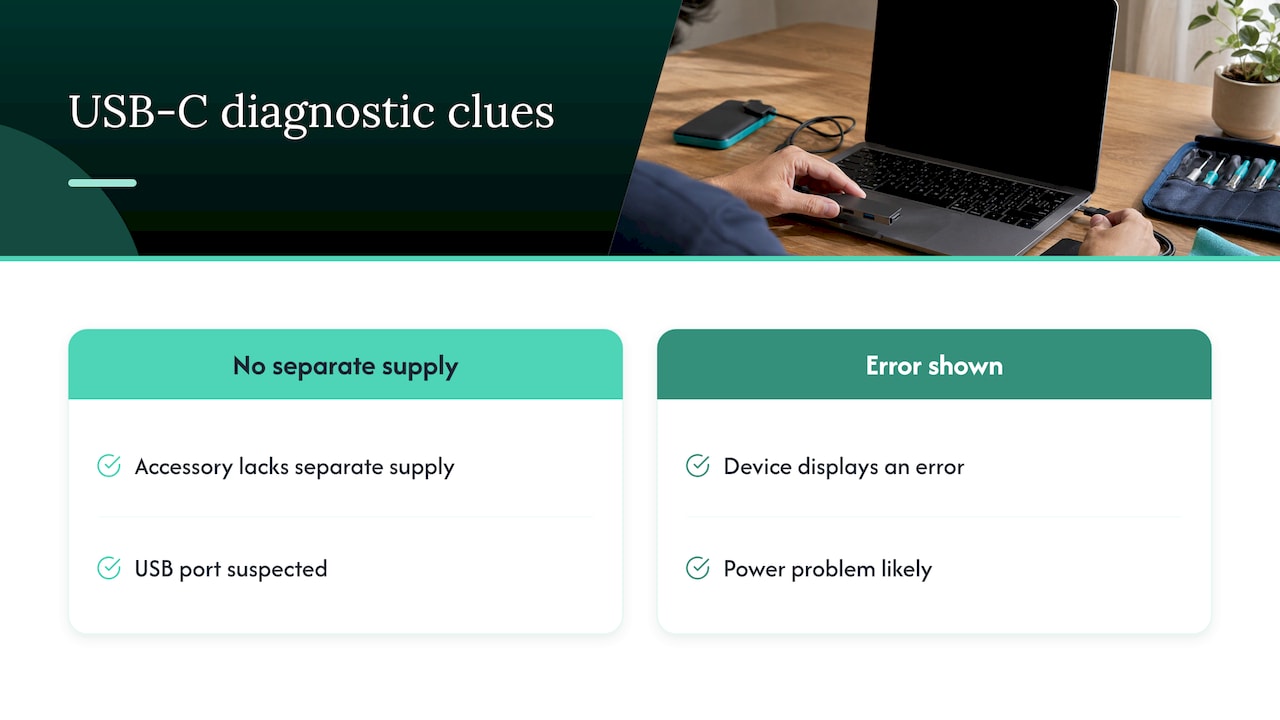
Open System Information on your Mac (hold Option and choose Apple menu, then System Information) and look under USB or Thunderbolt. If the device never shows up, power may be the cause. According to Engadget, an accessory with no separate power supply points toward the USB port, while a device that shows an error often has a power problem.
Approve the accessory
macOS requires your permission for accessories by default, and Engadget notes that unplugging and reconnecting the device can bring back a permission prompt you dismissed. If you clicked Don’t Allow once, the device can look dead. Unplug it, plug it in again, and approve the prompt while the Mac is unlocked.
Check the drive format
An external drive that mounts on a Windows PC but not on your Mac may use a file system macOS cannot read. Engadget lists APFS, FAT and ExFAT as the formats that work. A drive in another format can show as connected and still not appear on your desktop.
Restart and update
Restart the Mac with the accessory unplugged, then plug it in after the desktop loads. Install any pending macOS update through System Settings. This clears temporary glitches that make a port look dead.
MacBook not charging through USB-C
A MacBook that will not charge is the most stressful version of this problem, but the same logic applies: cable, adapter, port.
- Check the wattage. Engadget says many MacBooks charge slowly, report insufficient power or refuse to charge when the adapter cannot supply the required power. A phone charger will not keep a laptop going.
- Try the other ports. Charging works through any of the USB-C ports on most MacBooks. If one port charges and another does not, the one that does not is the one to look at.
- Inspect the cable. Replace any cable with bent ends or discoloration.
- Look for debris. Lint inside a port stops the plug from reaching the contacts, and the charging connection becomes intermittent.
- Try another outlet or adapter. This eliminates the wall and the power brick in one go.
If the Mac charges with a different adapter and cable in a different port but never in one specific port, that port has failed. Our guide to checks to run before a USB-C port repair goes through the same order with more detail on what the symptoms point to.
A loose USB-C port or one that works only at an angle
A port that needs the cable pushed to one side, or a connection that drops when you touch the desk, is mechanical wear. Here is what to check:
- Try a second cable. A worn cable plug can feel loose in a healthy port.
- Look for lint in the port, which can also make the plug sit loosely or fail to click in.
- Plug in at a gentle, straight angle and watch whether the connection holds without pressure.
- Note whether it happens with every cable. If so, the port’s internal contacts or its solder joints have worn.
Do not bend the cable to hold the connection, and do not keep forcing it. Each flex adds strain to the port and to the board behind it. Our page on a loose charging port and safe checks before repair explains the signs in detail, and the same logic holds for laptops.
Signs the port is damaged
You can be fairly confident the port is the problem when you see several of these together:
- The failure follows the port, not the cable, device or hub.
- Other ports on the same Mac work normally.
- The plug wiggles or does not click in firmly.
- The Mac charges only when the cable is held at a particular angle.
- You have had liquid near the Mac or dropped it on a corner.
- The port looks bent, scorched or has a cracked edge.
Liquid is worth special mention. If a MacBook was exposed to water and a port stopped working afterward, switch the Mac off and stop plugging things in. Corrosion keeps spreading while power is applied, and early attention gives the best chance of a clean recovery. We handle water damage repair as well.
The port is not always the whole story. Other faults on the board can show up as a dead port, and a technician can tell which is which with diagnostics. That is a good reason not to keep swapping parts yourself once the simple checks have failed.
What to do before you bring the MacBook in
A little preparation makes the visit faster:
- Back up your files if the Mac still starts. If it will not start or charge at all, tell the technician up front; we also offer data recovery.
- Write down the symptoms. Which port, which cables and devices you tried, and whether anything changed beforehand, such as a drop or spill.
- Bring the cable and adapter you normally use. It helps the technician compare behavior.
- Note the model and year, found under the Apple menu, About This Mac.
For students working to a deadline, professionals on the road and parents sharing a family laptop, the time lost matters more than the repair itself. That is the reason a same-day repair is worth looking for.
Promo: laptop charging port repair in Atlanta
Mobile Care repairs laptops, tablets, phones and wearables at our Atlanta, Georgia locations. For a MacBook whose USB-C port no longer charges or connects, our charging port replacement service is the relevant fix. Our certified technicians use quality-tested parts, most repairs are done in 30 to 45 minutes, and every repair carries a 30-day warranty. You pay in person at the store. Browse everything we repair on our services page.

If the symptoms are broader than the port, for example other ports are flaky or the laptop behaves oddly in general, our laptop USB port checklist can help you describe what is happening before you visit.
Our perspective
Most of the MacBooks that reach us with a “USB-C not recognized” complaint have already been through the cable swap and the restart. People are right to try those first. What they often have not done is test the same device in a different port, and that one test tells a technician more than anything else.
We think the best repair is the one that returns the laptop quickly. Waiting days for a mail-in service means days without your work, your coursework or your files. That is why we built our service around same-day repairs, with most finished in 30 to 45 minutes, performed by certified technicians who use quality-tested parts.
Clear pricing and a 30-day warranty on every repair are part of the same promise: you should know what you are paying for and have recourse if something is not right. If a port has stopped doing its job, a charging port repair is often a practical way to get a MacBook back to normal use without paying manufacturer-level costs.
SS
FAQ
Why is my MacBook not recognizing my USB-C device?
Start with the cable, then try another port and connect the device directly without a hub. macOS also asks permission before it connects to new accessories, and unplugging and reconnecting can bring the prompt back. If the device fails in every port with every cable, the port may need repair.
Why is my Mac not charging through USB-C?
The usual causes are an adapter that supplies too little power, a damaged cable, or debris in the port. Try another cable, adapter and port. If the Mac charges in one port but never in another, the second port has likely failed and a charging port repair can restore it.
How do I know if my MacBook USB-C port is damaged?
The fault follows the port rather than the cable or the device. The plug may feel loose, only work at an angle, or the port may show visible bending or damage. Other signs include a recent drop or liquid exposure. A technician can confirm the cause through diagnostics.
Can a loose USB-C port be fixed?
Yes. A loose port is a hardware issue where the connector or its mounting has worn, and replacing the port is the lasting fix. Avoid holding the cable at an angle to keep it connected, since the strain can make the damage worse.
Sources
- Why Your USB Device Isn’t Showing Up On Your MacBook And What To Do (Engadget)
- Fix USB-C Ports Not Working on MacBook Pro / Air (OS X Daily)