
Your phone shows a headphones icon, the speaker stays silent, and nothing is plugged in. The phone believes an audio device is still connected, so it sends all sound to an output that is not there. The cause is usually one of three things: a wireless device still connected in the background, lint or moisture in the port, or a software state that never reset. The fixes below run from the 10-second tests to the point where the port itself needs attention. If it does, our technicians at Mobile Care handle port, water damage and audio repairs in Atlanta, most of them in 30 to 45 minutes.
TL;DR
- Turn Bluetooth off first. If the speaker comes back, the phone was sending sound to earbuds, a car or a watch nearby.
- Next, plug in a pair of wired headphones and pull them out a few times, then restart the phone.
- Clean the port gently with the phone powered off. Use a wooden toothpick, never a metal pin.
- If the icon returns when you charge the phone or after it got wet, the port is likely worn or corroded and needs a repair.
- Mobile Care repairs charging ports, water damage and speaker and mic faults the same day, with a 30-day warranty.
Table of Contents
- What “headphone mode” actually means
- Step 1: Rule out Bluetooth in 10 seconds
- Step 2: Check where the sound is being sent
- Step 3: Plug in and unplug headphones
- Step 4: Restart, then update
- Step 5: On Android, test in Safe Mode
- Step 6: Clean the port safely
- Check for water exposure
- iPad stuck in headphone mode
- When it is a hardware fault
- Our view on headphone mode faults
- Get the sound back the same day
- FAQ
- Sources
What “headphone mode” actually means
When your phone detects headphones, it switches its audio route from the built-in speaker to the headphone output. That output can be a wired jack, a Lightning or USB-C adapter, or a Bluetooth device. The phone gets stuck when it still thinks something is connected. Media stops playing when you remove the headphones, and a headphones icon stays at the top of the screen.
The usual causes fall into three groups:
- A wireless device in the background. Earbuds in a bag, a car stereo or a smartwatch may still hold a connection.
- Debris or moisture in the port. Dirt or moisture in the charging or headphone port can make the phone read a connection that does not exist. On older phones with a 3.5mm jack, a small internal switch registers each plug-in, and lint or corrosion can leave it stuck.
- A software state that never reset. A stuck audio process or an app conflict can keep the old route active.
The order matters. Start with the free, fast tests that rule out software and wireless causes, then move to the port.
Step 1: Rule out Bluetooth in 10 seconds
This is the quickest way to tell a “ghost” wireless connection from a physical port problem. Turn Bluetooth off completely and play a sound. If the speaker works with Bluetooth off, the phone was sending sound to earbuds, a car or a watch somewhere nearby.
On an iPhone, open Control Center and tap the Bluetooth icon, or toggle Airplane Mode on and off. On Android, swipe down and tap the Bluetooth tile. If the speaker returns, you can fix the pairing instead of the phone:
- On an iPhone, go to Settings > Bluetooth, tap the info icon beside the device and choose Forget This Device. Forgetting AirPods also unpairs them from other Apple devices signed in with the same Apple ID.
- On Android, swipe down, tap the Bluetooth tile, tap Settings next to the connected device, then tap Disconnect.
If Bluetooth was never the issue, or the speaker is still silent, move on. Wireless connections that keep misbehaving are covered in our guide to fixing Bluetooth problems on phones and laptops.
Step 2: Check where the sound is being sent
Some phones are not stuck at all. They are simply routing audio to another output.
- iPhone: open Control Center, tap the AirPlay icon in the media panel and choose iPhone. Lifewire lists this check right after the plug-and-unplug reset.
- Pixel and other Android phones: swipe down from the top of the screen and tap the name of the audio accessory at the top right of the media panel to change where sound plays. In many music apps, tap the speaker icon during playback and choose “This phone.”
If the speaker option is missing from the list, the phone still believes headphones are plugged in. Keep going.
Step 3: Plug in and unplug headphones
It sounds too simple, but it works for a reason. Each insertion of a wired connector activates a small switch in the jack, so repeating the plug and unplug a few times can help a stuck switch return to the right position.
- Plug in a pair of wired headphones or the adapter you normally use.
- Push them in fully, then pull them out.
- Repeat five or six times, with a firm, straight motion.
- Play a sound with nothing connected.
On iPhones without a 3.5mm jack (Apple dropped it with the iPhone 7 in 2016), do the same with Lightning or USB-C headphones or an adapter. On an Android with USB-C audio, use a USB-C headset or adapter.
Step 4: Restart, then update
A restart clears stuck audio processes, which is one of the three common causes. Restart the phone fully, not just the screen. Then install any pending software update, since a software state that never reset is often fixed by a fresh system build.
On Pixel phones, the official steps to restart depend on the model: hold the Power button for about 30 seconds on a Pixel 5a or earlier, or hold Power and Volume up on a Pixel 6 or later. The same page suggests playing two or three different songs or videos from different apps afterward, which tells you whether the fault is the phone or one file.
Step 5: On Android, test in Safe Mode
If you suspect an app, Safe Mode loads the phone without third-party apps. Press Power and Volume Up, tap and hold Power off, then tap OK on the Reboot to safe mode window. If audio works there, restart normally and disable recently installed apps one at a time until the fault disappears.
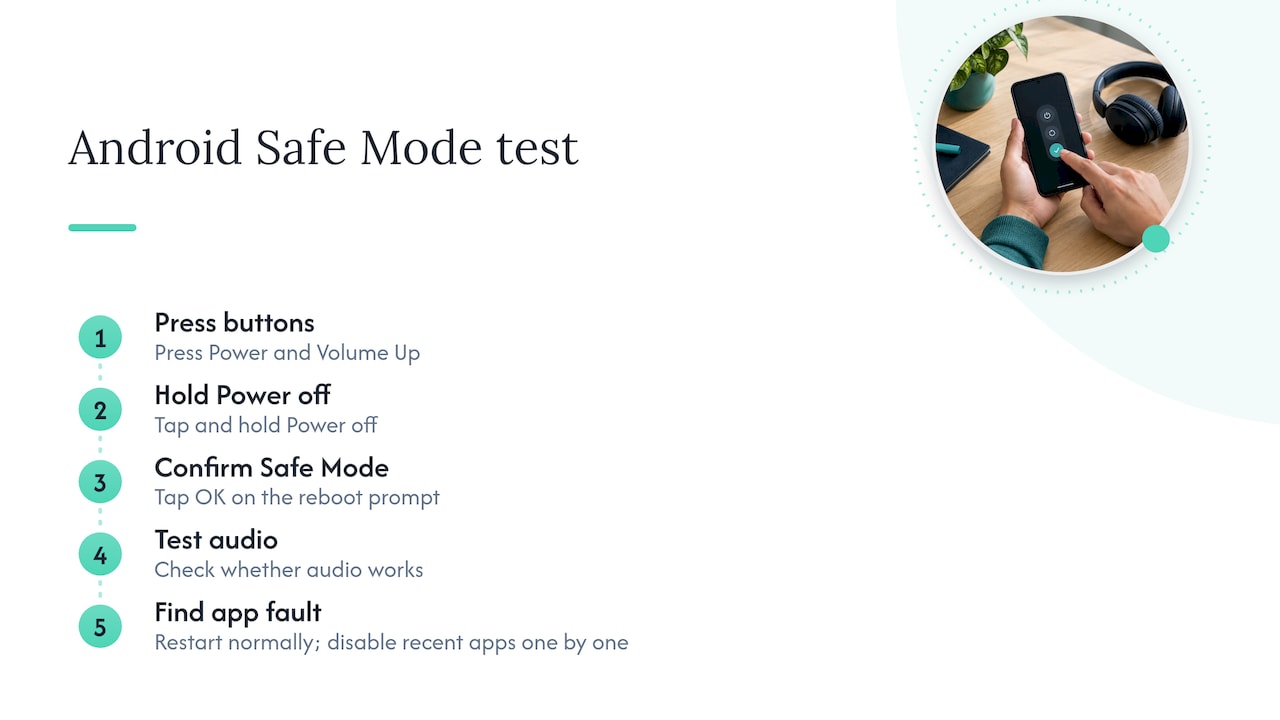
If the headphone icon is still there in Safe Mode, an app is not the cause. The problem is in the connector or the system settings, so the next steps apply.
Step 6: Clean the port safely
Lint is the most common physical culprit. Pocket dust packs into the recesses and can imitate a connected plug. Cleaning is worth doing, but only carefully, because the connector contains delicate parts.
- Power the phone off first. Turn off the iPhone before inserting anything into its ports.
- Use a wooden toothpick and a flashlight. A wooden toothpick is preferred over paper clips or compressed air, and Apple advises against compressed air for iPhones. Gently scrape along the walls and pull the lint out.
- Never use a metal rod or pin. Metal can permanently damage the port’s delicate parts.
- Do not dry a wet phone in rice. Rice can leave residue and obstruct the ports.
If you see green or white crust, or the phone recently got wet, stop. Corrosion is not something a toothpick fixes, and every day it sits it spreads. Our water damage repair service in Atlanta handles that case, including corrosion cleaning.
Check for water exposure
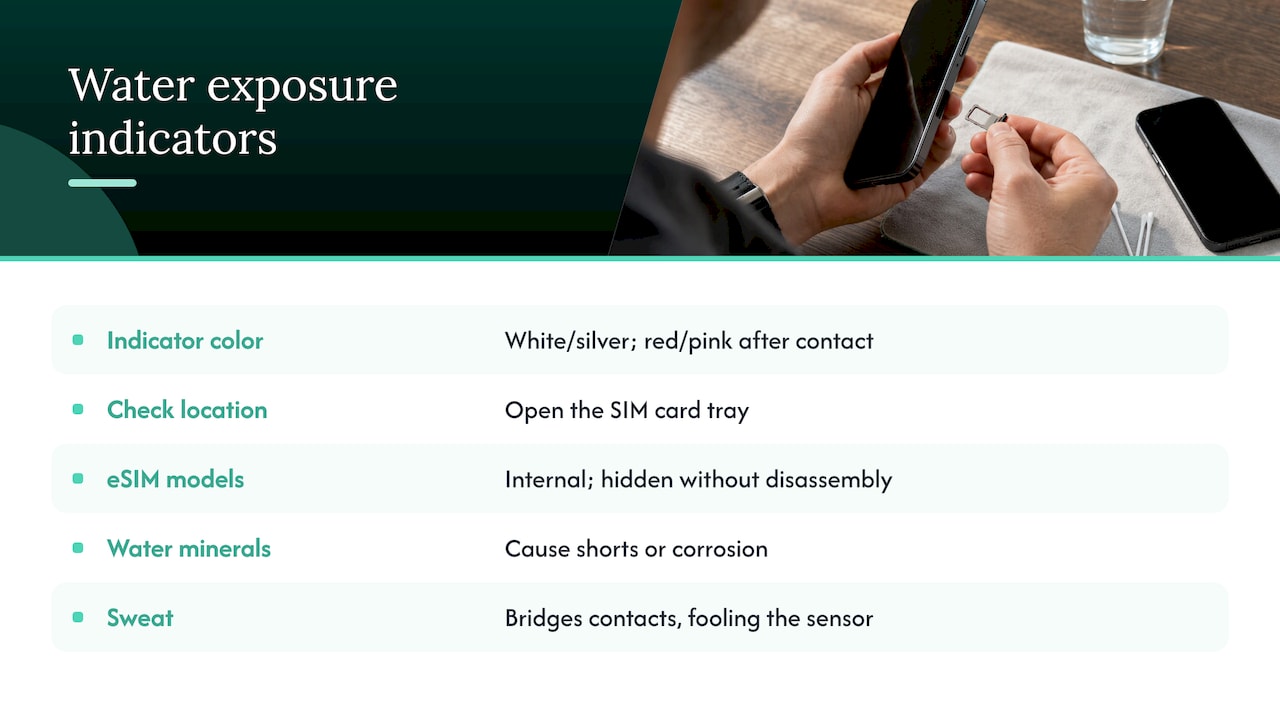
On iPhones, a Liquid Contact Indicator shows whether liquid has reached the inside. The sticker is normally white or silver and turns red or pink after water contact, and you can check it by opening the SIM card tray. Newer eSIM-only models have only internal indicators that cannot be seen without disassembly.
Water itself is not the whole story. It is the impurities and minerals in water that cause short circuits or corrosion of jack materials, which then confuse the iPhone into reading headphones as plugged in. Sweat counts too: moisture or sweat can create a small electrical bridge between contacts that fools the internal sensor. That is why gym phones and smartwatch-adjacent accessories are common cases.
iPad stuck in headphone mode
The same logic applies to iPads, with a few differences:
- Open Control Center, tap the AirPlay icon and select iPad Speaker.
- Turn Bluetooth off, or set the headset to connect “When last connected to this iPad” rather than Automatically.
- Force-restart. Without a Home button, press and release the volume button closest to the top button, then the one farthest from it, then hold the top button until the Apple logo appears. With a Home button, hold the Home and top buttons together until the logo appears.
- Clean the audio jack or charging port gently with the device off.
For a child’s iPad, the cause is often a charging port full of crumbs and lint, or a Bluetooth headset left on in another room. If the iPad has other power or startup problems, see what to try before booking an iPad repair.
When it is a hardware fault
You have likely done enough at home when the speaker stays silent after the Bluetooth test, the plug-and-unplug reset, port cleaning, a restart and an update. Specific signs point to the port:
- The headphone icon returns every time you charge the phone.
- The icon only appeared after the phone got wet.
- The problem persists even after a factory reset, which suggests the connector is damaged and needs technical service.
On many phones the audio detection sits in the same assembly as the charging port, so the repair is a port replacement. Our guides on headphone jack repair and iPhone charging port replacement explain the signs and what the job involves.
A different symptom has a different checklist. If the speaker works for calls but not for music, or the sound is scratchy rather than silent, that points to another fault. If callers cannot hear you, see our guide to Android microphone fixes.
Our view on headphone mode faults
Most phones that come to us stuck in headphone mode have already been through the restart and the plug-and-unplug routine. What remains is almost always physical: lint packed deep in the port, a little corrosion from sweat or a spill, or a worn connector.
That is why we start with diagnostics rather than guesses. A technician looks at the port, finds out whether it needs cleaning or a replacement component, and tells you the price before the work begins. Our certified technicians use quality-tested parts, and most repairs are finished in 30 to 45 minutes, so you are not without your phone for days.
The goal is simple: you leave with working sound and a 30-day warranty on the repair, not another weekend of trial and error with a toothpick.
SS
Get the sound back the same day
If your phone, tablet or watch is still stuck after the steps above, Mobile Care can look at it in Atlanta. We repair charging ports, speakers and mics, water damage and software issues, with certified technicians, quality-tested parts and transparent pricing. Most repairs take 30 to 45 minutes and carry a 30-day warranty, and our customers rate us 4.8/5 across more than 2,000 reviews. See everything we fix on our services page, or go straight to charging port replacement.

FAQ
How do I turn off headphone mode on Android without headphones?
Turn Bluetooth off, then plug in wired headphones and remove them a few times. Restart the phone and test in Safe Mode if the icon stays. If it survives a factory reset, the connector is the likely cause and needs a repair.
Why does my phone speaker not work but headphones do?
The phone may be sending sound to a connected Bluetooth device, or its detection may be stuck on headphones. Check the audio output in the media panel, turn Bluetooth off and restart. If the speaker is silent even with other apps, lint, corrosion or a damaged port is the next suspect.
Can a stuck headphone icon damage my phone?
The icon itself does no harm, but what causes it can. Moisture and corrosion spread over time, and pushing a metal pin into the port can damage it. If the phone has been wet, have it looked at sooner rather than later.
Is my iPhone stuck in headphone mode if it has no headphone jack?
Yes, it can happen. The Lightning or USB-C port can hold debris or moisture that fools the phone into reading an accessory as connected. Plug in and remove a Lightning or USB-C headset a few times, then clean the port carefully with the phone off.
How long does a headphone mode repair take?
At Mobile Care, most repairs are completed the same day, often within 30 to 45 minutes. A technician checks the port first, so you know whether it needs cleaning or a replacement part.
Sources
- How to Turn Off Headphone Mode On Android, Headphonesty
- Why Is My iPhone Stuck in Headphone Mode, Headphonesty
- Phone Stuck in Headphone Mode? Try the 10-Second Test, MobileTechToday
- What To Do If Your iPhone Is Stuck In Headphone Mode, SlashGear
- How to fix an Android phone speaker that’s not working, Android Police
- Listen to music, calls and more on Pixel, Pixel Phone Help
- Why can’t I hear sound from my Pixel phone, Pixel Phone Help
- How to Fix iPhone Stuck in Headphone Mode, Lifewire
- 8 Fixes for an iPhone Stuck in Headphone Mode, MakeUseOf
- How to turn off headphone mode on an Android phone, AndroidAyuda
- iPad Stuck in Headphone Mode? Here’s How to Fix It, wikiHow